Test your 3D configurator
In step 6 of Set up model, Test, you try your model as your customer gets it: the 3D model with the choices beside it and the order under it. On top of that you see what only you see: what a choice shifts and which drawing is stretched at a size. Portal does not save what you click here.
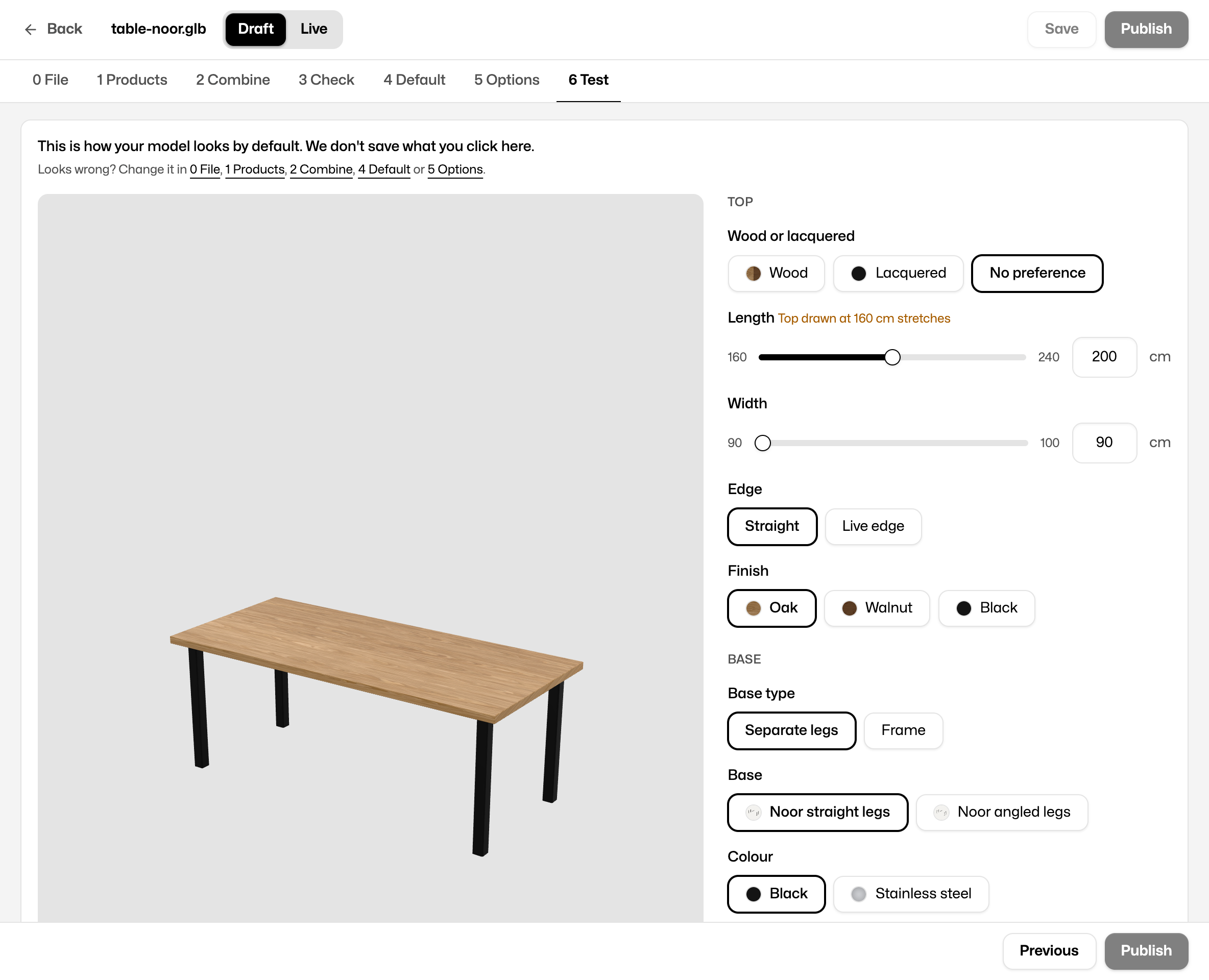
Step 6 shows what is saved. When you changed something and did not save it yet, the step says so. Then save first to try your changes.
Try the table Noor
Section titled “Try the table Noor”From the default you can also try 1 other choice yourself.
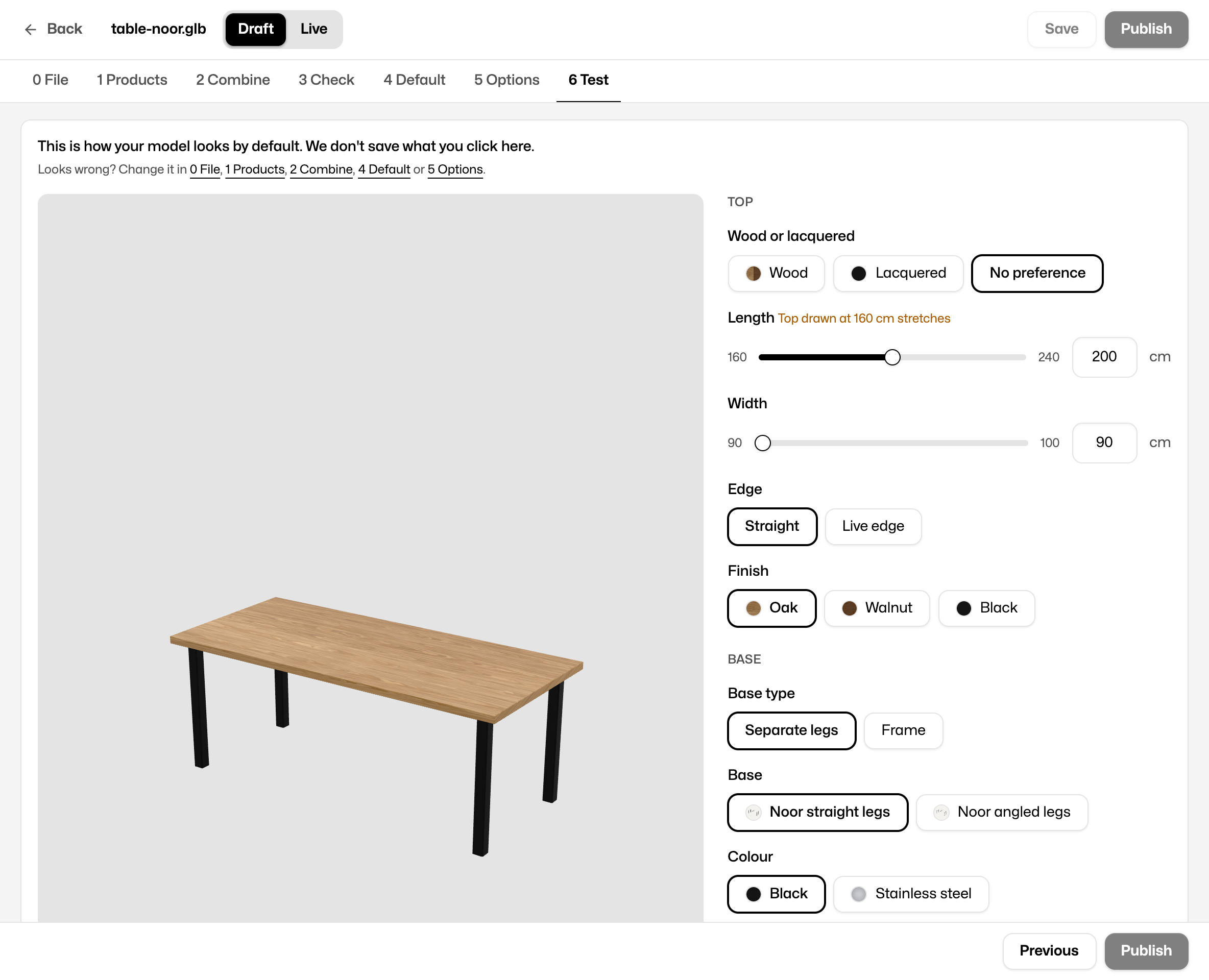
The screen is loading
When something is not right
Section titled “When something is not right”Change it in the step named at the top. Save and test again.
When everything is right
Section titled “When everything is right”Choose Publish at the foot, beside Previous. Your customer then gets what you tested here. See Publish.
You find step 6 at your model in Modelsopens Portal, under Set up model.