A size that stretches in your 3D model
When your customer picks a longer top, the table in the model gets longer. The legs stay under the corners.
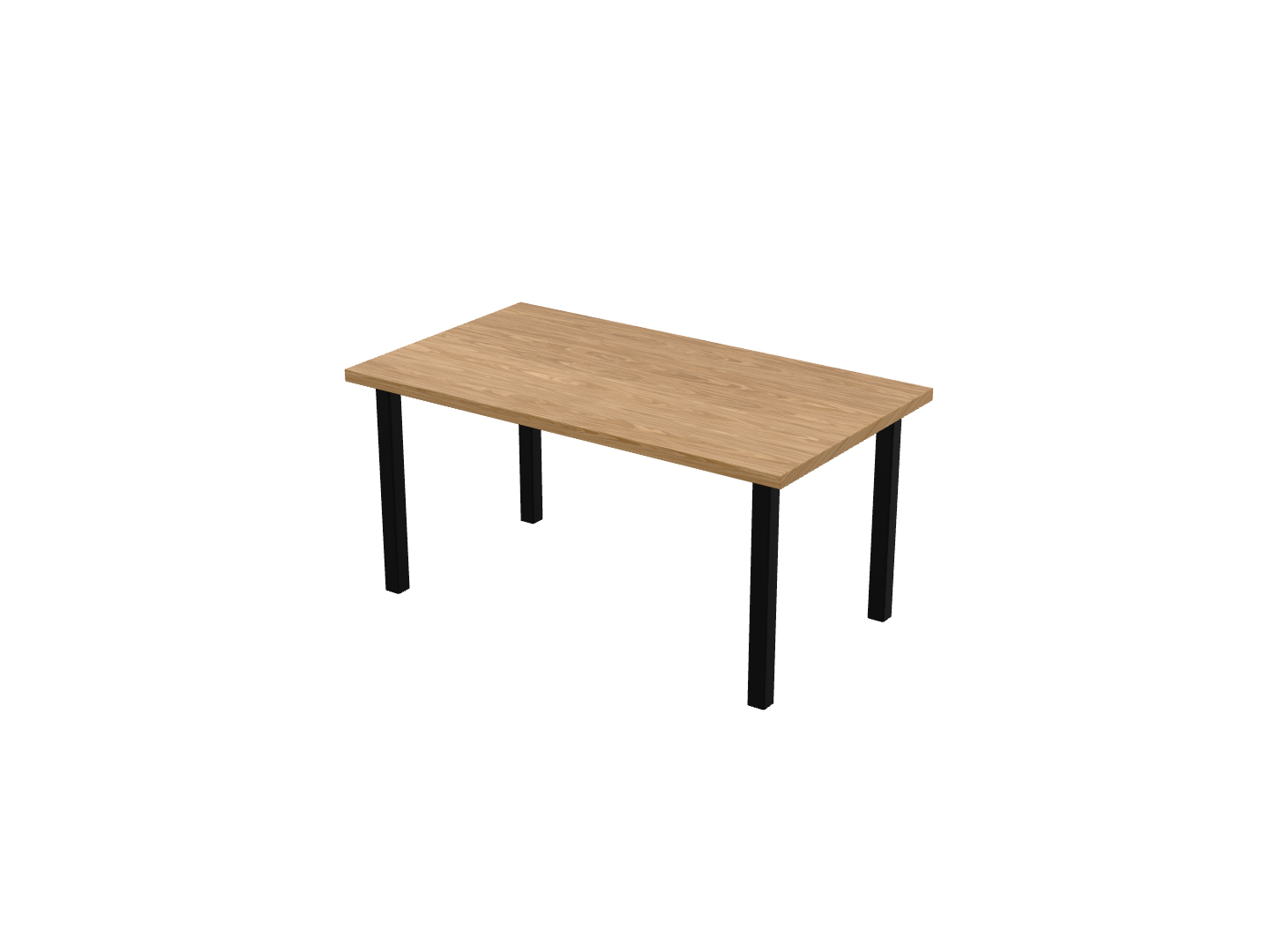 The top as it is drawn
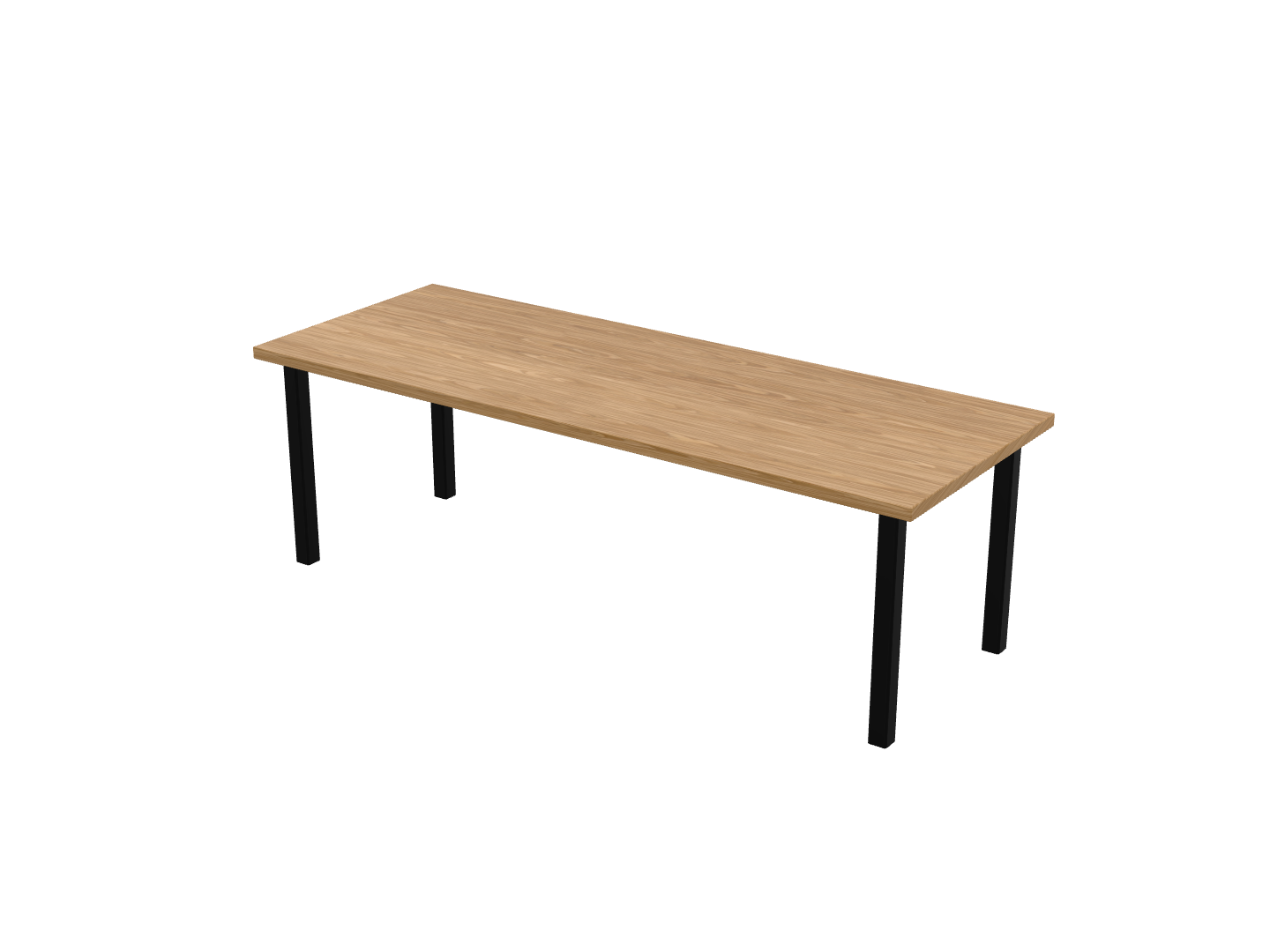 The same top, stretched. The legs move with it.
1 drawing for every length
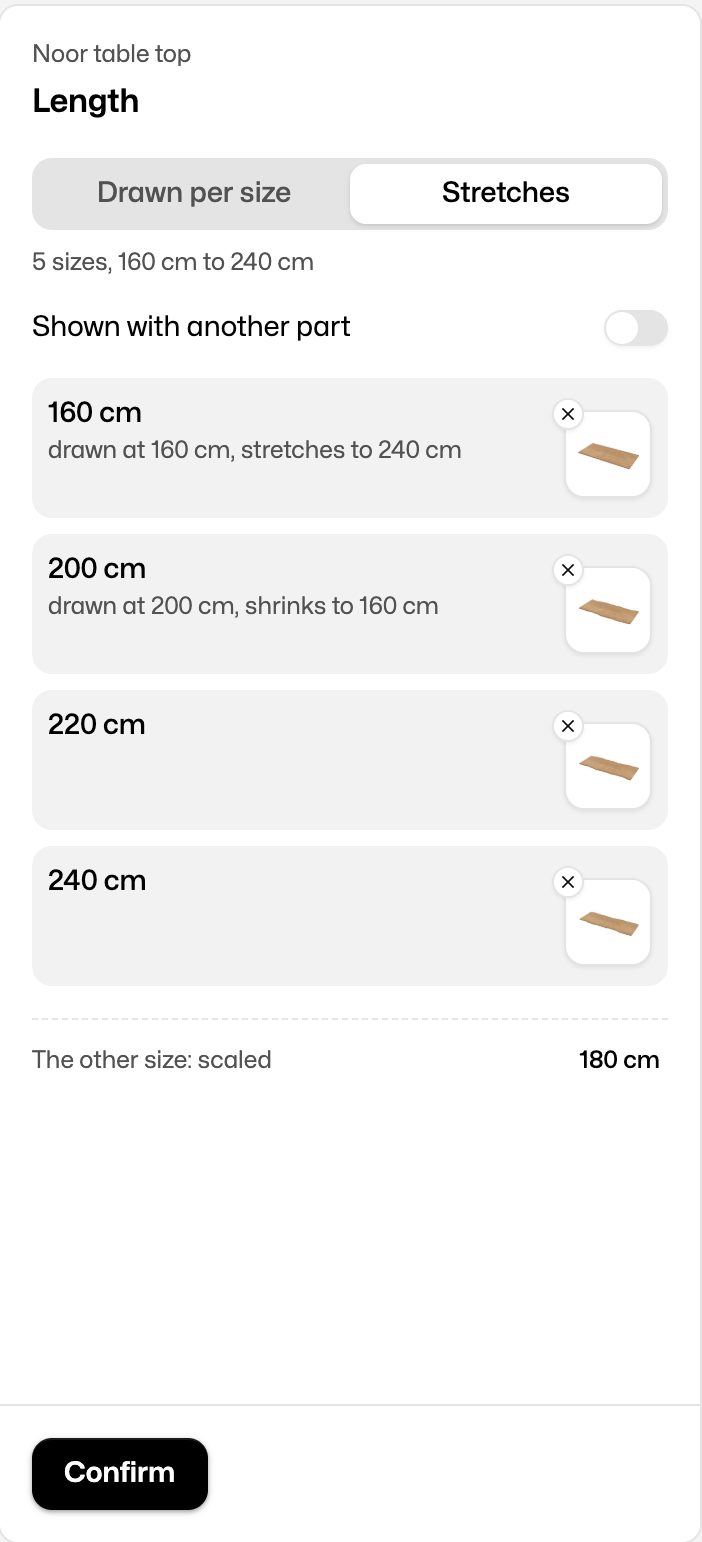
Section titled “1 drawing for every length”The straight top of the table Noor is drawn once, at 160 cm. Length is on Stretches. At a longer length Portal
stretches that drawing, up to 240 cm. So for 5 lengths you need 1 object.
- In step 2, open the size, such as
LengthatNoor table top. - At the top, choose Stretches.
- At Click what is drawn at, pick the size the object is drawn at, such as 160 cm.
- Under From the file, click the object.
- Choose Confirm and then Save. Your customer sees it after Publish.
More drawings of 1 shape
Section titled “More drawings of 1 shape”When you stretch a live edge, the waves in the edge stretch with it and it looks pulled out. That is why Studio
Lindeman drew the live edge 3 times, at 200, 220 and 240 cm. Each top stands at its own size under Length, so each
length shows its own drawing.
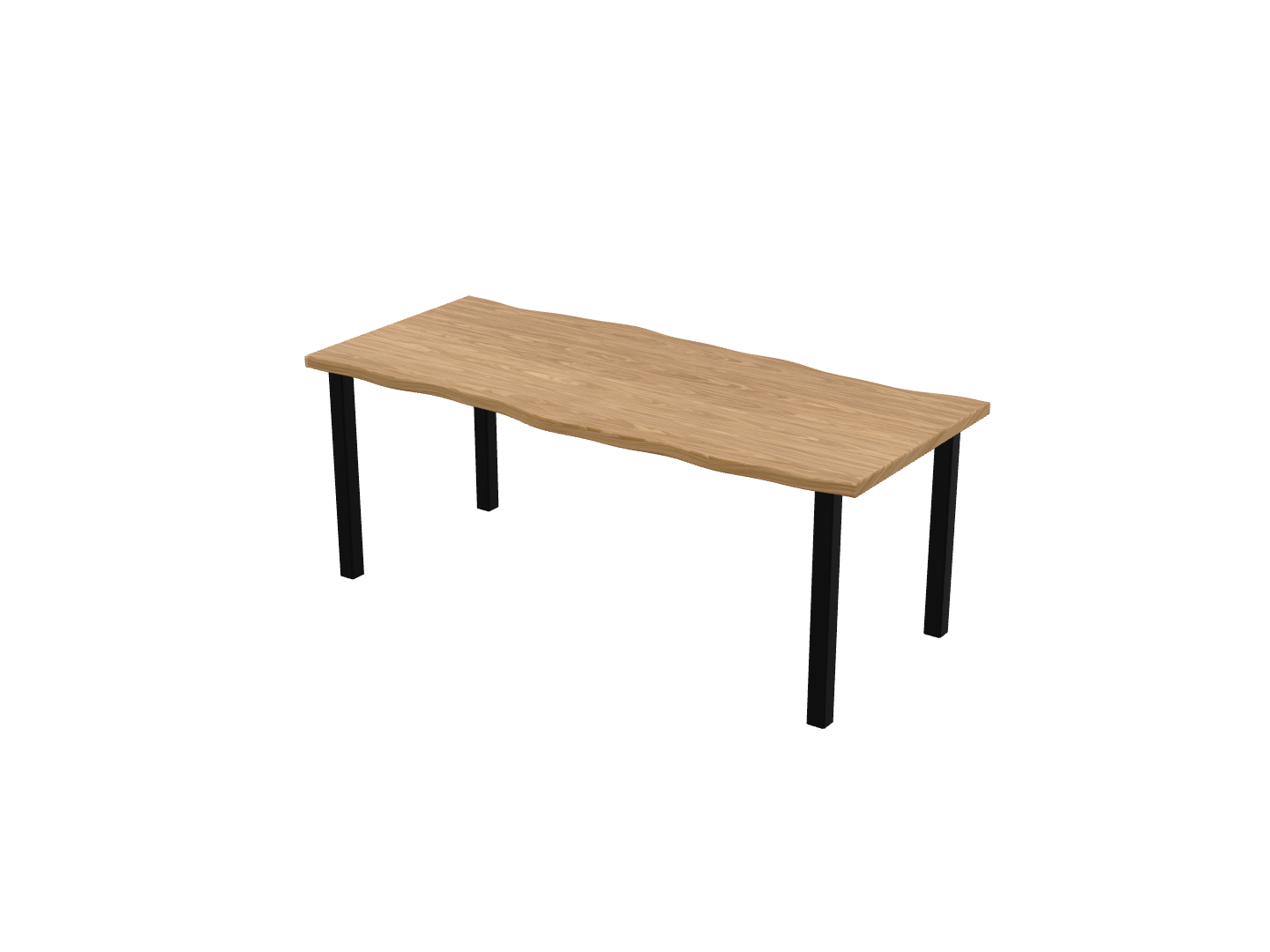 The drawing of 200 cm
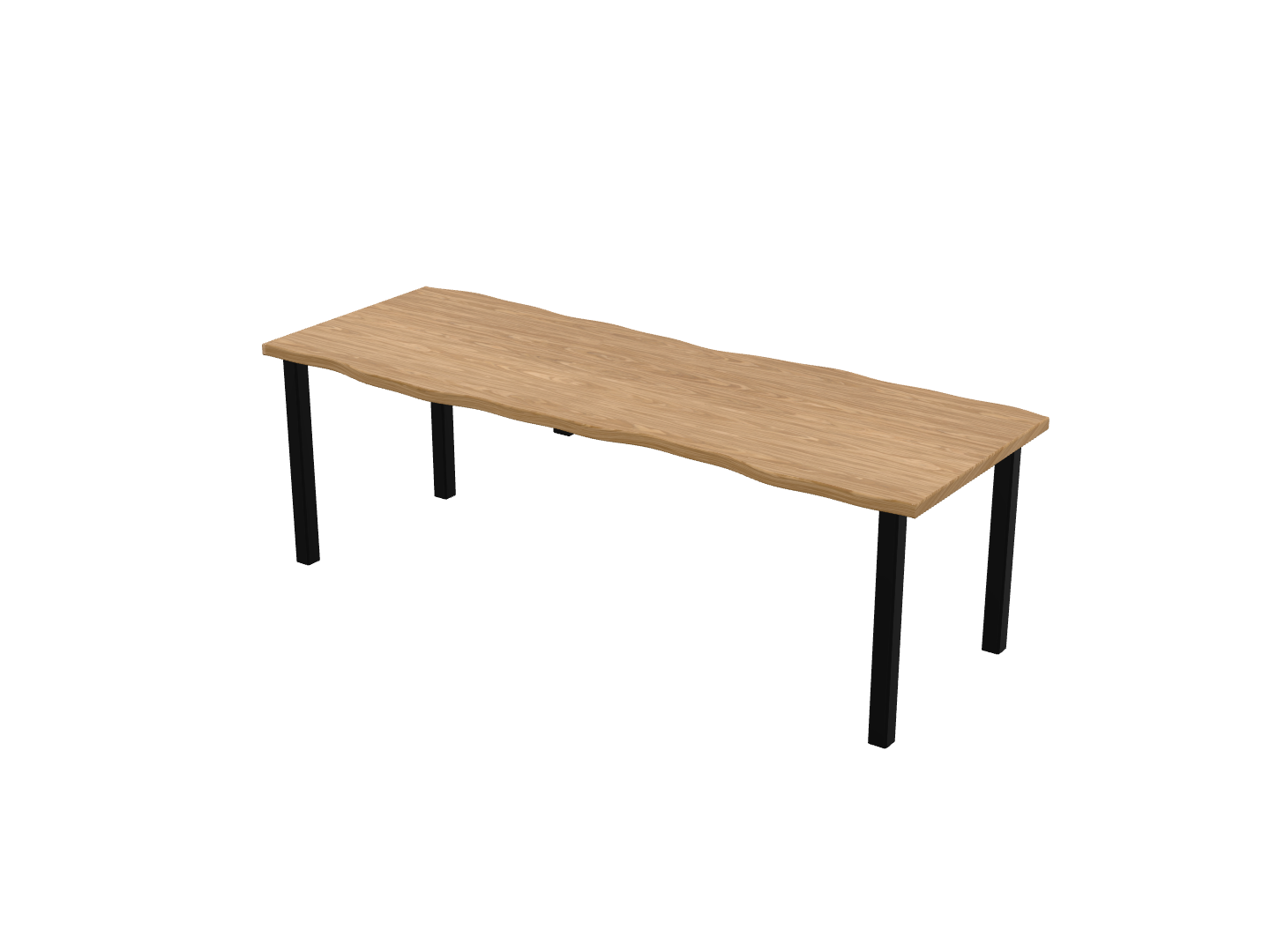 The drawing of 240 cm
Straight and Live edge are 2 kinds of objects in the same Length. Per kind, Portal shows the drawing at or just
under the size picked, stretched to that size. When the size is under the smallest drawing, the smallest shrinks. At
Straight there is 1 drawing, the one of 160 cm. At Live edge, 220 cm shows the drawing of 220 cm.
The legs move with it
Section titled “The legs move with it”When the top stretches, the legs move with the edge of the top. You set that per product. Each product of another part has a line of its own in step 2, with only its name. It opens Moves with the edge, with a switch per size that stretches, such as when Length of Top changes.
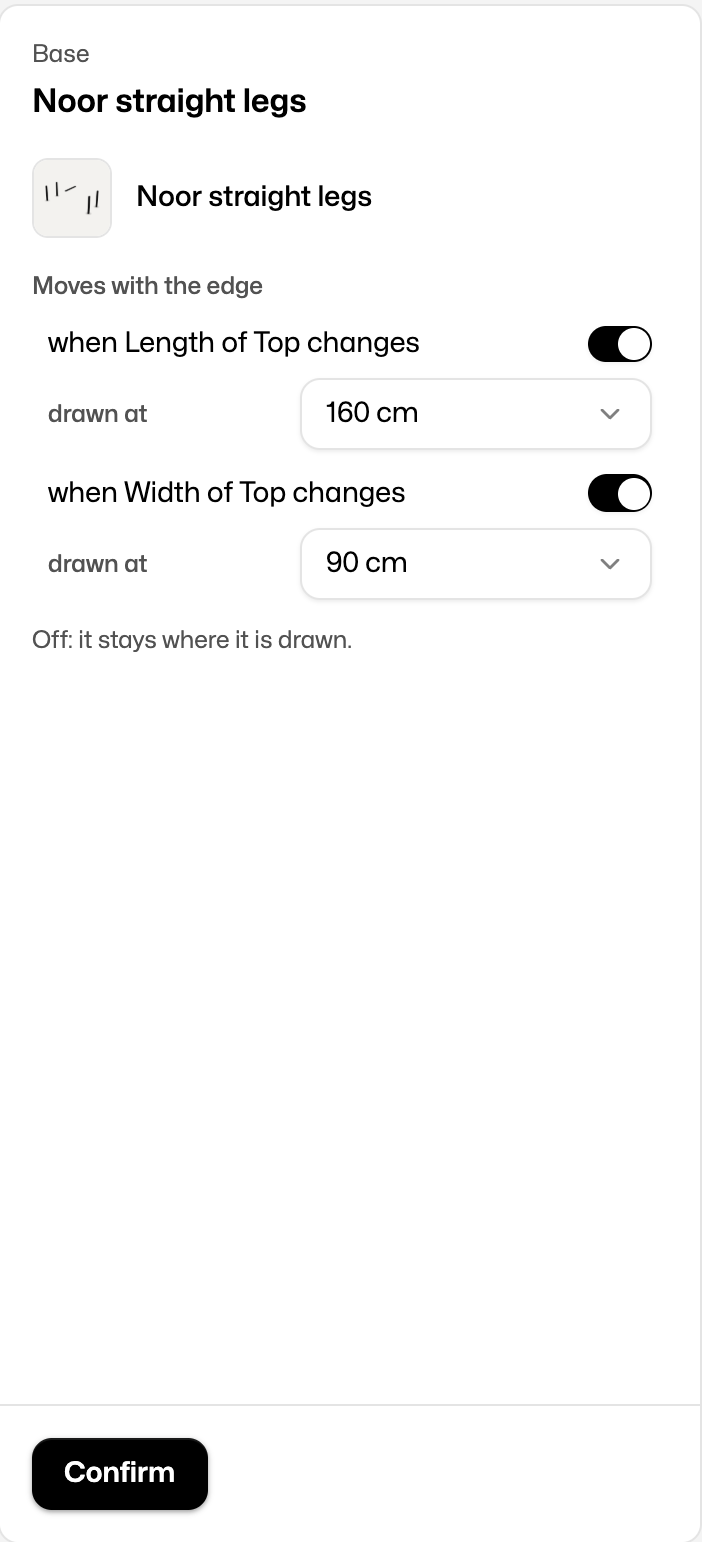
- When the switch is off, the product stays where it is drawn.
- When it is on and the other part has more drawings, you pick at drawn at from which size the place of the product counts. Confirm waits for that.
On the table Noor the 4 bases move with the length of the top, the separate legs with the width too. Step 3 lists under When a size stretches what moves with it, with Change in step 2.