Upload a 3D model
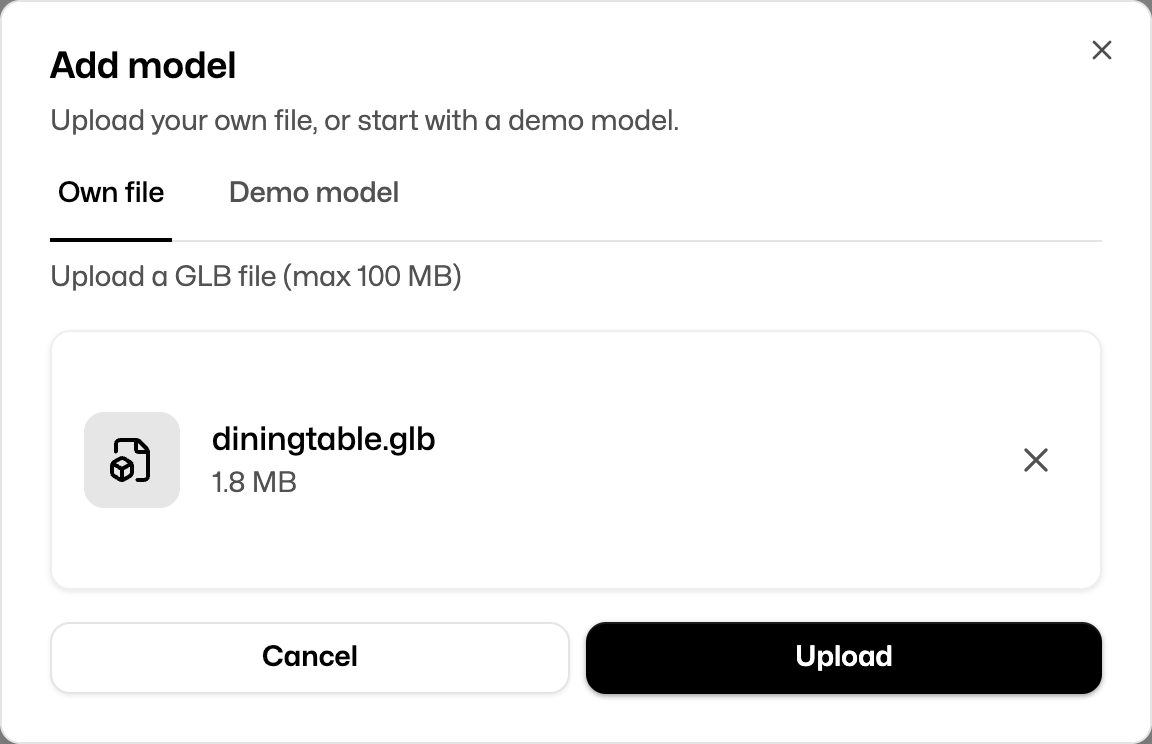
You put a 3D model in Portal by uploading its file. It must be a GLB file of at most 100 MB. You make a GLB file in your 3D software, by exporting as glTF Binary.
- Go to Modelsopens Portal.
- Choose Upload model.
- Drag your file into the box, or click it and choose the file.
- Choose Upload.
What happens after the upload
Section titled “What happens after the upload”First it says Processing. We check your file and rebuild it, so it is safe to load on your site: references to separate files and unknown content are taken out. Your model looks the same afterwards, with the same objects, materials and textures. A large model can take a minute.
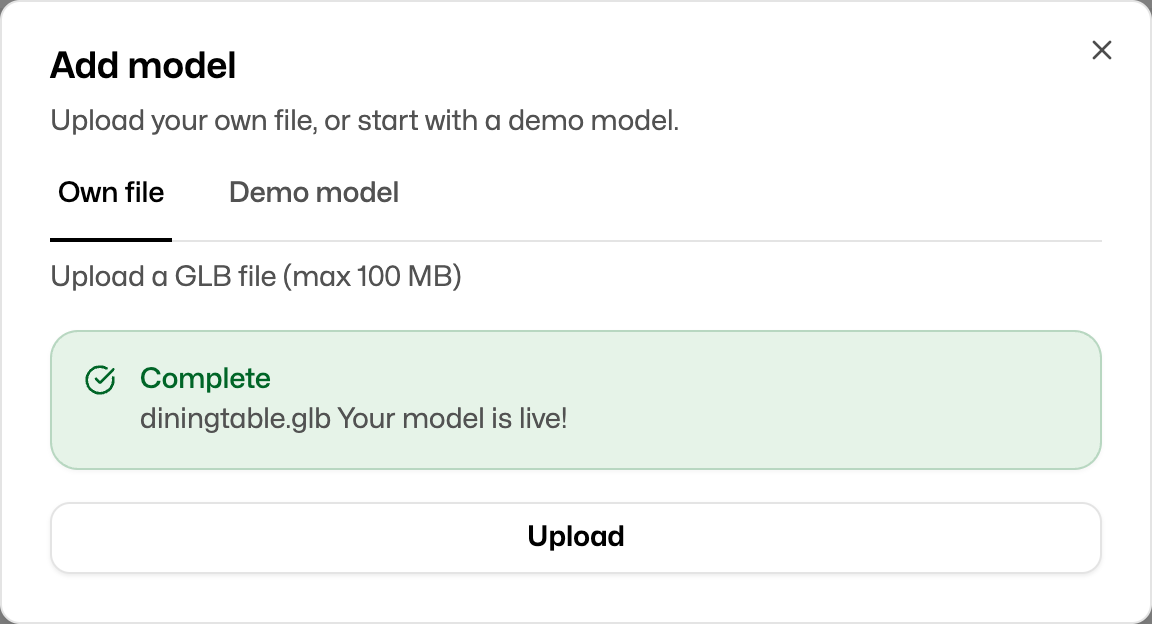
Then it says Complete and Your model is live!. Your model is in the list, with a viewer you can put on your site straight away.
If it does not work, Portal says why. What to do then is in When your upload fails.
Your model’s name
Section titled “Your model’s name”Your model is named after your file, without .glb. We write the name in lower case without accents, turn a space into an underscore
and leave other characters out, a hyphen included: Dining Table Noor-2.glb becomes dining_table_noor2.glb. When
the name changes, the line under your file says how it will be saved. Choose a file name that says which product it
is.
If you already have a file with the same name, Portal asks whether you want to replace it, keep both or give your upload another name.
No file of your own to hand? Start with a demo model.