Resolve remarks on your 3D model
A remark in step 3 is something Portal notices about your model. Each remark says what it means for your customer. Often Portal asks what you want to do with it. Then you pick an answer. Your answer changes the step it belongs to. It is stored only after Save. Until then it reads Changed. Save to check again.
The table Noor has no remarks. Each section below says when a remark appears and what you can pick.
Object missing
Section titled “Object missing”You replaced the 3D file. An object that was in a product is no longer in it. Your customer then sees the product without that object. This remark is at the top.
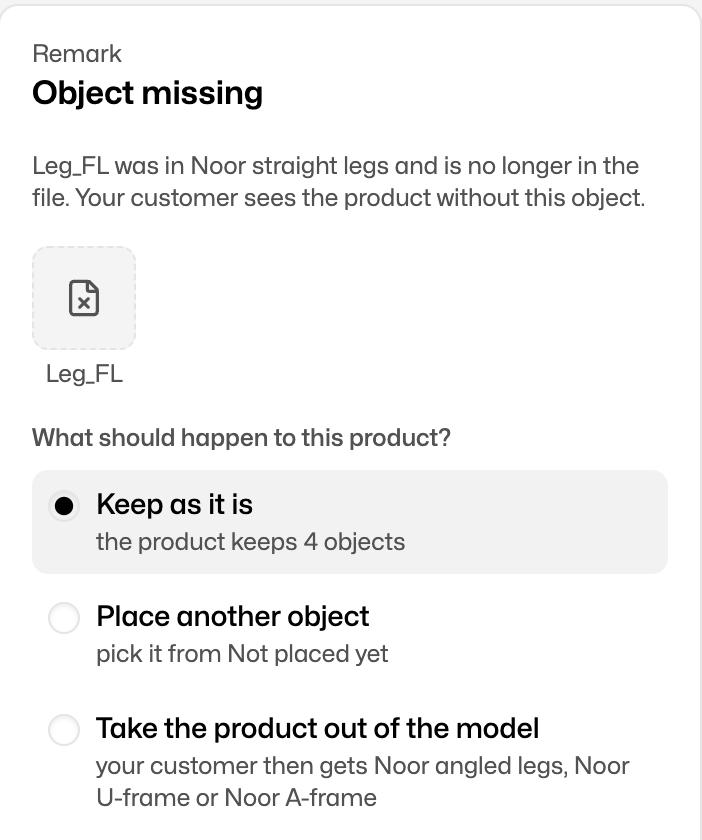
- Keep as it is: the product keeps the objects that are still there.
- Place another object: you pick an object from Not placed yet.
- Take the product out of the model: the product leaves its part. This answer says what your customer then gets.
See also An object that is missing.
In no product
Section titled “In no product”Objects are included, but are in no product. They are always shown, at every choice.
- Keep showing: nothing changes.
- Leave out: the model never shows them.
- Put in a product: you pick a product. They then show with that product.
Default name
Section titled “Default name”A part is still called Part 1 and your customer reads that name. That happens when the part holds several products or
may stay empty. It also happens when it asks what another part asks too. Give it a name of its own here, such as
Base.
Always shown
Section titled “Always shown”An object of a product stands at no value, while other objects of that product do stand at a value. It then shows at every value.
- Keep showing: nothing changes.
- Leave out: the model never shows it.
- Place at a value: you pick the value at which it shows.
Material at no value
Section titled “Material at no value”A material on the objects of a product stands at no value, while another material does stand at a value. It then never shows.
- Keep as it is: the material stays unused.
- Place at a value: you pick the value at which it shows.
Not drawn at a size
Section titled “Not drawn at a size”A size is on Stretches, but no object of the part stands at a size. So the model does not change with that size. In the answer, place the object at the size it is drawn at.
Nothing to count from
Section titled “Nothing to count from”A product moves with a size of another part, but that part is not drawn at a size. Then Portal does not know where the product belongs. In the answer, set at Moves with the edge from which size it counts, or switch it off.
Drawn size differs
Section titled “Drawn size differs”An object stands at a size, but is drawn at another size in the file. Portal puts the size you sell beside the size that is drawn. Pick whether the size is Drawn per size or Stretches. See A size that stretches.
Unit of the file
Section titled “Unit of the file”Portal does not know which unit the file is drawn in. Then Portal compares the sizes with each other, not as they are drawn. Pick the unit at The file is drawn in.
Excluded default
Section titled “Excluded default”The model opens with a combination a rule excludes. Your customer cannot pick that combination. Pick another value in the answer. The model then opens with a combination your customer can pick. See also Choose what your 3D configurator opens on.
Size with no matching product
Section titled “Size with no matching product”A product of another part follows a size, but at a few sizes no value of that product fits. Your customer then cannot pick those sizes. At Shown with, pick which value of the product goes with those sizes. When the product is not for sale in those sizes, the remark says so. Then sell the product in those sizes too. Or switch those sizes off at the other product.