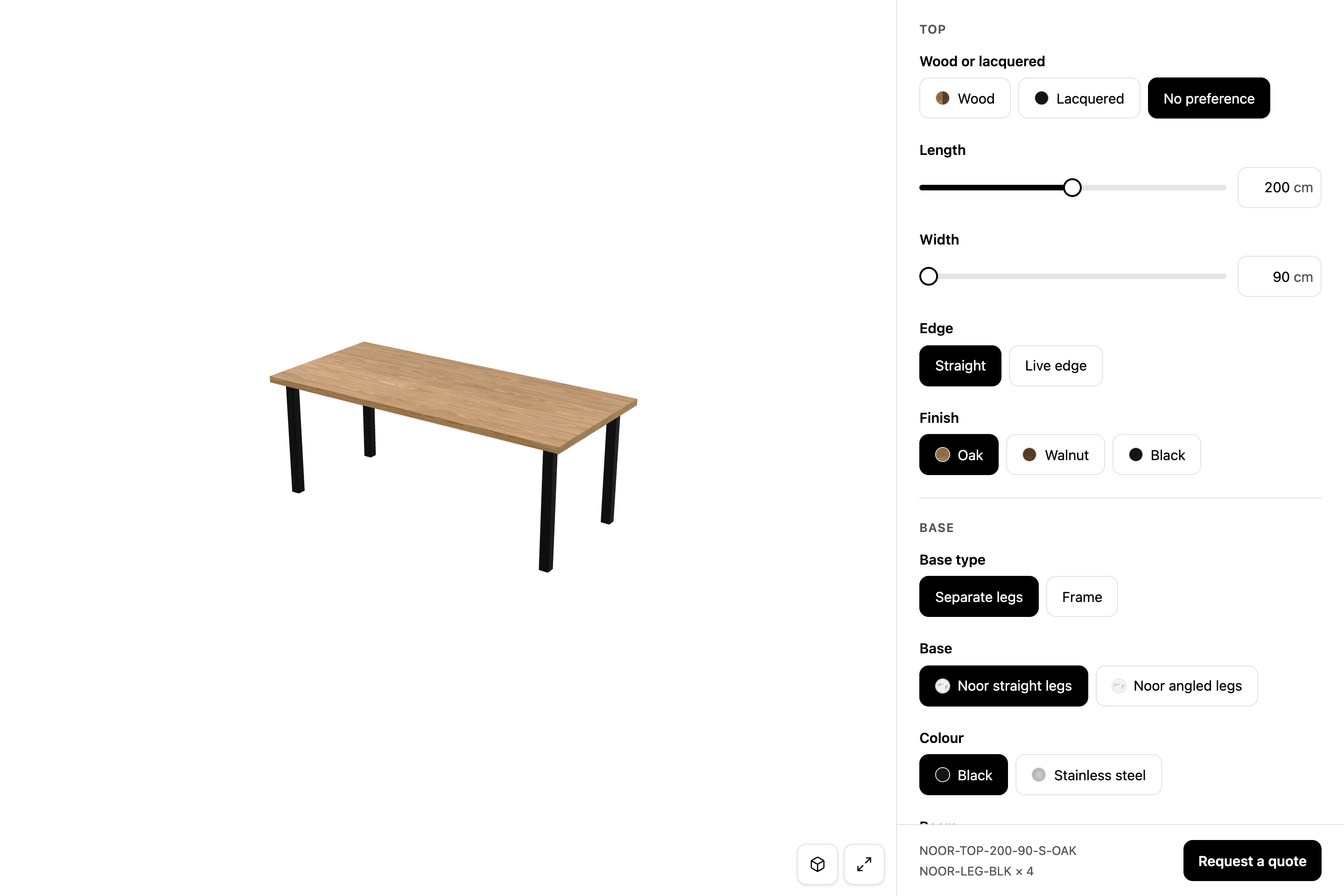
Studio Lindeman sells the table Noor with a top in 5 lengths, 2 widths, 2 edges and 3 finishes, on 4 bases. In the
configurator on their website, their customer chooses that. The table in 3D changes with every choice.
At the foot stand the SKUs of what your customer picks. Those go on their request.
You make such a configurator from 2 things: the 3D file of the table and your products in Portal. In Set up
model you bring them together. That takes 7 steps, from step 0 to step 6. Each step answers 1 question about your
model.
The walk-through below shows 1 screen of each step. The detail of a step is on its own page. How the screen is laid
out and what the small signs mean is in The Set up model screen.
The screen is loading
Step 1 of 7
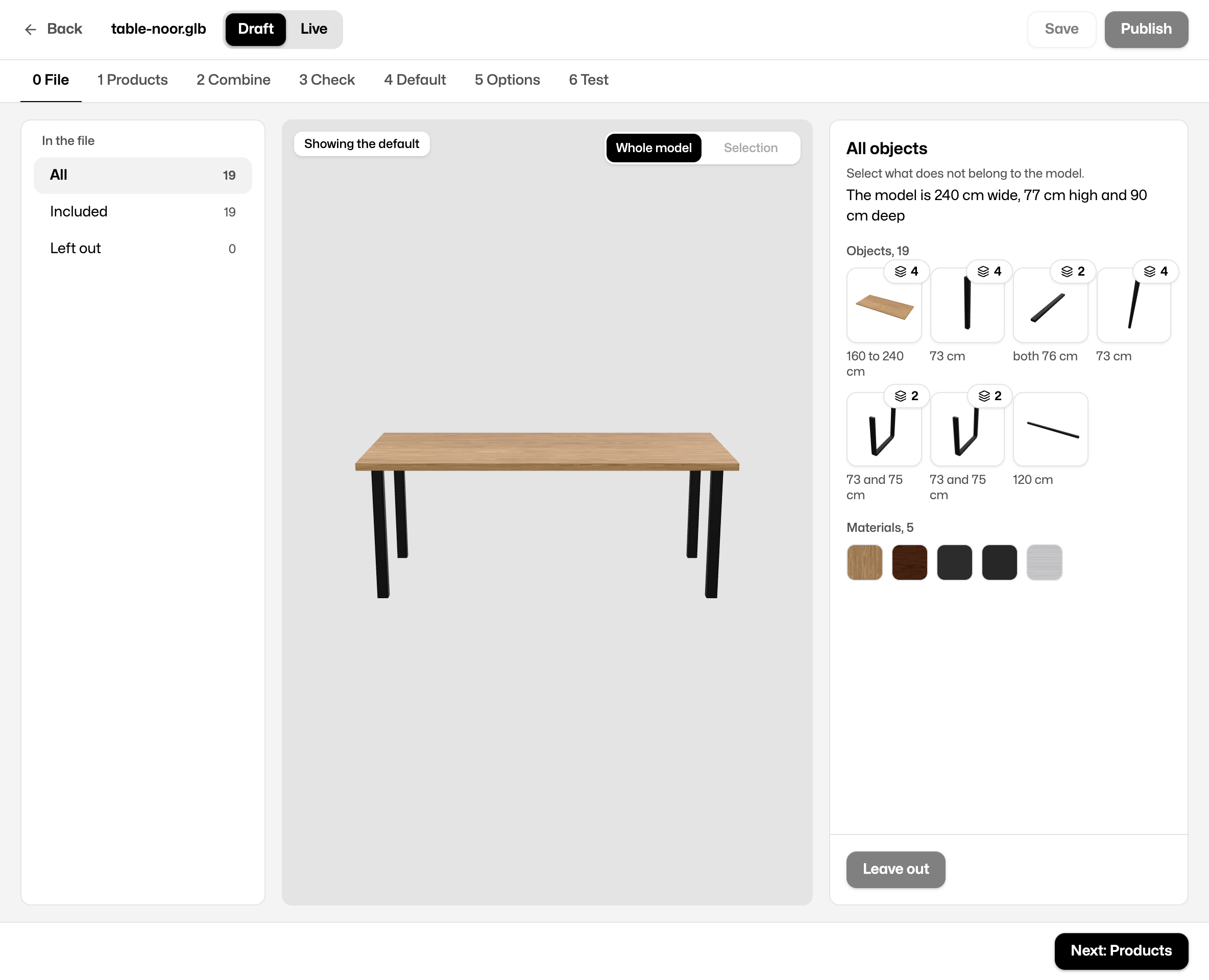
Step 0, File. Portal reads your 3D file and shows every object and every material in it: for the table Noor, 19 objects in 5 materials. What your customer must never see, such as a floor, you leave out here.Step 1, Products. You make parts, the places where your customer chooses: Top, Base and Beam. In each part you put products you sell, and each product gets its objects. Base holds 4 products: your customer picks 1 of them.Step 2, Combine. For each property of a product you say what the model shows for each value: other objects, another material or a size that stretches. For Edge, Live edge gets the tops with a live edge.Step 3, Check. Portal checks that every object has a product and that every choice shows something. The table Noor has no remarks. Here you also find the 3 rules and the 13 variants your customer cannot choose.Step 4, Default. You choose the combination the model opens on. The table Noor opens on a 200 by 90 cm top, Straight, Oak, on Noor straight legs in Black.Step 5, Options. Portal makes the options from your products. You give them the name your customer reads, put them in groups and add filters and accessories.Step 6, Test. You see your configurator as your customer gets it and try the choices. If something is off, you change it in the step it belongs to.
Step 0, File. Portal reads your 3D file and shows every object and every material in it: for the table Noor, 19 objects in 5 materials. What your customer must never see, such as a floor, you leave out here.
This is the real screen, with table Noor. Try anything; saving is not possible here.
You move freely between the steps. What you change in a step stays when you go to another step. Save stores every
step at once, as a draft. Your customer sees your changes only after Publish. See Publish.