Import products from Excel
If your products are already in Excel, bring them in at once with an import. The import reads your products from an Excel file. Each line in the file is 1 variant. A product with 3 variants is on 3 lines, with the same SKU. The first line holds the column names.
Your file does not have to look the way we want. You say which column is what. For a start, download the
templateopens Portal. It has a column for every field and for every property you have in Portal. It has no example line.
The import has 4 steps: File, Columns, Preview and Done. Nothing changes until you choose Import.
An example file
Section titled “An example file”This is what a filled-in file looks like. Studio Lindeman is going to sell the straight top in 260 cm too, in all 3 finishes. The file has 3 lines:
| SKU | Product name | Price | Variant SKU | Length | Width | Edge | Finish | Variant price |
|---|---|---|---|---|---|---|---|---|
| NOOR-TOP | Noor table top | 895 | NOOR-TOP-260-100-S-OAK | 260 | 100 | Straight | Oak | 1495 |
| NOOR-TOP | Noor table top | 895 | NOOR-TOP-260-100-S-WAL | 260 | 100 | Straight | Walnut | 1715 |
| NOOR-TOP | Noor table top | 895 | NOOR-TOP-260-100-S-BLK | 260 | 100 | Straight | Black | 1575 |
1. File
Section titled “1. File”- Go to Import productsopens Portal. From Products, choose Actions and then Import.
- Choose your file or drag it into the box. It must be an XLSX file.
- Choose what the file may do.
- Choose Continue.
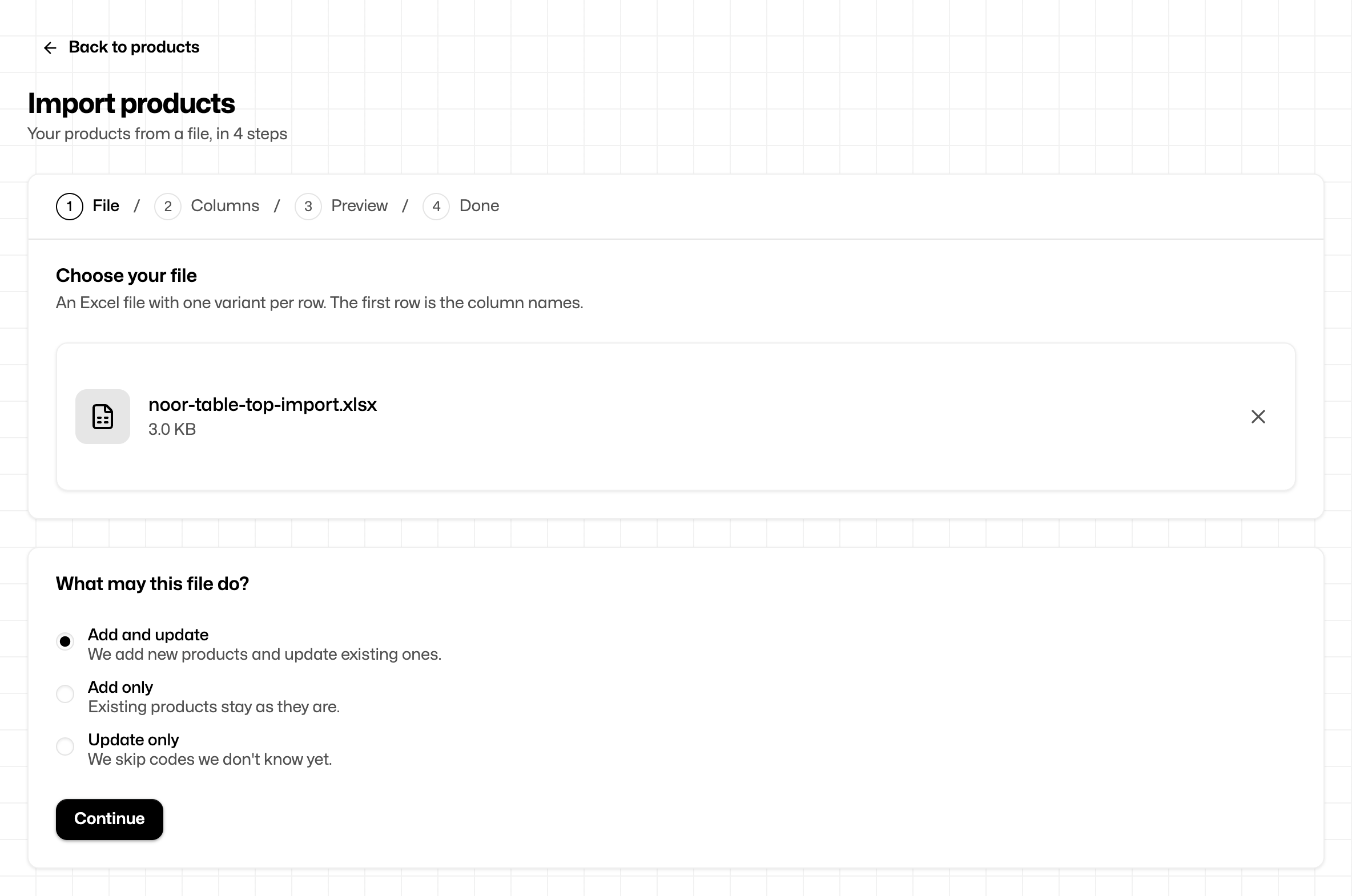
| Choice | What happens |
|---|---|
| Add and update | We add new products and variants, and update existing ones |
| Add only | A product you already have stays as it is, its variants too |
| Update only | We skip a product with a SKU we do not know yet |
Portal recognises a product by its SKU and a variant by its variant SKU.
2. Columns
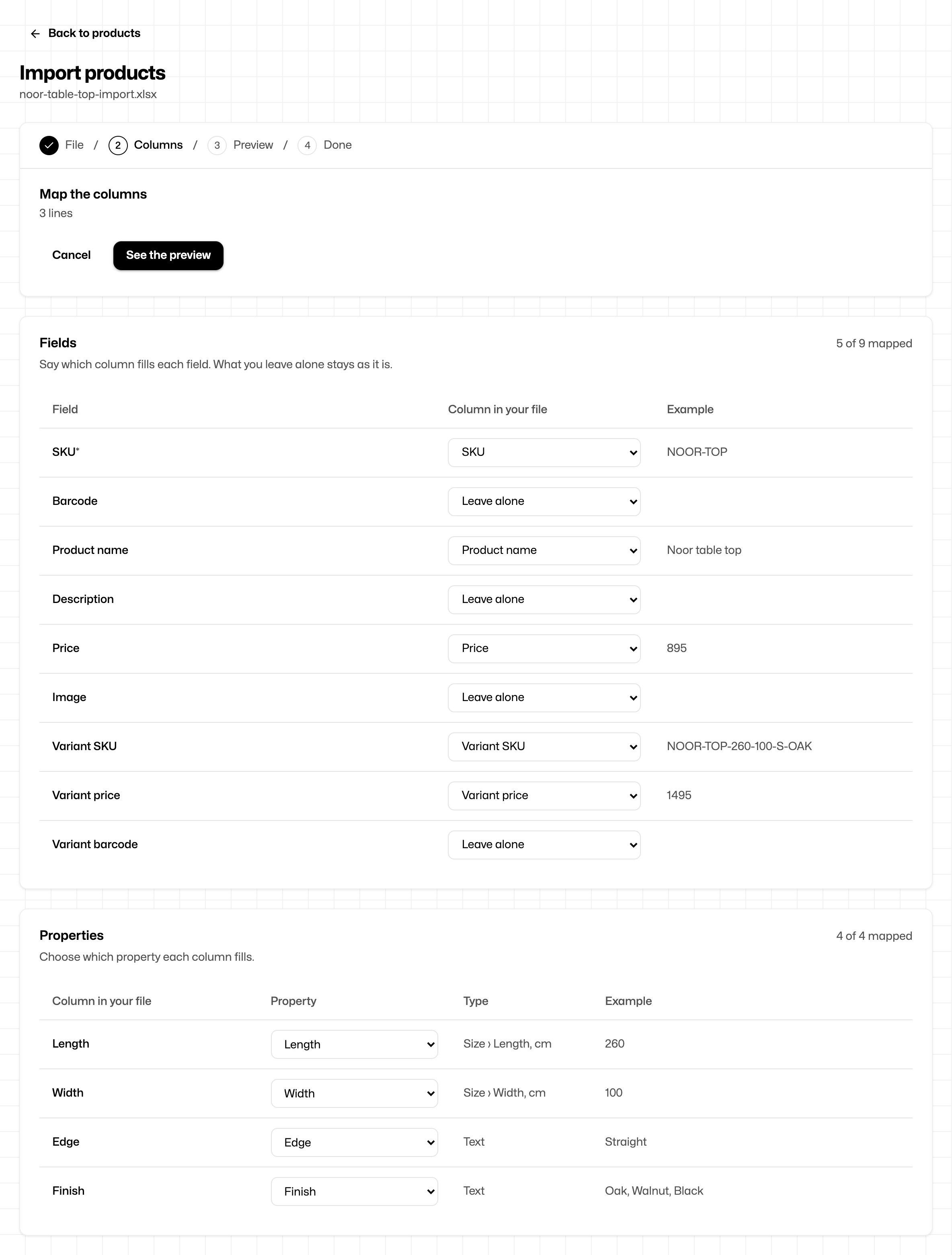
Section titled “2. Columns”Under Map the columns, you say per field which column fills it. A column with the name of a field is already mapped. The SKU is required. A field on Leave alone does not change.
In the column for Image, you put a link to a photo per product. Portal fetches the photo after the import. That usually takes a few minutes. If it fails, the product says so.
Under Properties, you choose per column which property it fills. If the property is not in Portal yet, choose New property from column. If a column fills a size, each cell is a number in that size’s unit, with no thousands separator: 1200, not 1,200. Otherwise the line becomes invalid. An empty cell takes the size off that variant.
3. Preview
Section titled “3. Preview”The preview says what the import will do. You approve the outcome, not the file. Nothing has changed yet.
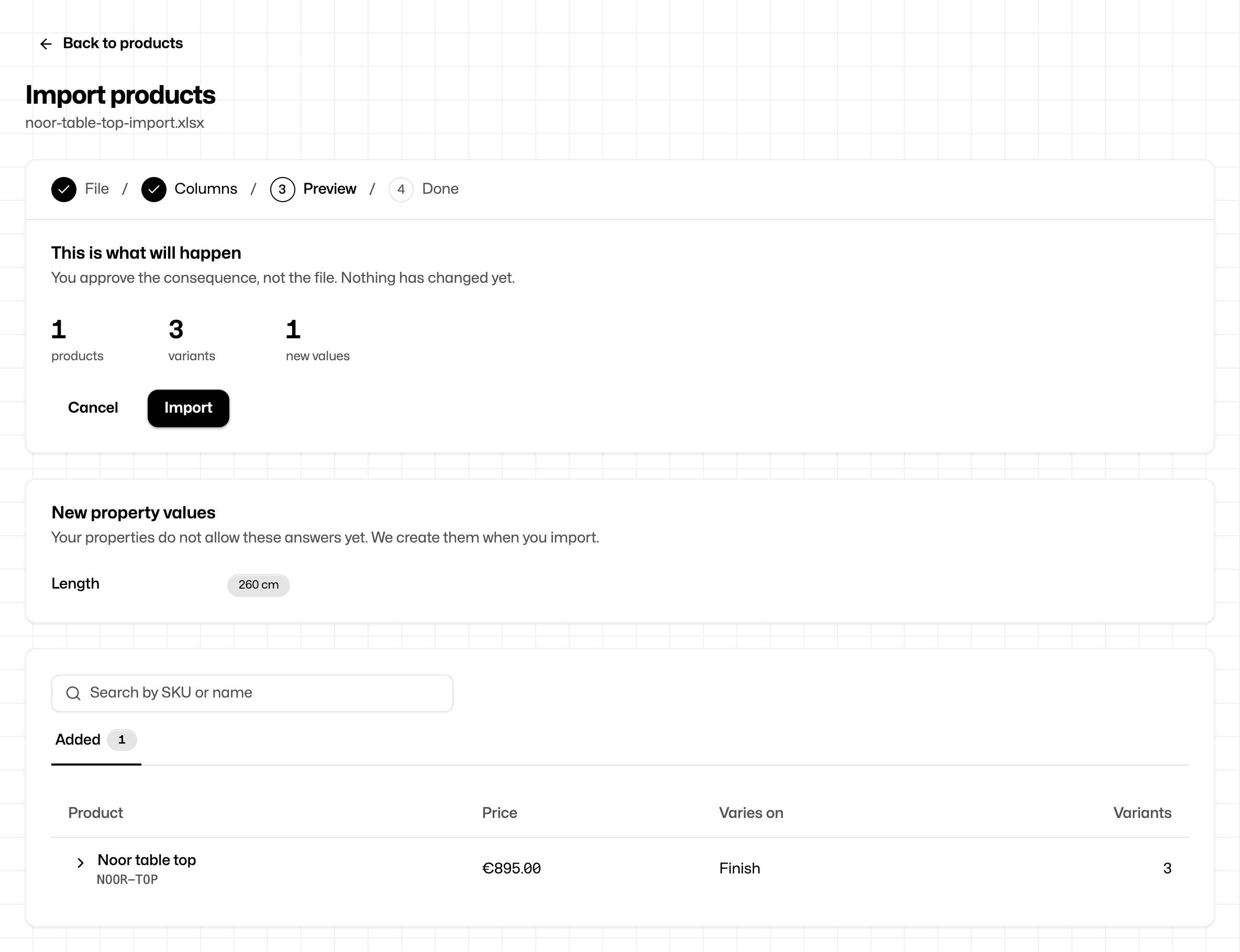
The products are in groups: Added, Changed, Skipped and Invalid. An invalid line shows the reason. Download the lines we won’t import gives you those lines back in a file, with a Reason column. Correct them there and import the file again.
If your file has variants that are switched off under Products, you see them under Switched-off variants. The import updates them and leaves them switched off, unless you switch them on there.
If it is right, choose Import. If not, choose Change the columns or Cancel.
4. Done
Section titled “4. Done”After Import, Portal says what it imported. You can still download the lines it did not import here.
What an import never does
Section titled “What an import never does”- An import never takes away a product or a variant. What is not in your file stays as it is.
- A field on Leave alone changes for no product.
- A switched-off variant stays switched off, unless you switch it on in the preview.
- Cancel before Import changes nothing. Your products stay as they are.