Your 3D models in Portal
A 3D model is your product as a GLB file, put in Portal so your customer can turn it round on your site. You see all your models in one list in Modelsopens Portal. Studio Lindeman has 1: the table Noor.
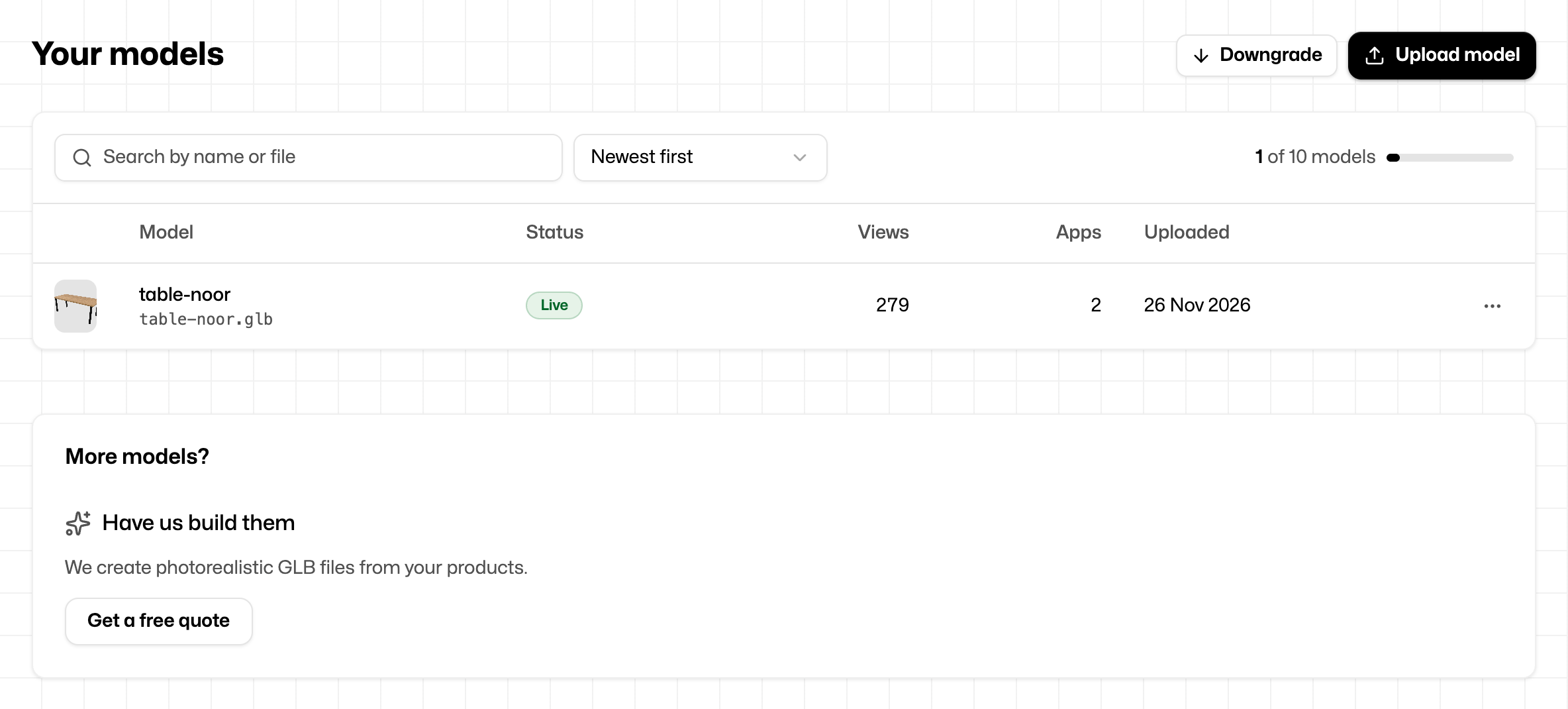
What the list shows
Section titled “What the list shows”| Column | What it holds |
|---|---|
| Model | the model’s name, with its file below it |
| Status | whether your customer sees your latest set-up |
| Views | how often your customers have loaded the model |
| Apps | how many viewers and configurators the model is in. Every model gets a viewer when uploaded |
| Uploaded | when the file came into Portal |
The status is Live, Not published yet or Changes not published. What they mean and how you publish is in Publish your 3D configurator. A model you have not set up yet says Not published yet: your customer already sees it, without choices.
Choose a model to open it. With … at the end of its row you delete it.
Search and sort
Section titled “Search and sort”Search by a model’s name or its file. Sort by Newest first, Oldest first, Name or Most views. Most views shows which products your customers look at in 3D most often.
How many models you have
Section titled “How many models you have”At the top right of the list you see how many models you use of what your subscription allows: 1 of 10 at Studio Lindeman. Once your subscription is full, you can only add a model after you delete one or choose a bigger subscription.
Below the list you can ask us to make models for you, with Get a free quote. We then make GLB files of your products.
Your first model goes in with Upload a 3D model.