Assign products to your 3D model
On the table Noor, your customer picks the base from 4 products. The top is always Noor table top. Which object is
which product, you record in step 1 of Set up model, Products. You start with the objects included in step 0. On
the table Noor that is all 19 objects of the file.
A product sits in a part. A part is a place in the model where your customer makes 1 choice. You make the parts
yourself and give them a name: 1 part per choice of your customer. The table Noor has 3: Top for the top, Base for
the base your customer picks and Beam for the beam they may leave off.
When a part has 1 product, your customer always gets that product. In Top that is Noor table top. When a part has
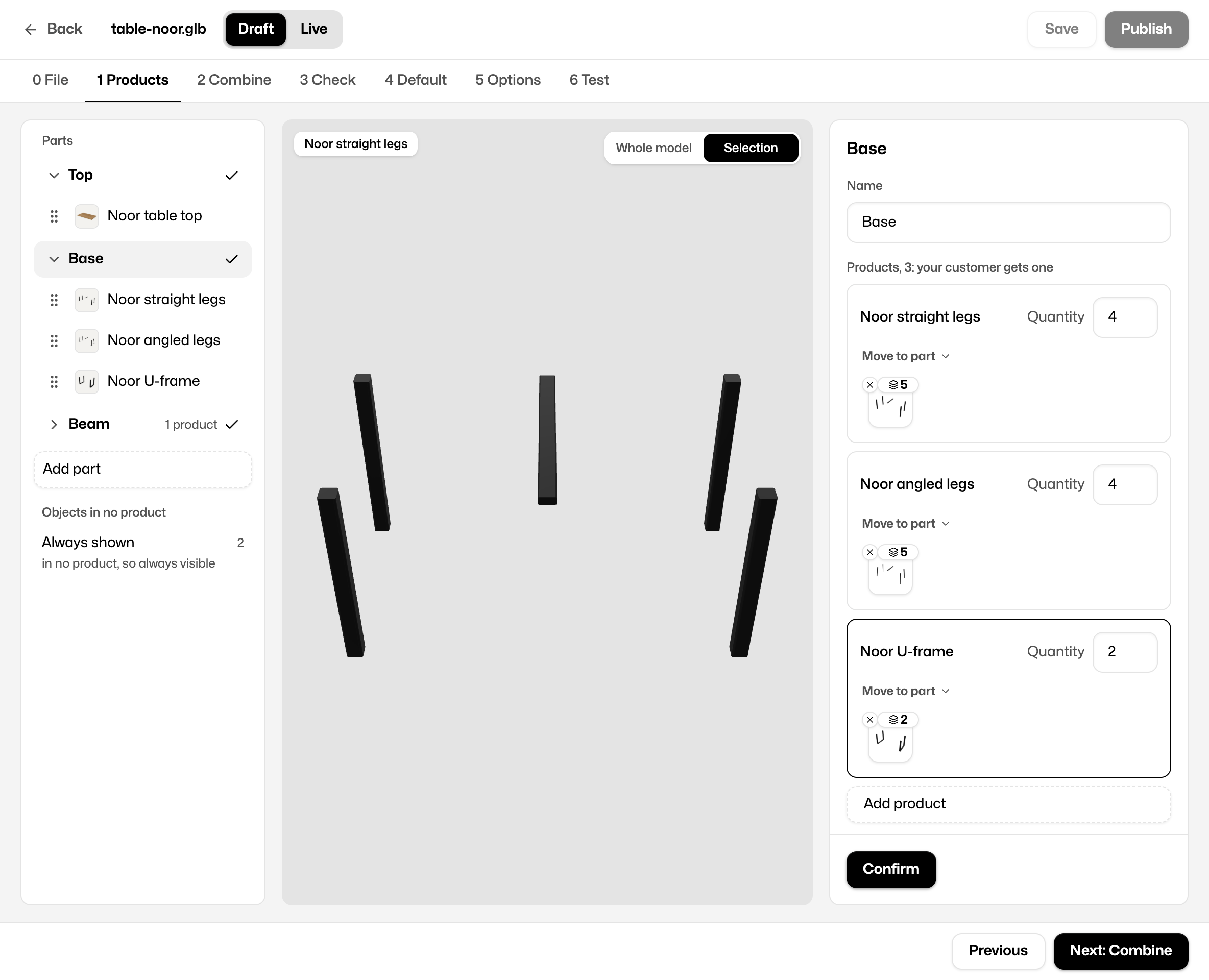
more products, your customer picks 1. In Base they pick from Noor straight legs, Noor angled legs, Noor U-frame
and Noor A-frame.
The start: no parts yet
Section titled “The start: no parts yet”A new model has no parts yet. Every object that is included is under Not placed yet. A part says which product sits in that place of the model, or which products your customer picks from there. Without parts the model has no products: your customer sees the 3D model, but there is nothing to choose.
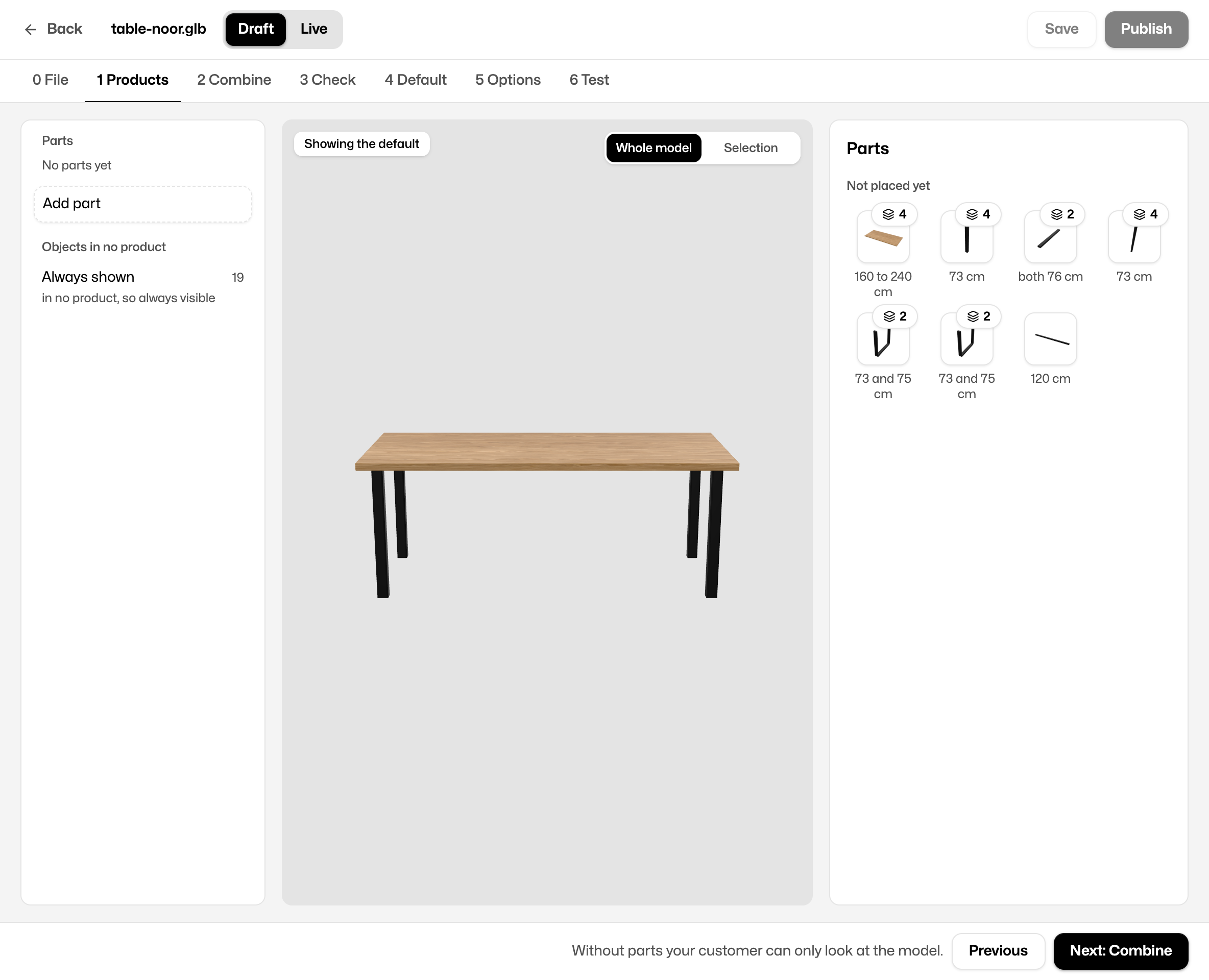
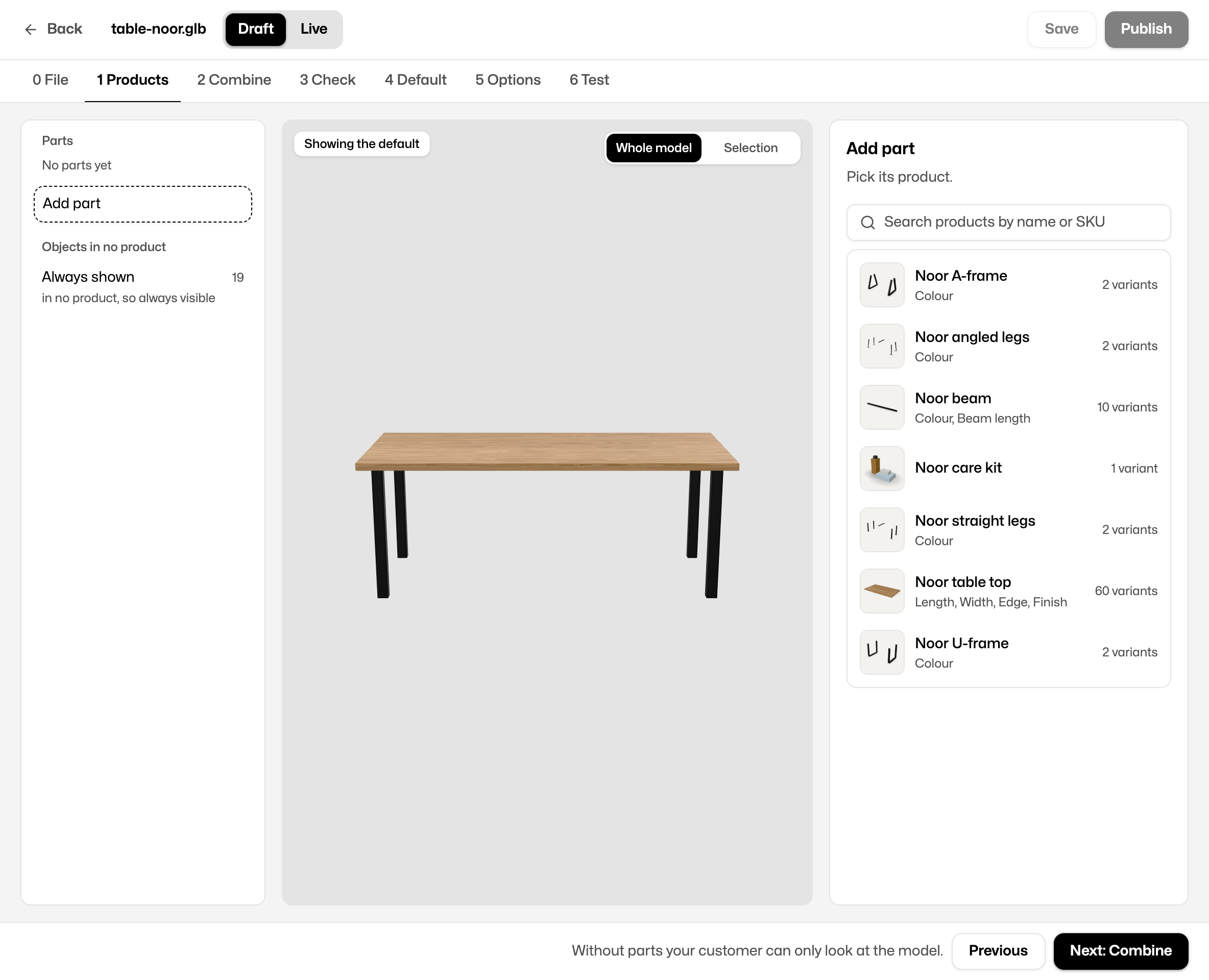
With Add part you make a part. You first pick the product that goes in it. Portal then calls the part Part 1. At
Name you give it its own name, such as Top. Then you give the product its objects from Not placed yet.
When a product is in the wrong part, drag it in the list on the left to the right part. Move to part at the product does it too. Its objects go with it.
Putting a product in a part
Section titled “Putting a product in a part”In the walk-through below, Base has 3 products. You add Noor A-frame and give it its 2 objects.
The screen is loading
More in this step
Section titled “More in this step”- More than 1 of a product: 4 legs go on the request as 1 line with quantity 4.
- A part that may stay empty: your customer picks
Nonefor the beam. - Taking a product out of the model: the product goes, its objects are ready to place again.
- An object that is missing: your new 3D file lacks an object of a product.
You find step 1 at your model in Modelsopens Portal, under Set up model.