Show product variants in your 3D model
When your customer picks a live edge, the model shows the table Noor with a live edge. You record that in step 2 of Set up model, Combine.
Edge: Straight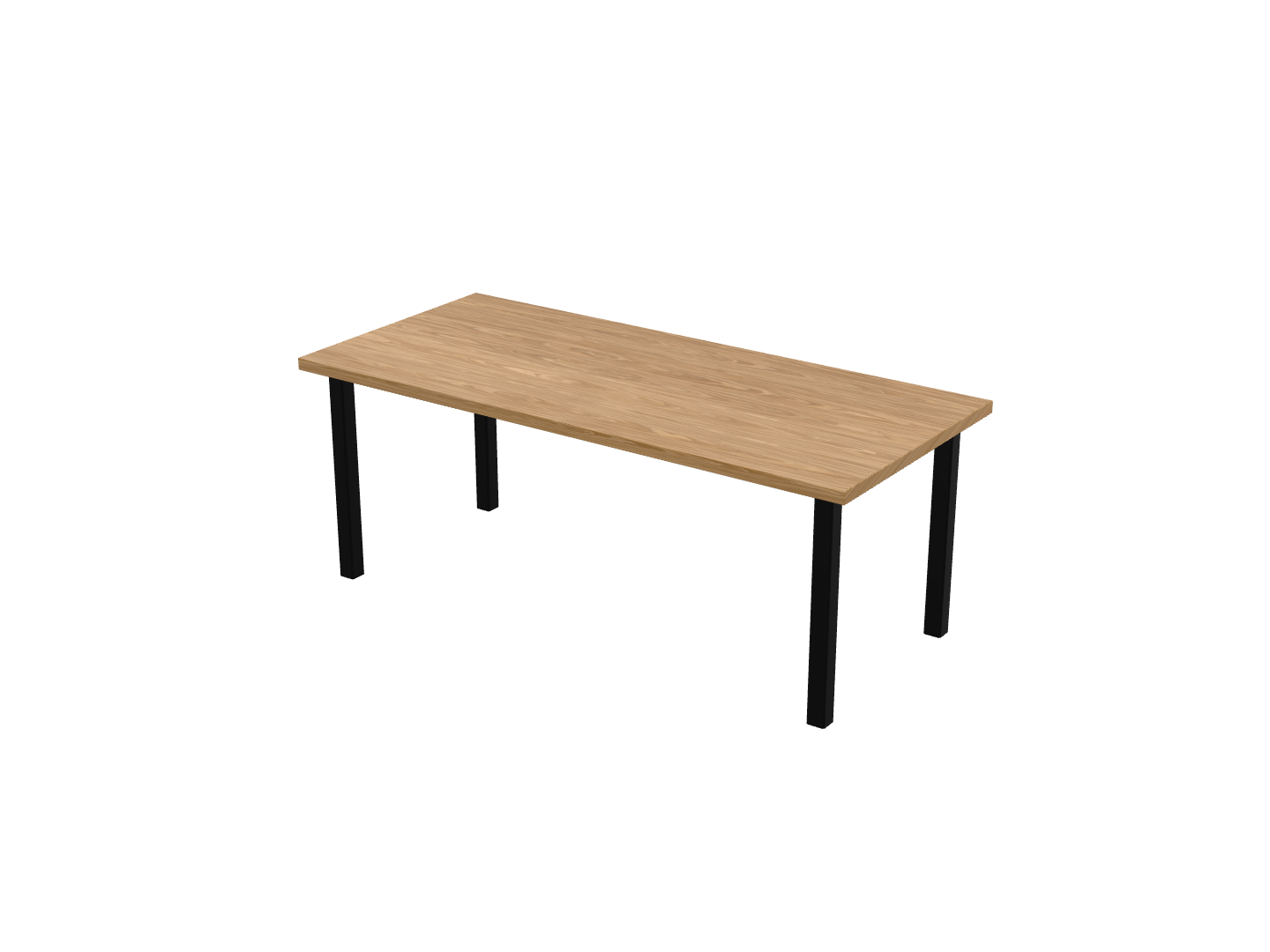 The straight top
Edge: Live edge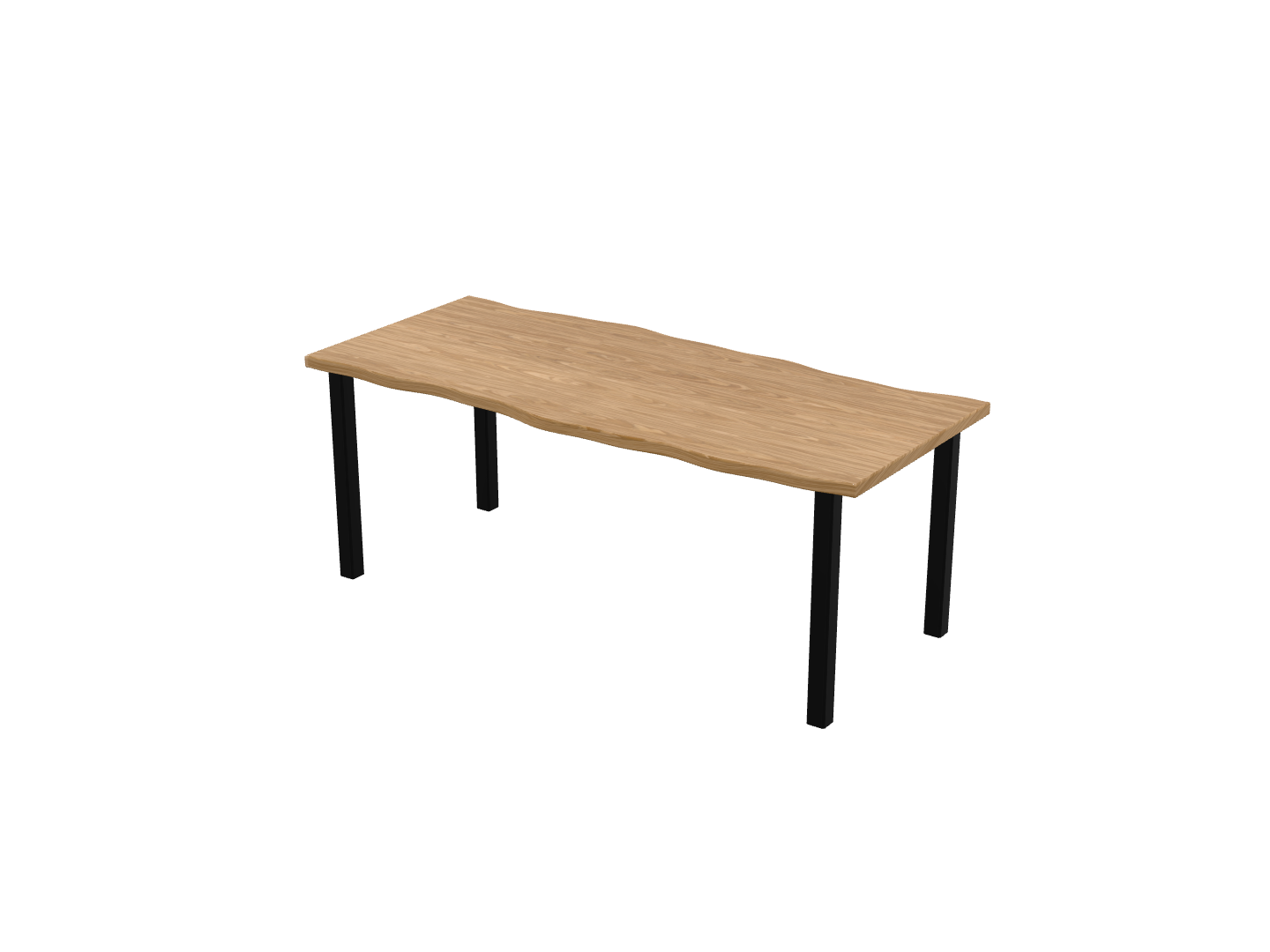 The top with a live edge
Step 2 lists each product of step 1 with the properties it varies in. At each value you say what the model then shows: other objects, another material or another size.
Finishing a property
Section titled “Finishing a property”The walk-through starts on a model where nothing is combined yet, and finishes Edge, up to its tick.
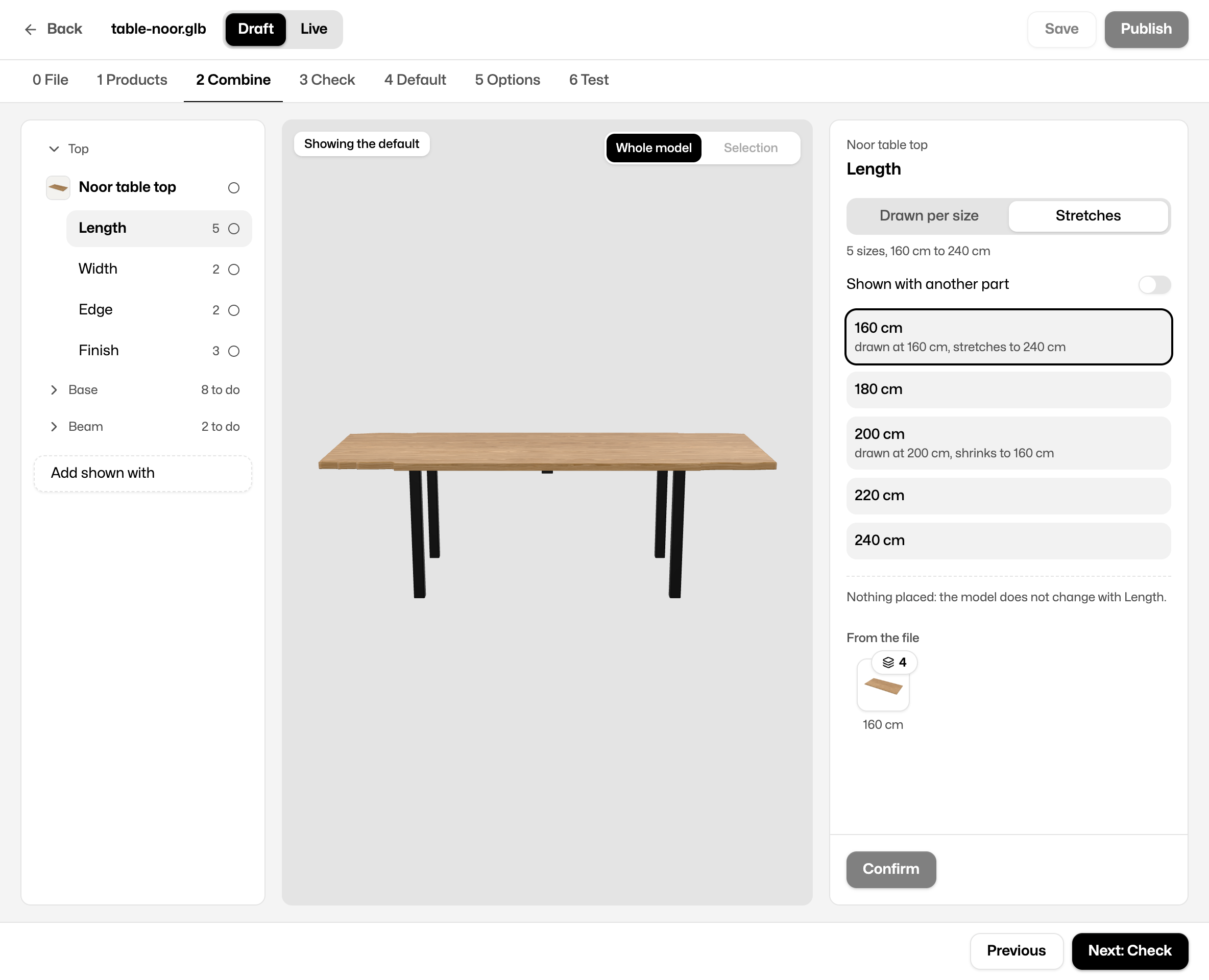
The screen is loading
A property a product does not vary in, such as Base type, is not in step 2: there is nothing to combine. In step 5 you
can make a filter of it.
More in this step
Section titled “More in this step”- Show a value with objects or a material: each value gets its objects or its material.
- A size that stretches: 1 drawn top for every length, the live edge in 3 drawings and the legs that move with it.
- Drawn per size: each size its own drawing, without stretching.
- Shown with: the middle support only under a top of 220 or 240 cm.
- A part follows another: the beam gets the length of the top and the colour of the base.
You find step 2 at your model in Modelsopens Portal, under Set up model.