Publish your 3D configurator
What you save in Set up model is a draft. Your customer sees it only when you publish it. So you can keep working on your model, while your customer keeps the model on your webshop as it was.
Draft and Live
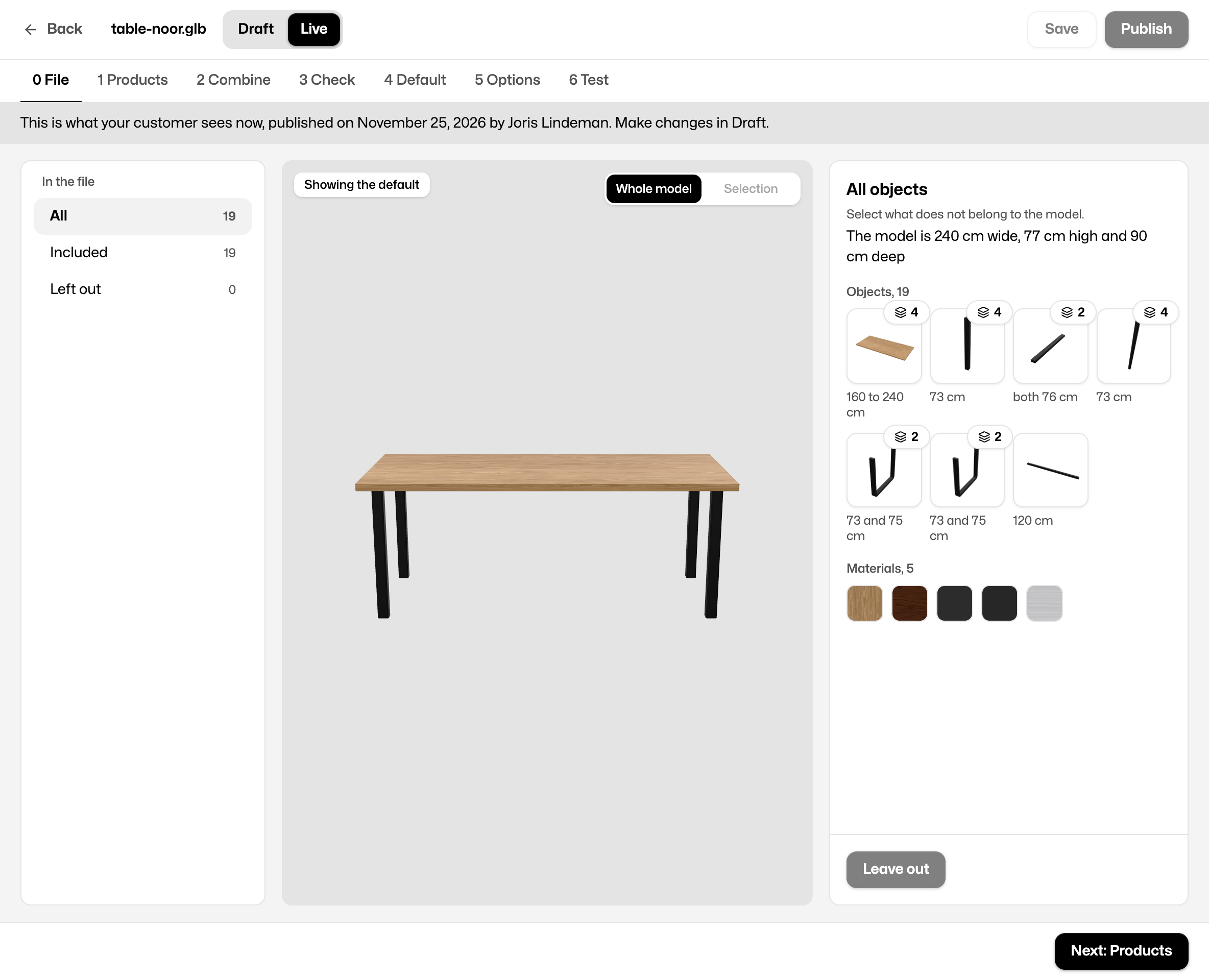
Section titled “Draft and Live”Beside the name of your model you pick Draft or Live. In Draft you work on your model. In Live you see what your customer gets now. Beside the switch you see how your model is doing:
| What it says | What it means |
|---|---|
| Not published yet | Your customer does not see your set-up yet. You cannot pick Live yet |
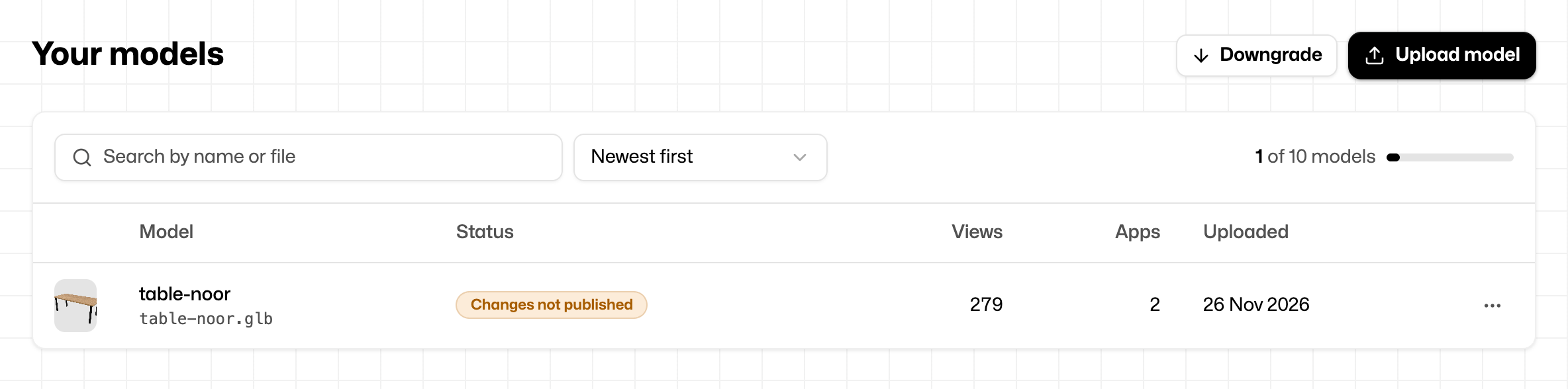
| Changes not published | Your draft differs from what your customer sees |
| nothing | Your customer sees exactly your draft |
In Modelsopens Portal you see this for all your models at once, in the column Status: Not published yet, Changes not published or Live. So you see which models still need publishing.

Publish
Section titled “Publish”- Choose Publish at the top right, or at the foot of step 6 beside Previous.
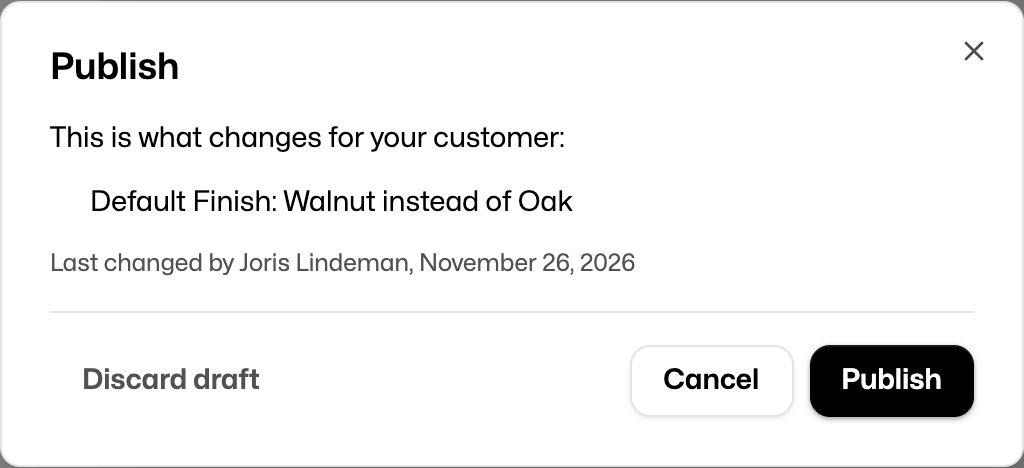
- Read what changes for your customer.
- Choose Publish.
The dialog says per option what your customer gets differently, such as a value that is added or removed, or another default. Under it you see who last changed the draft, and when. When nothing changes for your customer, the dialog says so.
Test your draft in step 6 first. There you see your model as your customer gets it after publishing.
See what is live
Section titled “See what is live”Choose Live. You see each step as your customer has it now. At the top you see when and by whom the model was published. In Live you change nothing: you make changes in Draft. Only step 6 can be tried in Live.
Discard your draft
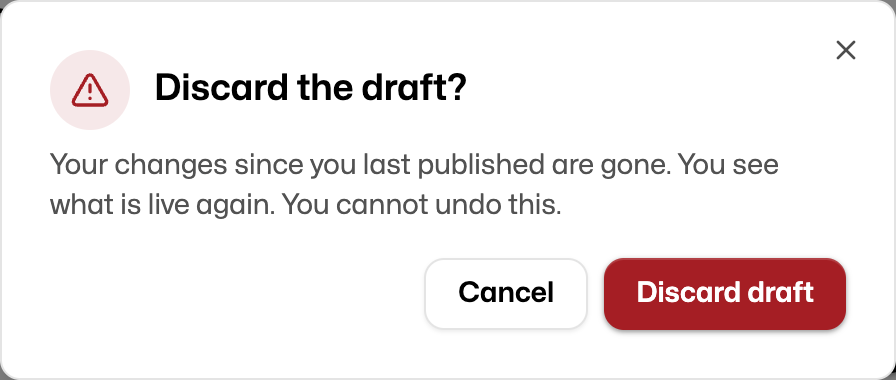
Section titled “Discard your draft”When you do not want to publish your changes, discard the draft. Your model is then the same as what is live again.
- Choose Publish.
- Choose Discard draft.
- Confirm. You cannot undo this.
Your products
Section titled “Your products”Your products are not a draft. A rule or a switched-off variant applies at once, in every model with that product.
A new 3D file
Section titled “A new 3D file”The 3D file is not a draft. When you replace the file, your customer gets the new file at once, with what you published before for each object. When an object is missing, you see it in step 1.
You open Set up model at your model in Modelsopens Portal.