Add products in Portal
For table Noor, your customer chooses a top and a base. Each goes on their request separately. A product is something you sell on its own, under 1 name, with 1 SKU and 1 price. Studio Lindeman sells the top of table Noor separately from the base. That is why the top is a product. Each base is one too.
| Product name | SKU | Price | Variants |
|---|---|---|---|
| Noor table top | NOOR-TOP |
€895.00 | 60 |
In your 3D model, a product stands for 1 or more objects. Noor straight legs is 5 of them: the 4 legs and a centre
support. On the request it appears as NOOR-LEG-BLK × 4.
A product is not a variant. Noor table top has 60 variants, each with its own SKU. Variants is about
those.
What you record for a product
Section titled “What you record for a product”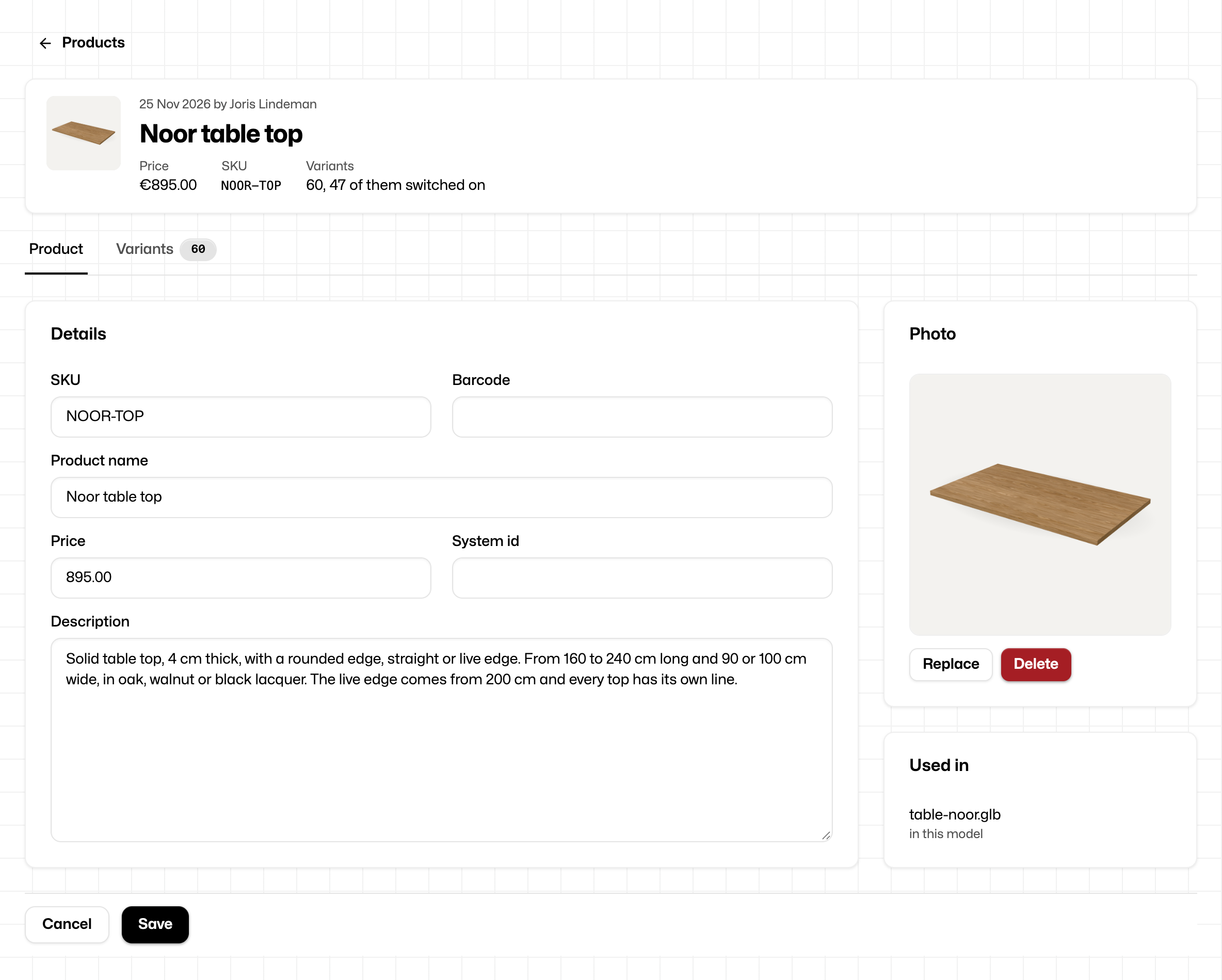
| Field | What it is |
|---|---|
| SKU | Your item code for the product. Each variant also gets its own variant SKU. Required |
| Barcode | The product’s EAN, if you have one |
| Product name | The product’s name. Required |
| Price | The price of every variant that has no price of its own |
| System id | What your own system calls the product |
| Description | A short description of the product |
| Photo | A JPG, PNG, GIF or WebP. You see it wherever the product is, such as in your product list |
Add a product
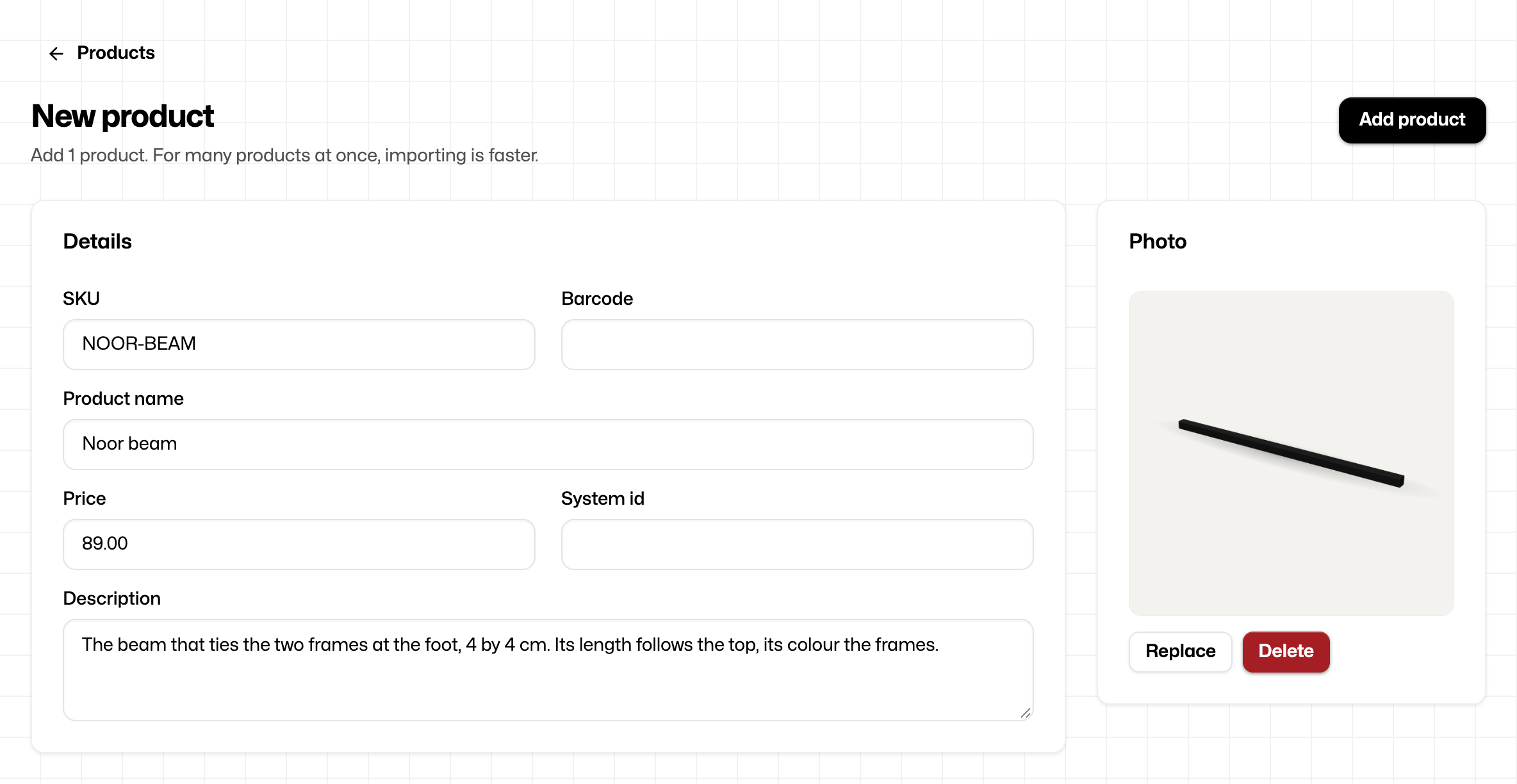
Section titled “Add a product”- Go to New productopens Portal. From Products, choose Actions and then Add product.
- Fill in the SKU, the product name and the price.
- Drag a photo into the Photo box or click it to choose one. You see it in the box straight away.
- Choose Add product. The product now has 1 variant, with the photo. If Portal refuses the photo, the product is still added. The Photo box on its page then says why.
- Does the product differ in something, such as length or finish? Give it those properties on the Variants tab. That is where the variants come from, see Variants.
If you have many products, Import is faster.
Where you see a product again
Section titled “Where you see a product again”- In Productsopens Portal, with its photo, its SKU and the number of variants.
- In every 3D model it is in. As a part of the model, like the top. Or as an accessory your customer adds, like
Noor care kit. - On every request from your customer, as the variant they chose, with its SKU.
If a product is in a model, you can only delete it once you take it out of that model.