An object is missing after a new 3D file
When you replace the 3D file of a model, an object of a product may no longer be in it. Your customer then sees the product without that object. Step 1 shows which object it is.
The part shows 1 missing. The product shows a box with a sign and the object’s name. Under it you read what your customer then sees.
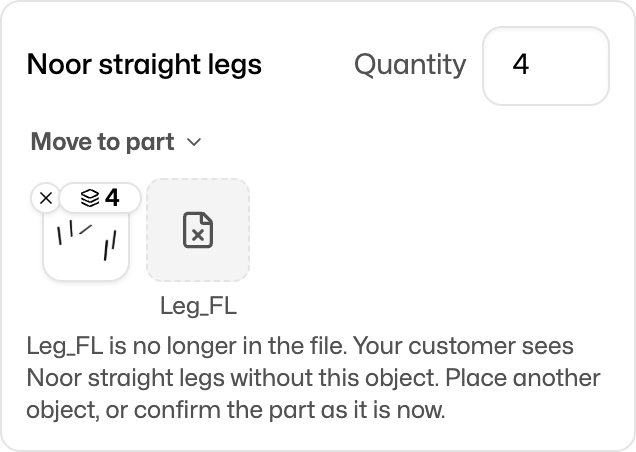
Place another object
Section titled “Place another object”- Pick the part with 1 missing.
- Place an object from Not placed yet at the product.
- Choose Confirm and then Save. Your customer sees it after Publish.
Keep the product as it is
Section titled “Keep the product as it is”When the object no longer belongs, choose Confirm without placing anything. After Save the product no longer has the object.
Step 3 shows the same as the remark Object missing. There you can also take the product out of the model.