Check your 3D configurator
Step 3 changes nothing for your customer. In step 3 of Set up model, Check, you check that they get what you mean. Portal brings together here what stands out in the steps before. You also see what from your products applies to this model. Step 3 stores nothing: you only check here. What you want to change, you change in the step Portal names.
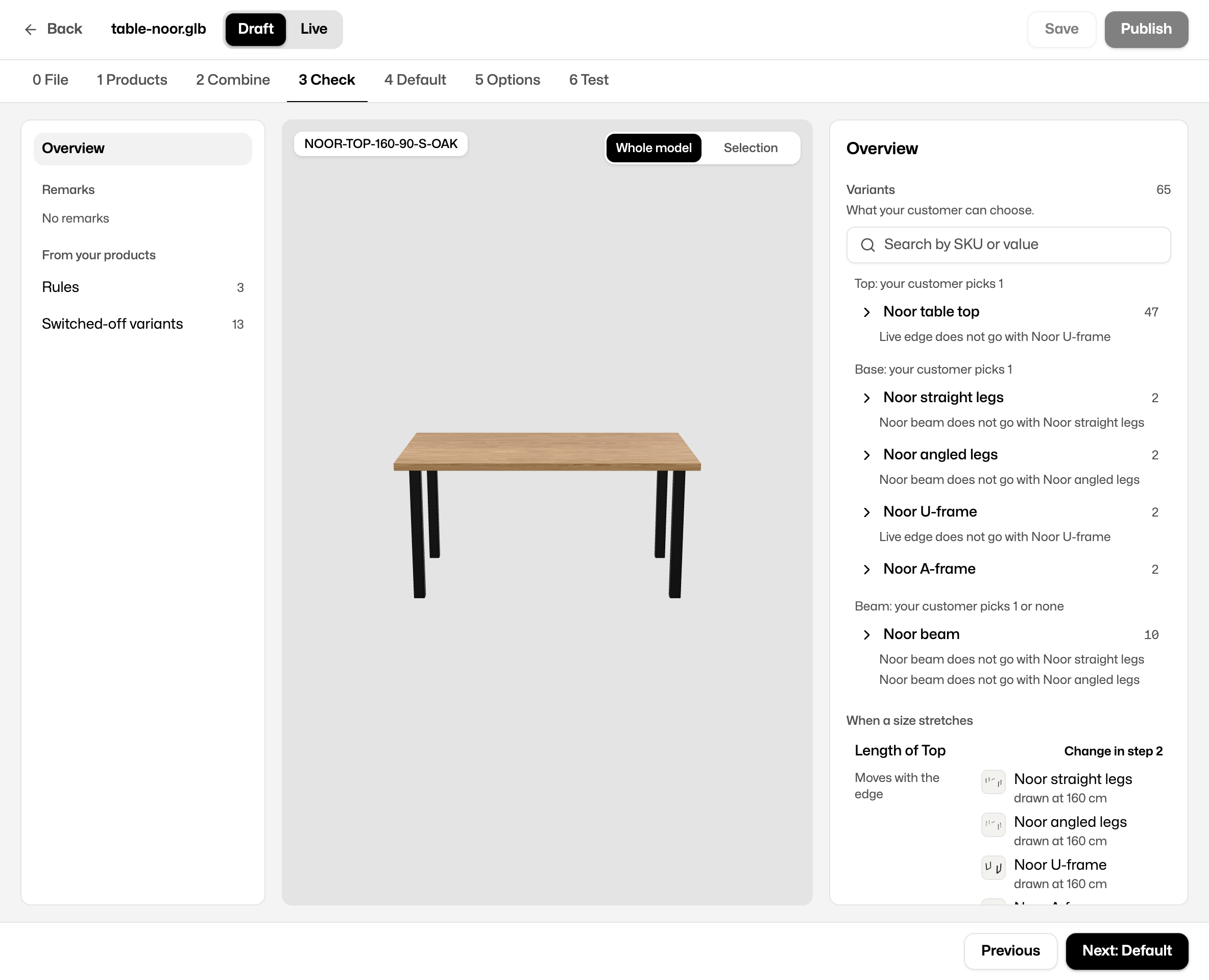
On the left stand 3 sections:
| Section | What you see |
|---|---|
| Overview | the variants your customer can pick per part, and what moves when a size stretches |
| Remarks | what Portal notices, with the question what you want to do with it |
| From your products | the rules that apply in this model and the variants you switched off |
What your customer can pick
Section titled “What your customer can pick”The Overview opens on the variants, per part. Each part says whether your customer always picks 1, or may also pick none. Under it are the part’s products, with the number of variants the model can show. A rule from your products is under the product it is about.
- Open a product for its variants, each with a picture, its SKU and its values.
- Search by SKU or value in the field at the top, such as
BEAM-160orWalnut. You search all products at once. - Click a variant: the model shows only that variant. With Whole model you see it in a combination your customer can pick. A beam then sits under a frame, at the top it goes with.
Step 3 on the table Noor
Section titled “Step 3 on the table Noor”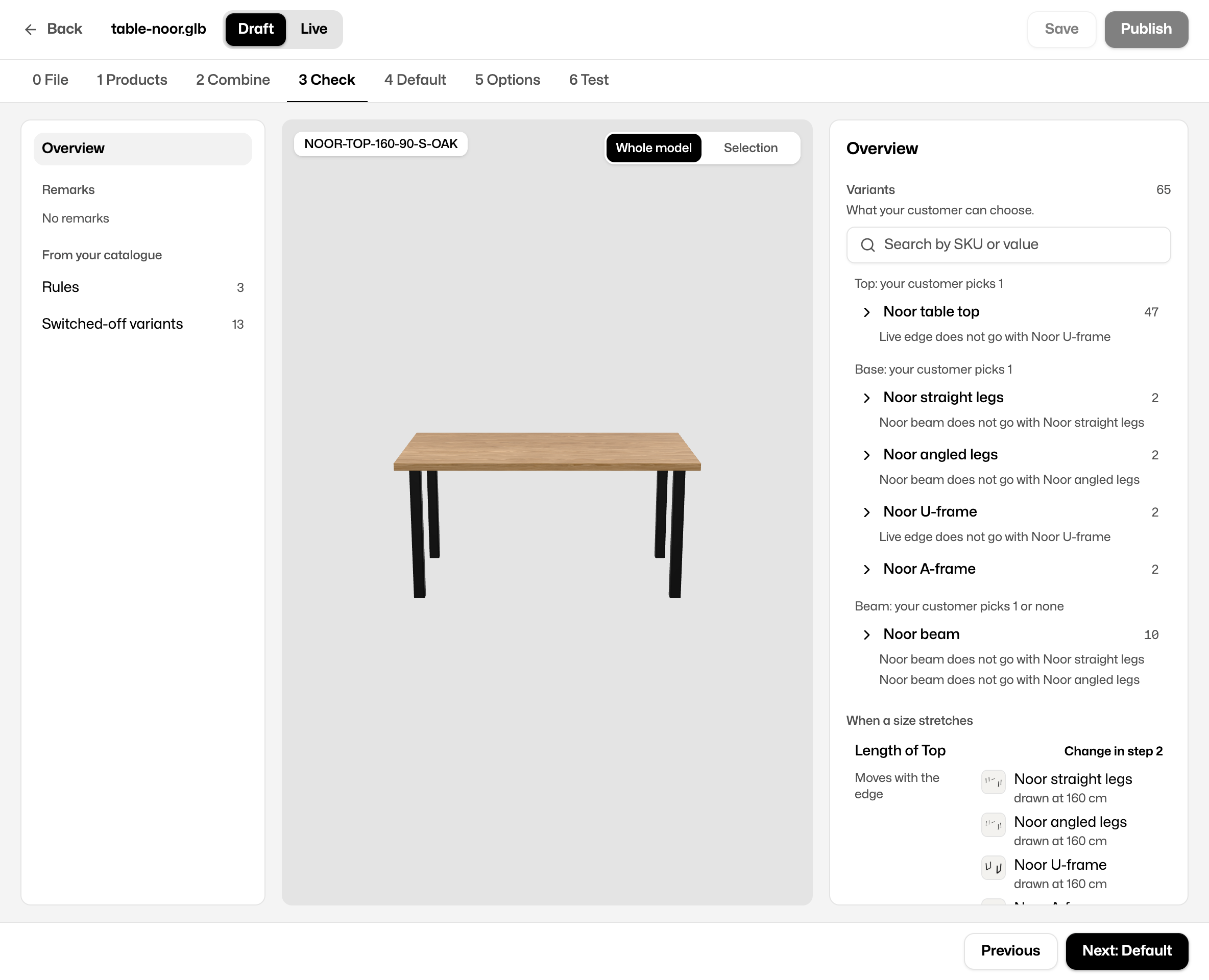
The screen is loading
The rules in this model
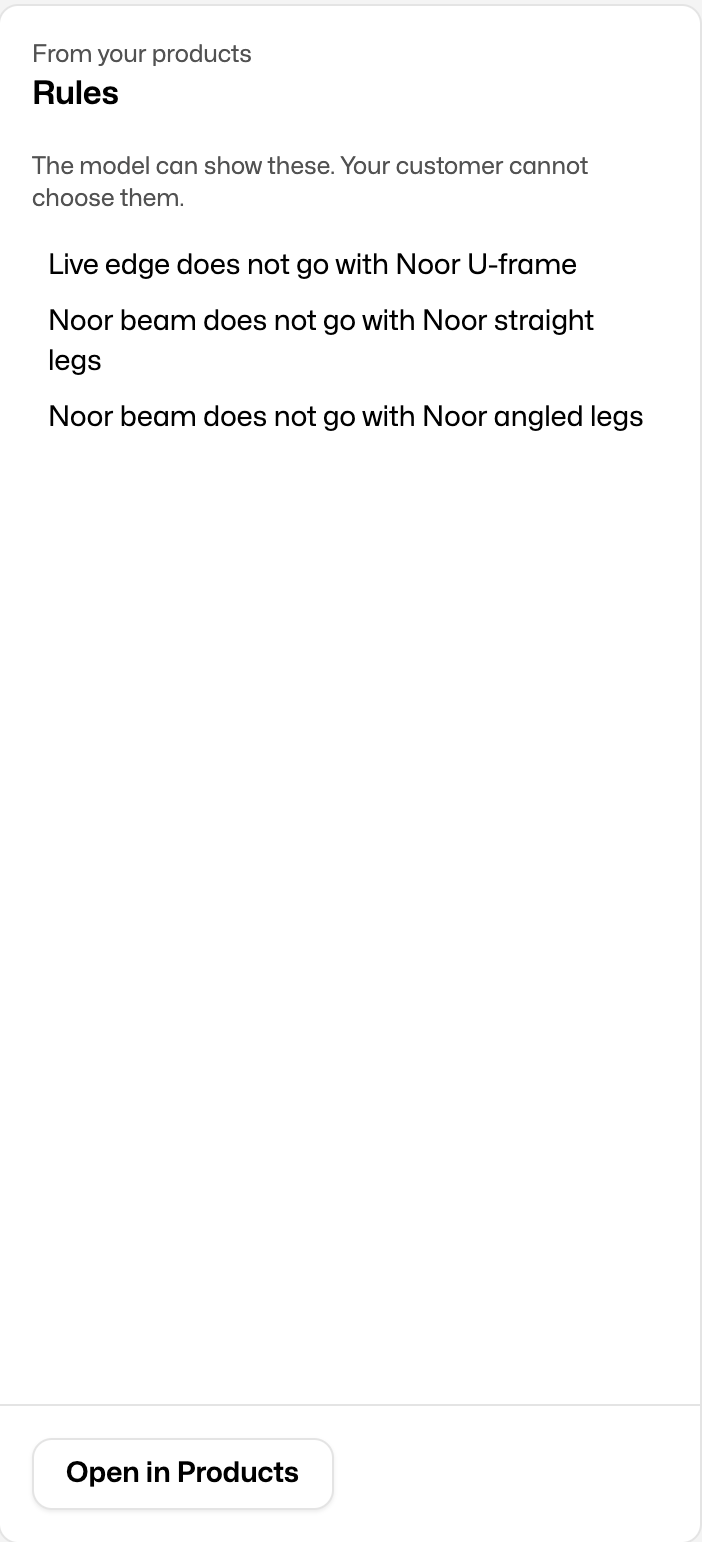
Section titled “The rules in this model”Under From your products you find Rules: each rule that touches a product of this model. The model can show such a combination, but your customer cannot pick it.
More in this step
Section titled “More in this step”- Remarks: what each remark means and what you do about it.
You find step 3 at your model in Modelsopens Portal, under Set up model.