Make and use product properties
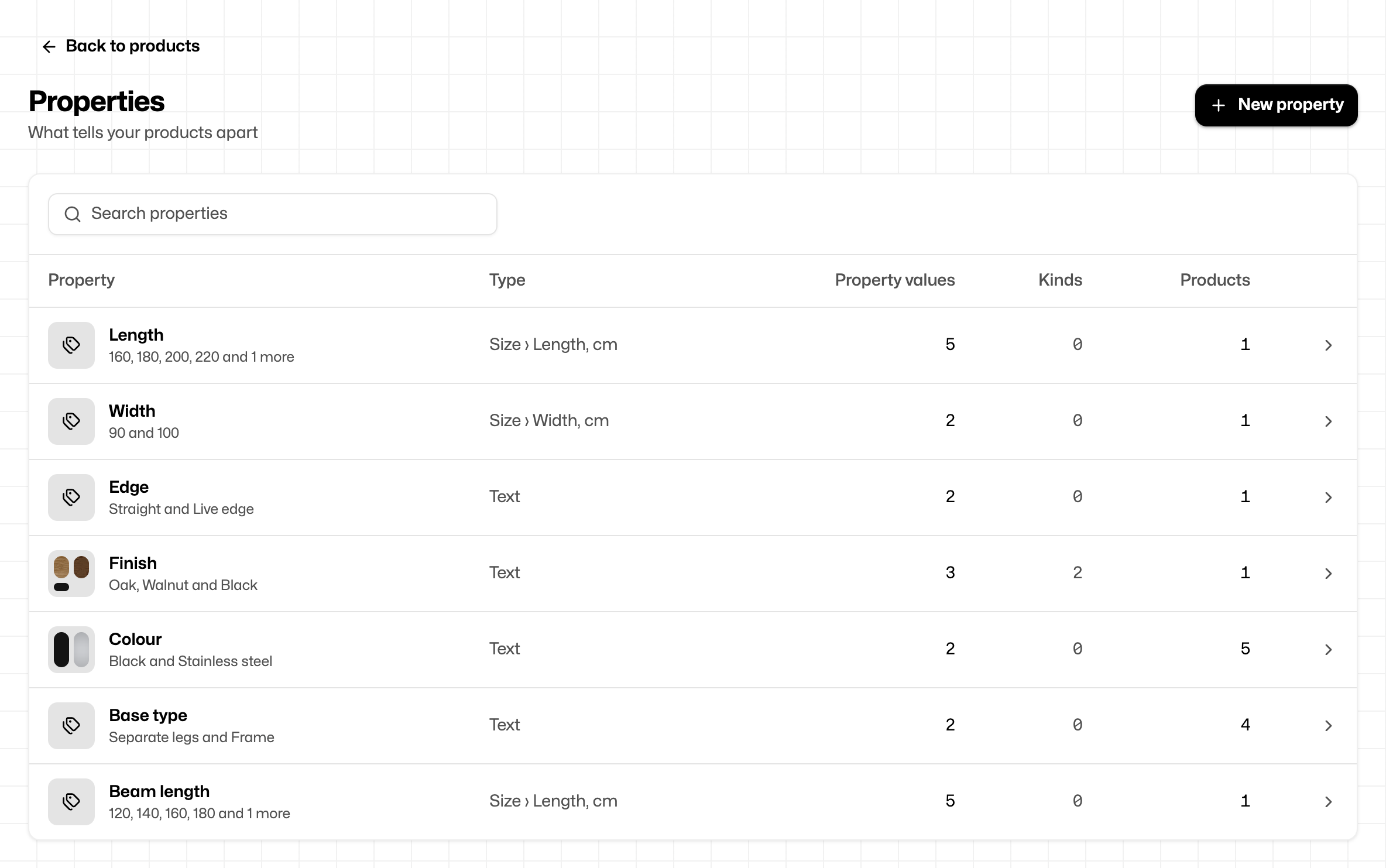
For table Noor, your customer chooses how long the top is, which edge it has and in which finish. Each of those is a
property: something you say about a product. For table Noor, Studio Lindeman made Length, Width, Edge and
Finish of them. For the bases there are Colour and Base type, for the beam Beam length. A property has
values, its possibilities: Edge has Straight and Live edge.
You make a property once. Then you give it to every product that has it. The 4 bases and the beam come in Black and in
Stainless steel. That is why all 5 have Colour, with the same 2 values.
From property to option
Section titled “From property to option”Portal makes the options in your 3D model itself, from the properties. If a part’s products differ in a property, that
property becomes an option for that part. Noor table top differs in Length, Width, Edge and Finish.
Those are the top’s options. A property a product does not differ in does not become an option. You can make a filter
of it instead. Each base has 1 Base type, Separate legs or Frame. As a filter, your customer chooses from that
first. Then they only see the bases of that type.
Text or Size
Section titled “Text or Size”A property has a type. The type says what kind of values it has.
| Type | A value is | For table Noor | Order |
|---|---|---|---|
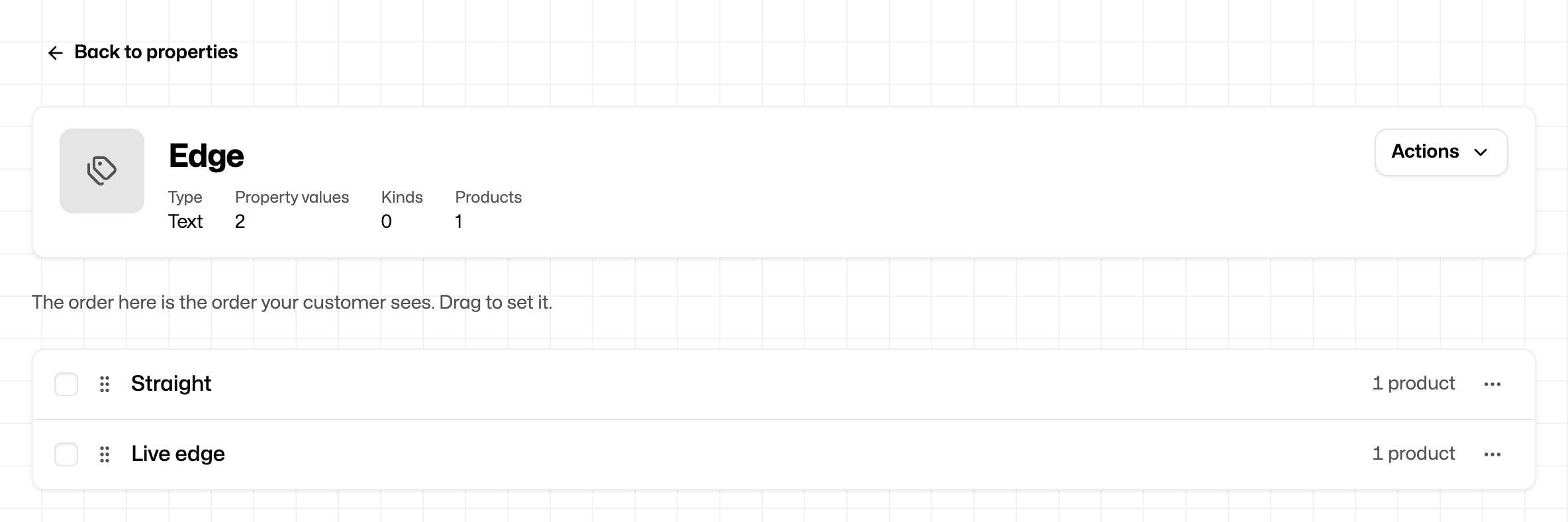
| Text | a word | Edge: Straight, Live edge |
as you drag them |
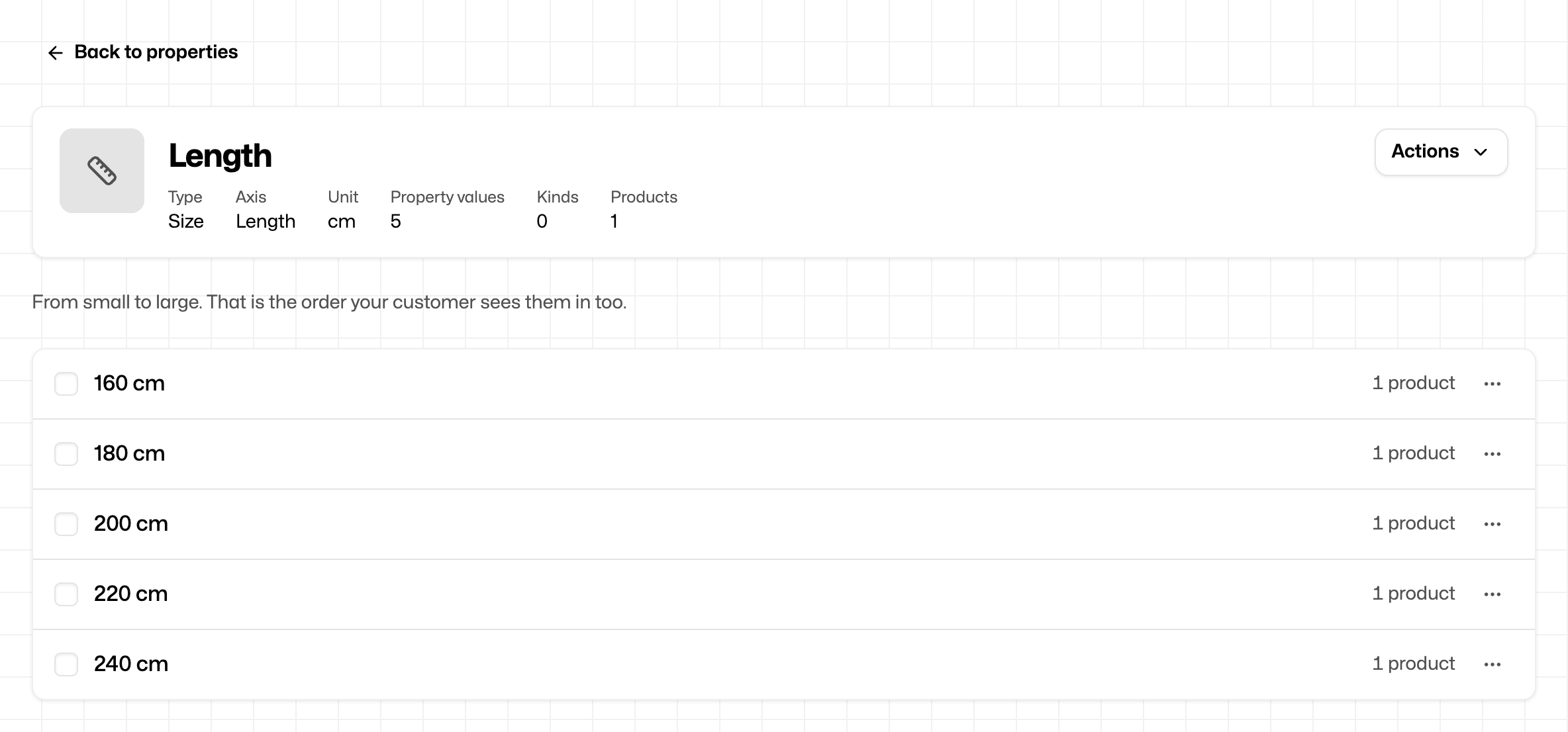
| Size | a number on an axis, in a unit | Length: 160 to 240 cm |
from small to large |
With a size, Portal knows that 240 cm is longer than 160 cm. If Length is Text in your products, 160 is a word. With a
size, a rule can say “from 200 cm” and a 3D model can stretch a top to any length.
Length is a size. Its values are ordered from small to large by themselves.
Edge is a text. You decide the order of its values.
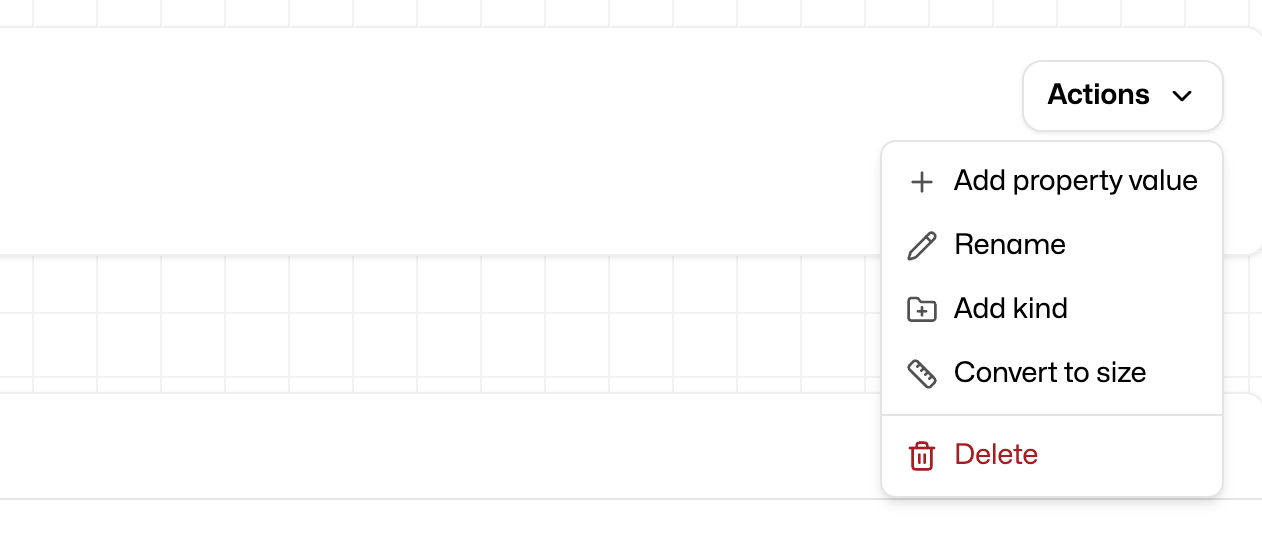
A size lies on an axis: length, width, height or diameter. The unit is mm, cm, m or in (inch). Type, axis and unit are fixed once the property exists, because they decide what each number means. If a text is really a size, choose Actions and Convert to size on the property.
Make a property
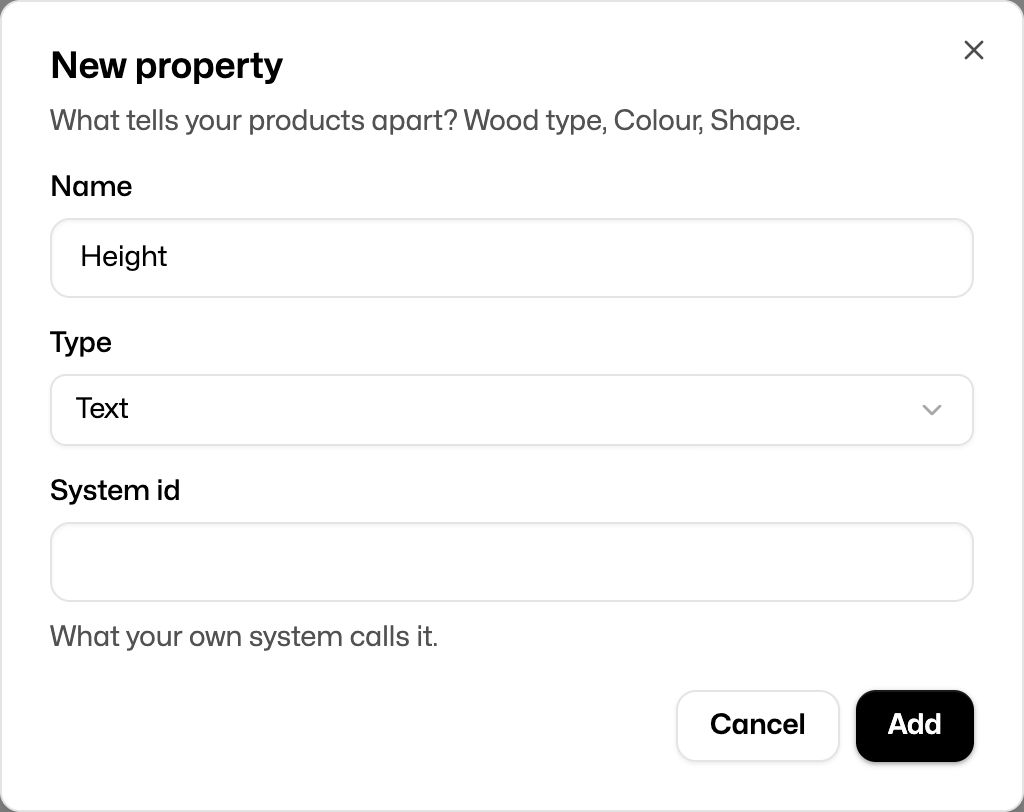
Section titled “Make a property”- Go to Propertiesopens Portal and choose New property.
- Give it a name, such as
Height. - Choose the type: Text or Size. For a size, also choose the axis and the unit.
- If your own system has a name for the property, fill it in under System id.
- Choose Add.
Then you give the property values. You give it to your products on their Variants tab. You can also make a new property there.