Your 3D file and what you leave out
What your customer sees in 3D comes from your 3D file. Step 0 of Set up model, File, shows what is in it: every
object and every material. The table Noor has 19 objects in 5 materials: Oak, Walnut, Black lacquer,
Black steel and Stainless steel. Objects and materials are named as the 3D artist named them in the file.
Every object is included, unless you leave it out. An object that is included gets a product in step 1.
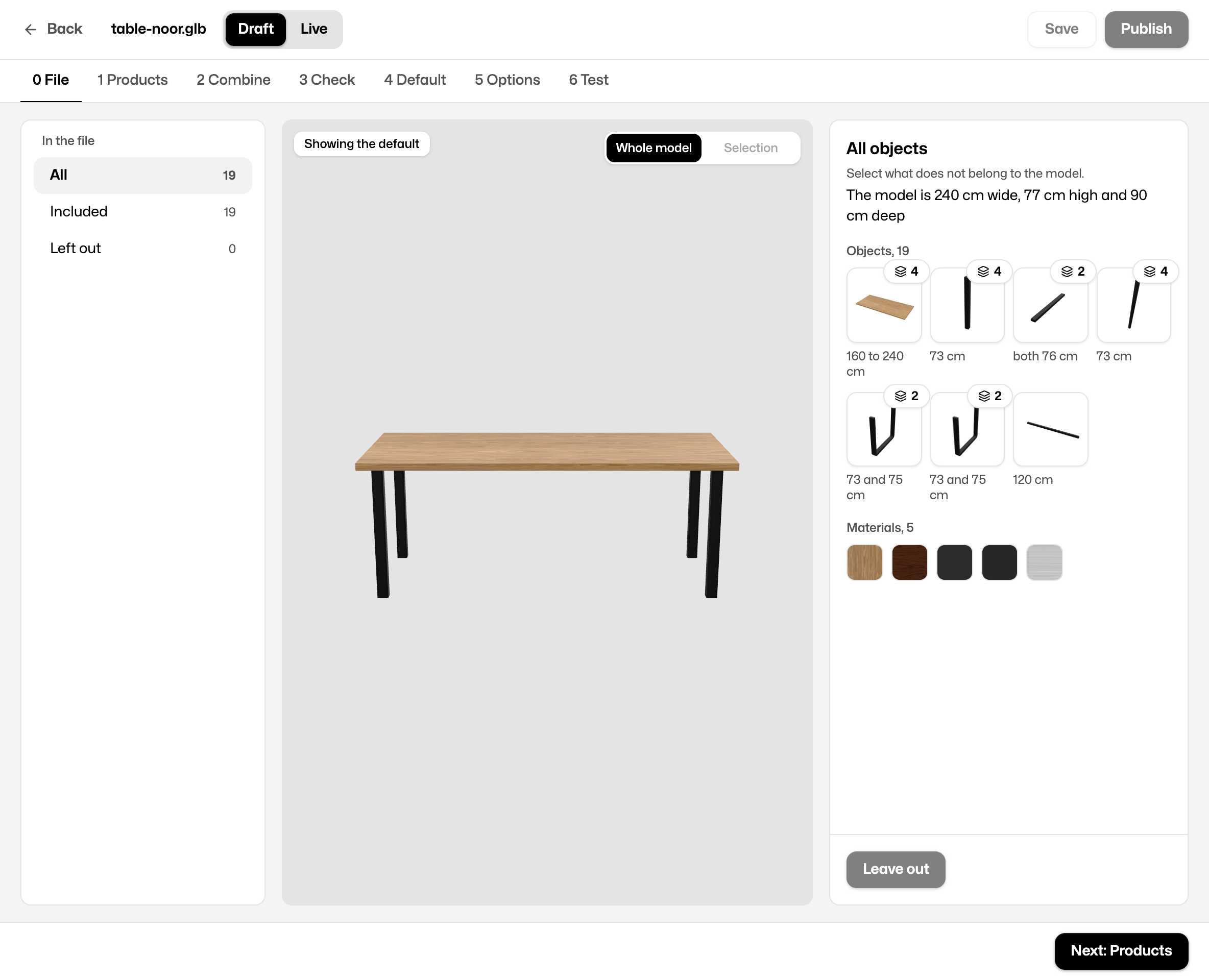
Objects become 1 picture when they are drawn in the same place. That also happens when the file keeps them in 1 named group. The same place comes first: that is why the 2 middle supports are 1 picture. With Show apart on a picture you see each object on its own. With Show together again you put them back. That is only on your screen: nothing is stored.
Leaving objects out
Section titled “Leaving objects out”A 3D file sometimes has objects that do not belong to the product: a floor, a helper block or an old version of a part. You leave those out in step 0. The model never shows an object you left out, at any choice. In step 1 it is not under Not placed yet.
The table Noor leaves nothing out. In the walk-through below you leave the beam out anyway, and put it back.
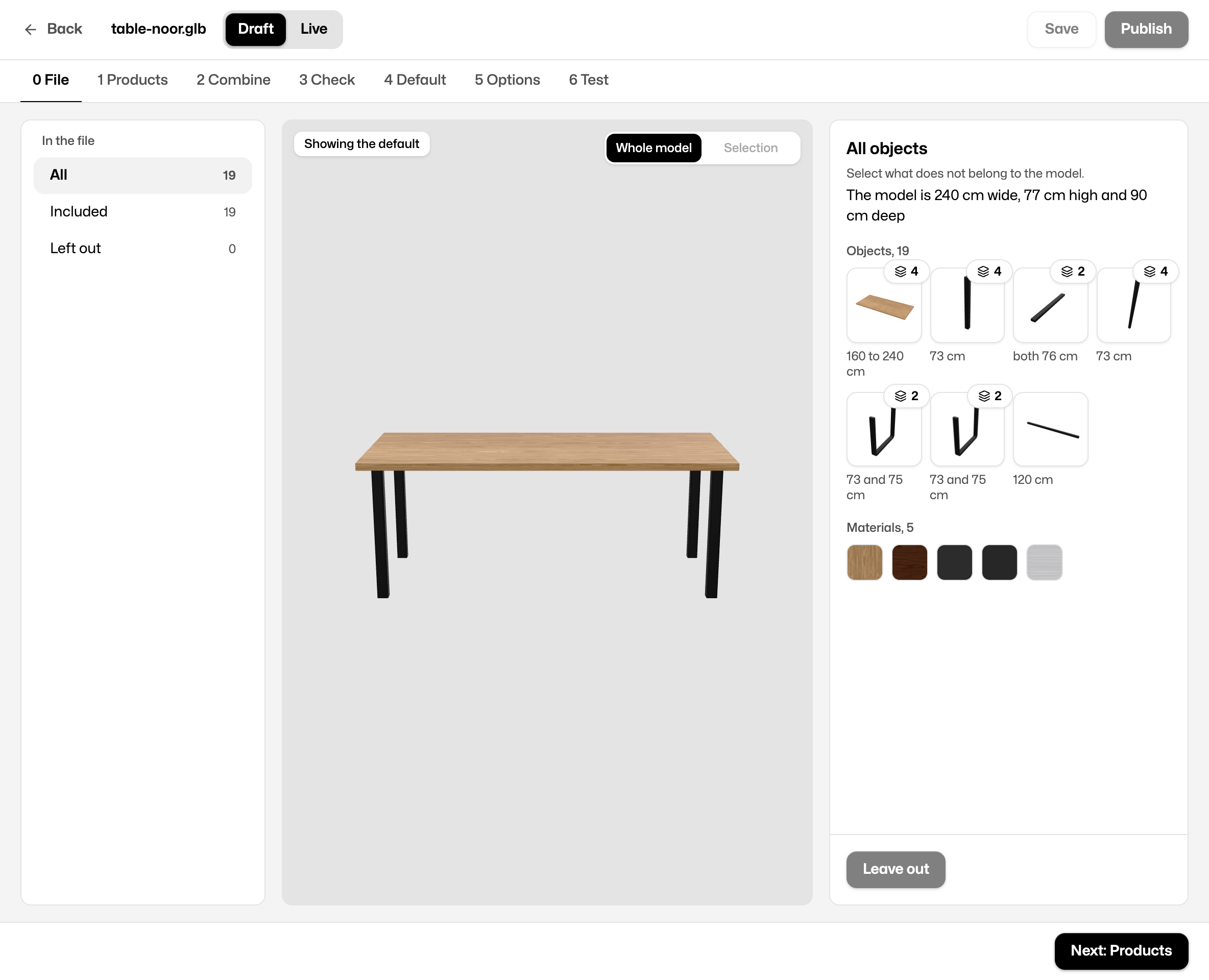
The screen is loading
Leave an object out
Section titled “Leave an object out”- In step 0, pick the object under All objects or Included.
- Choose Leave out.
- Choose Save.
When the object is on a picture with other objects, first choose Show apart on that picture. Then you leave 1 object out and the others stay included.
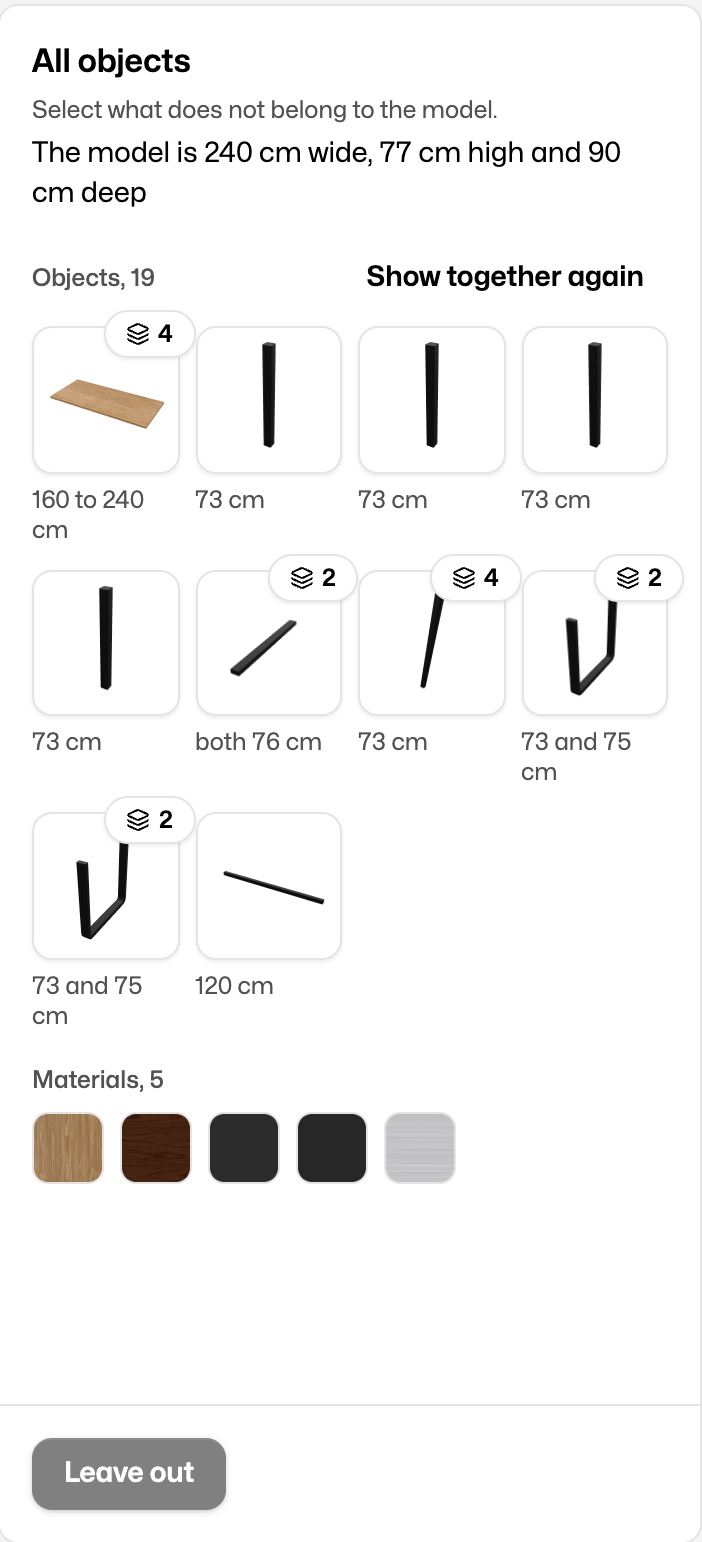
Left out lists what you left out. There you select an object and choose Put back to include it again.
You find step 0 at your model in Modelsopens Portal, under Set up model.