Show a value with objects or a material
When your customer picks another value, the model shows other objects, or the same objects get another material. On the
table Noor, Live edge shows another top than Straight. Walnut gives the same top another material than Oak.
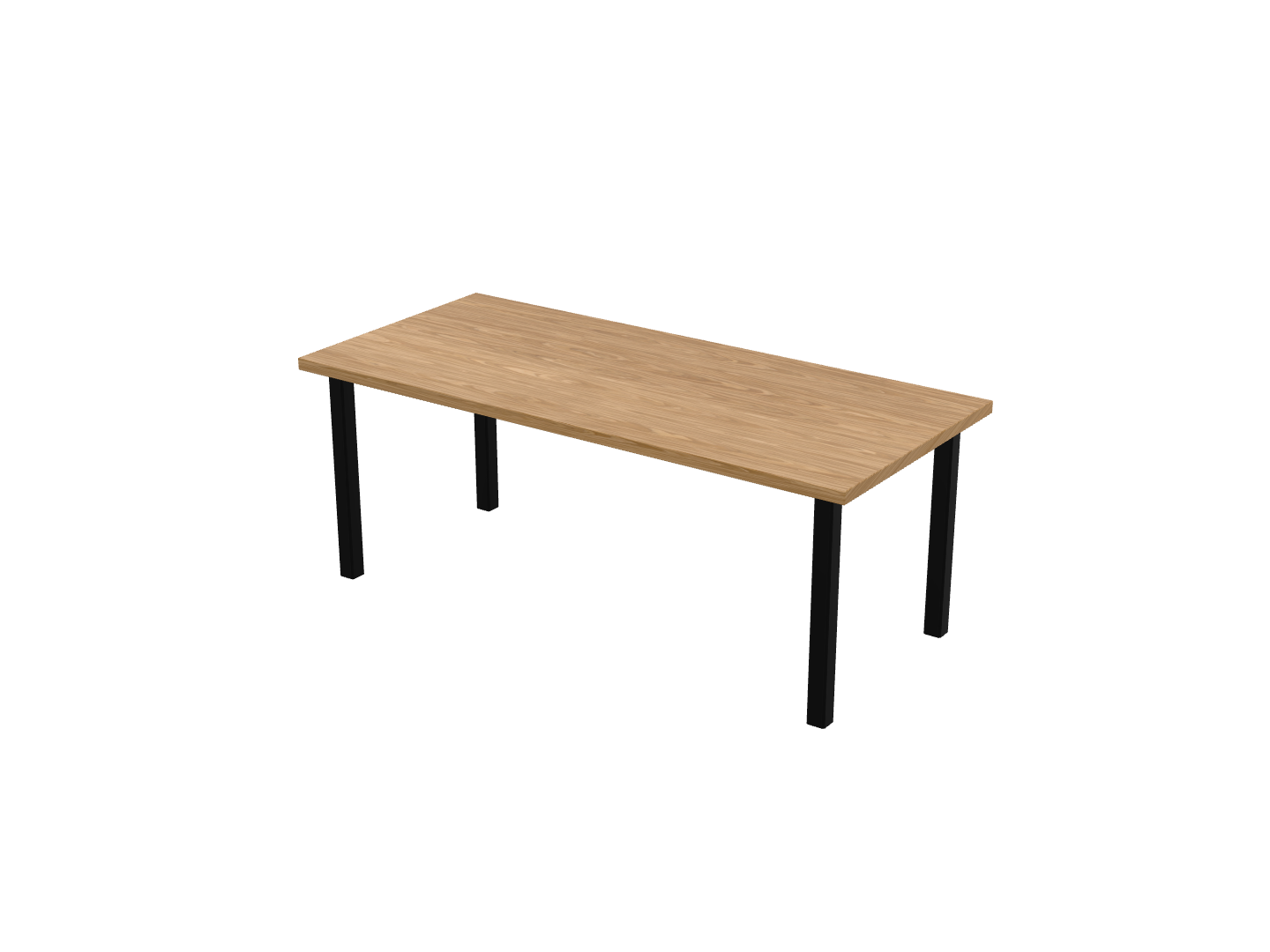 The top in oak
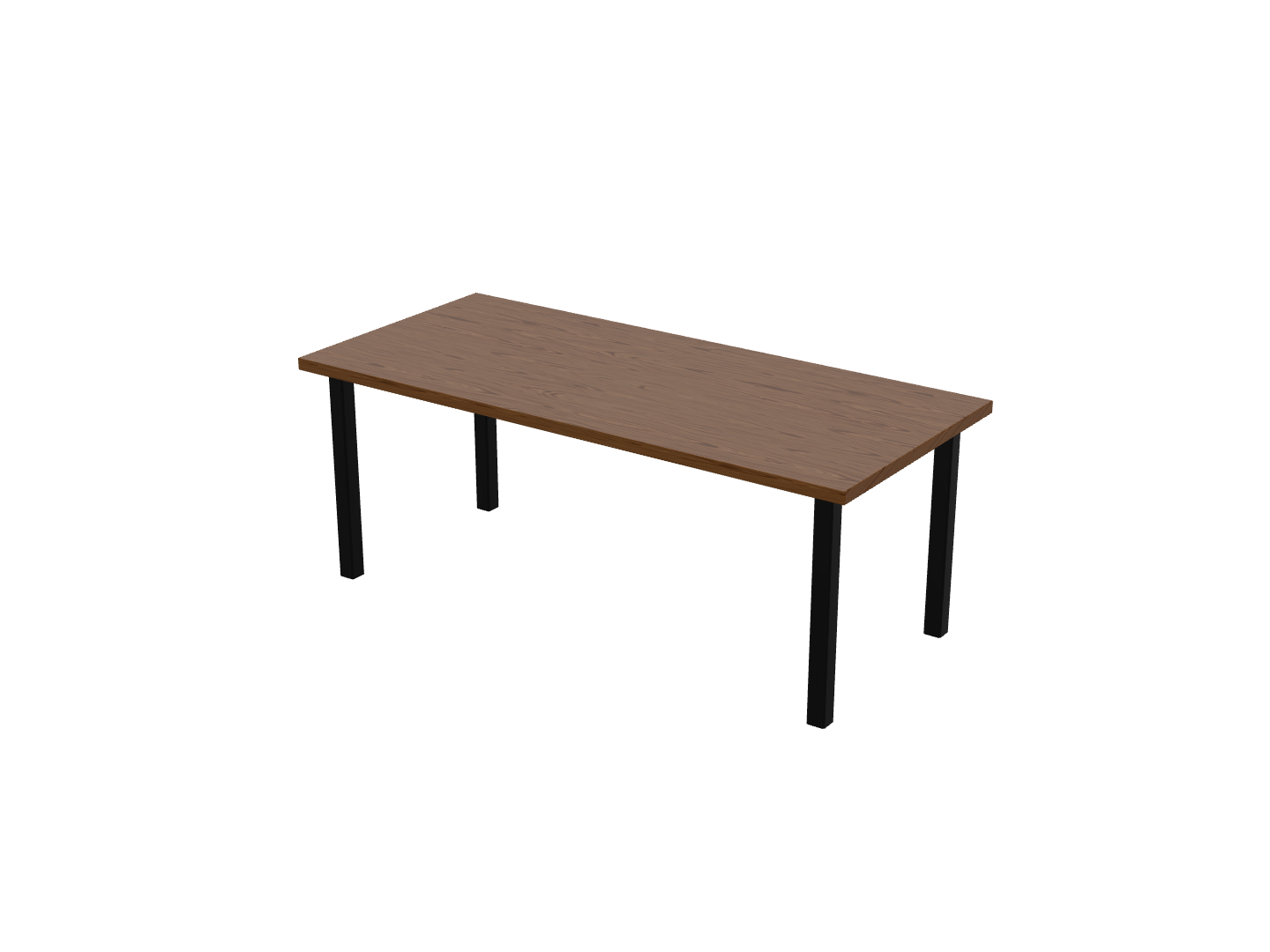 The same top in walnut
Objects per value
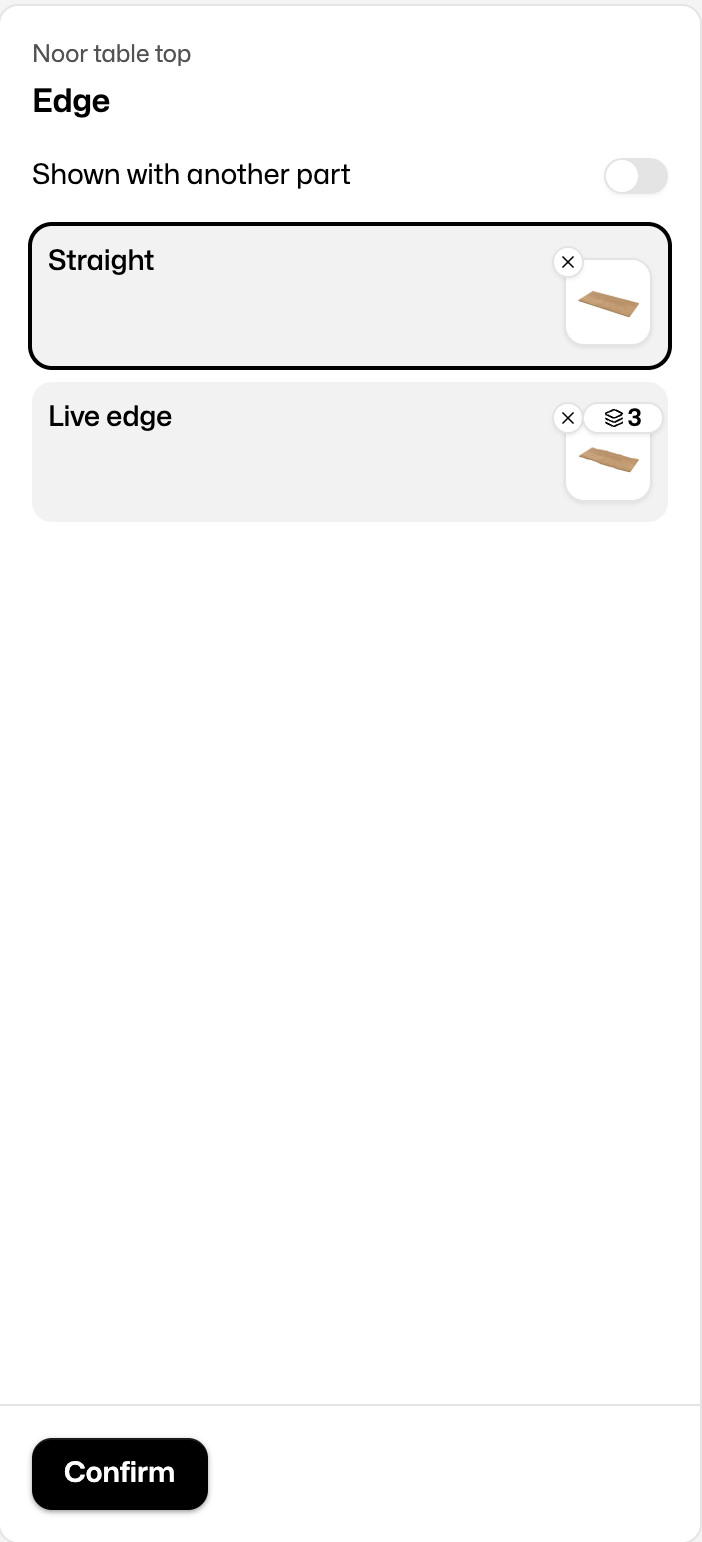
Section titled “Objects per value”Straight and Live edge are different objects in the file. That is why each value of Edge gets its own objects.
Straight is the straight top. Live edge is the 3 tops with a live edge, 1 per length Studio Lindeman makes it in.
- In step 2, open the part and pick the property, such as
EdgeatNoor table top. - Click the value, such as
Live edge. The border round the row shows where the next picture goes. The choice opens on the first value that has nothing yet. - Under From the file, click the objects that belong to that value. The value stays picked, so you can add more objects to it.
- Choose Confirm. The property gets a tick and the next one opens. Save stores it.
With the cross on a placed picture you put it back under From the file. A value with nothing at it, your customer does not get. When you open a property in which every value already has a picture, From the file is folded: More from the file brings it back.
A material per value
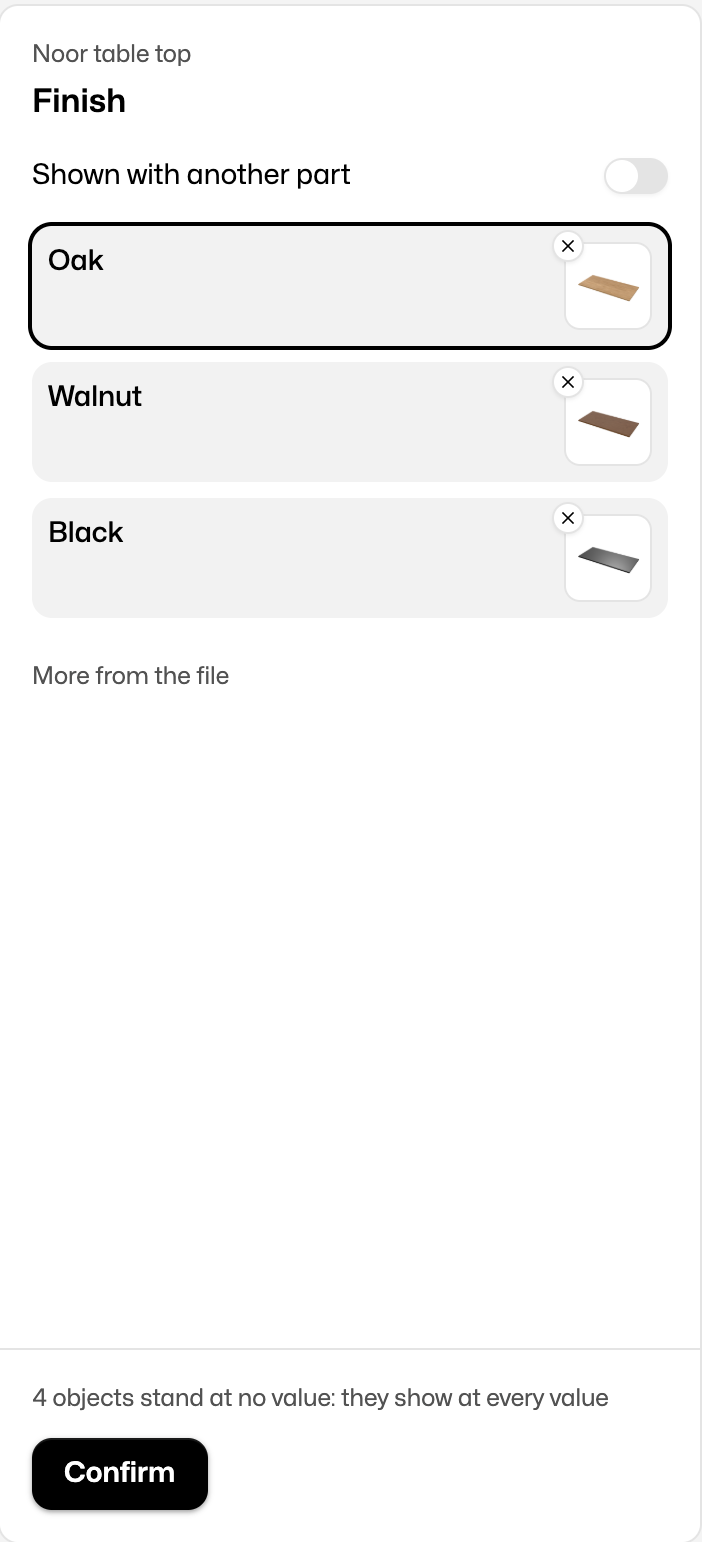
Section titled “A material per value”Oak, Walnut and Black are the materials Oak, Walnut and Black lacquer in the file, on the same objects. That
is why each value of Finish gets its material. When you click a material, the choice moves straight on to the next
value that has nothing yet. The top itself stands at no finish, so it shows with every finish.
The colour of the bases and the beam works the same way: Black is the material Black steel, Stainless steel the
material Stainless steel.