Manage product variants in Portal
For Noor table top, your customer chooses from 5 lengths, 2 widths, 2 edges and 3 finishes. Each combination of those
is a variant. The top of 160 by 90 cm with a straight edge in oak is 1 of them.
5lengths×2widths×2edges×3finishes=60variants
A variant always has its own SKU, the variant SKU. You may add a price and a barcode. If you leave the price empty, the product’s price applies.
A variant is not a product. The product is Noor table top. The variant is the top your customer orders, the one you
take from your workshop or warehouse. Products is about the product itself.
Studio Lindeman only makes the Live edge from 200 cm. So the 12 variants with Live edge at 160 and 180 cm
are switched off. So is the top of 240 by 100 cm with a live edge in walnut. That leaves your customer 47 variants to
choose from.
Where variants come from
Section titled “Where variants come from”Variants come from the product’s properties. On a product’s Variants tab, you choose under Properties which values the product has. When you choose a value, Portal makes a variant of every combination it adds. When you take a value away, Portal switches off the variants with that value. Nothing changes until you choose Save.
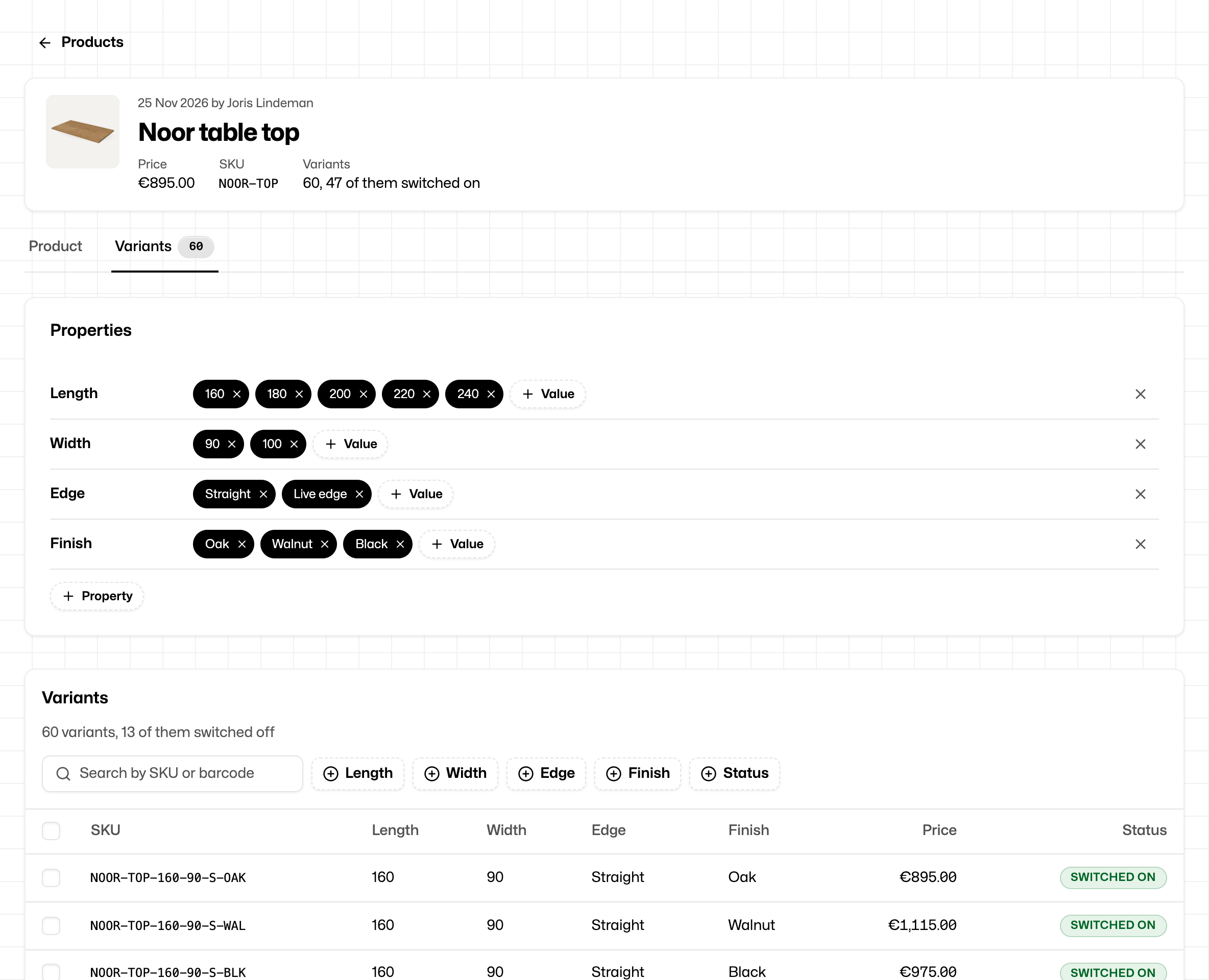
If you choose 1 value for a property, the product does not differ in it. The property then says what the product is. It adds no variants.
Switch off or delete
Section titled “Switch off or delete”Switching off takes a variant away for a while. Your customer cannot choose it, but it stays in Portal with its SKU, price and barcode. Deleting takes a variant away for good.
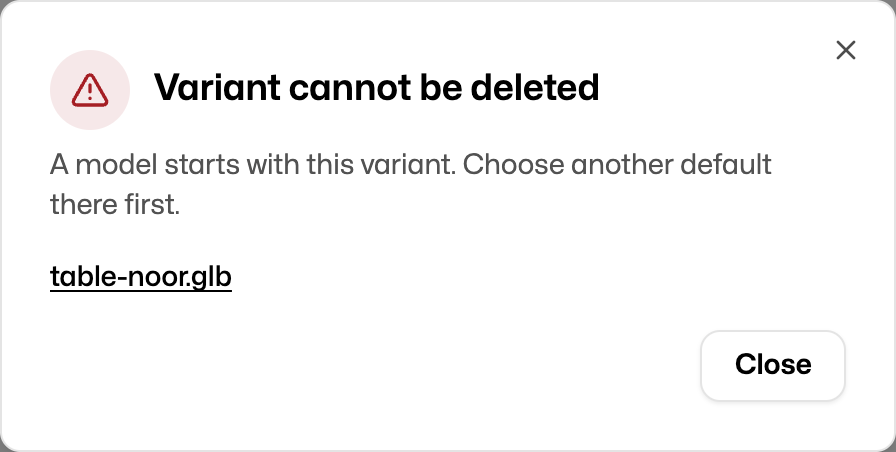
A variant also goes when you take a whole property away from the product. Variants that then no longer differ in anything, Portal merges into 1. It deletes the others on Save. If a 3D model opens on one of those variants, Portal refuses and names the model.
An import never deletes a variant. If a file names the SKU of a deleted variant, the import makes it again. An empty cell in a property’s column takes that value off the variant. If a variant is then left without a value of a property the product still has, Portal does not import that product. The same holds if it then equals another variant. See Import.
Edit a variant
Section titled “Edit a variant”Choose a variant in the table. You see its values and fill in its details.
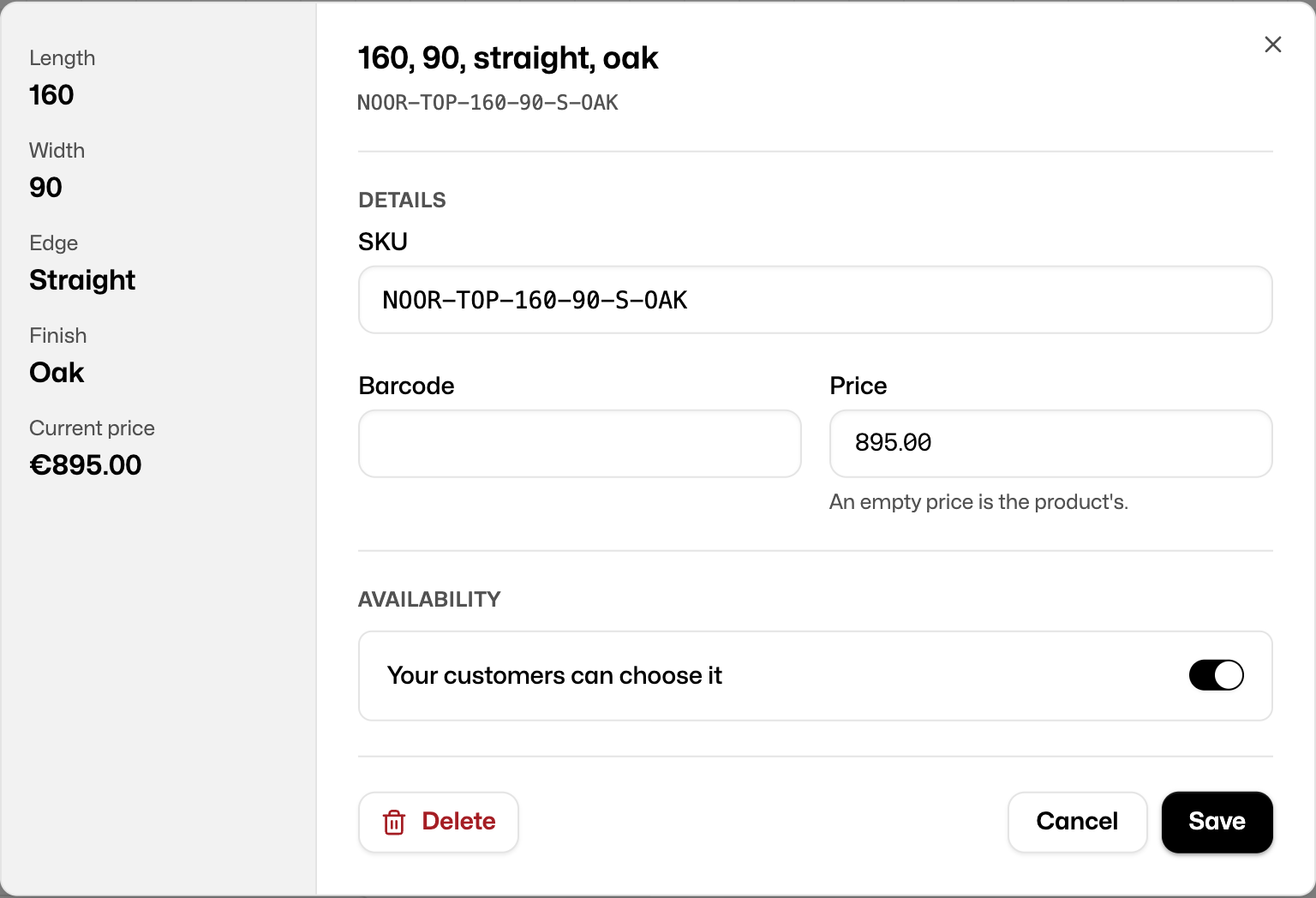
Switch a variant off
Section titled “Switch a variant off”Your customer cannot choose a switched-off variant. Since they cannot choose it, they cannot order it either. Switching off is your own choice. Portal knows no stock: a switched-off variant is not sold out.
- Choose the variant in the table.
- Turn off Your customers can choose it.
- Choose Save.
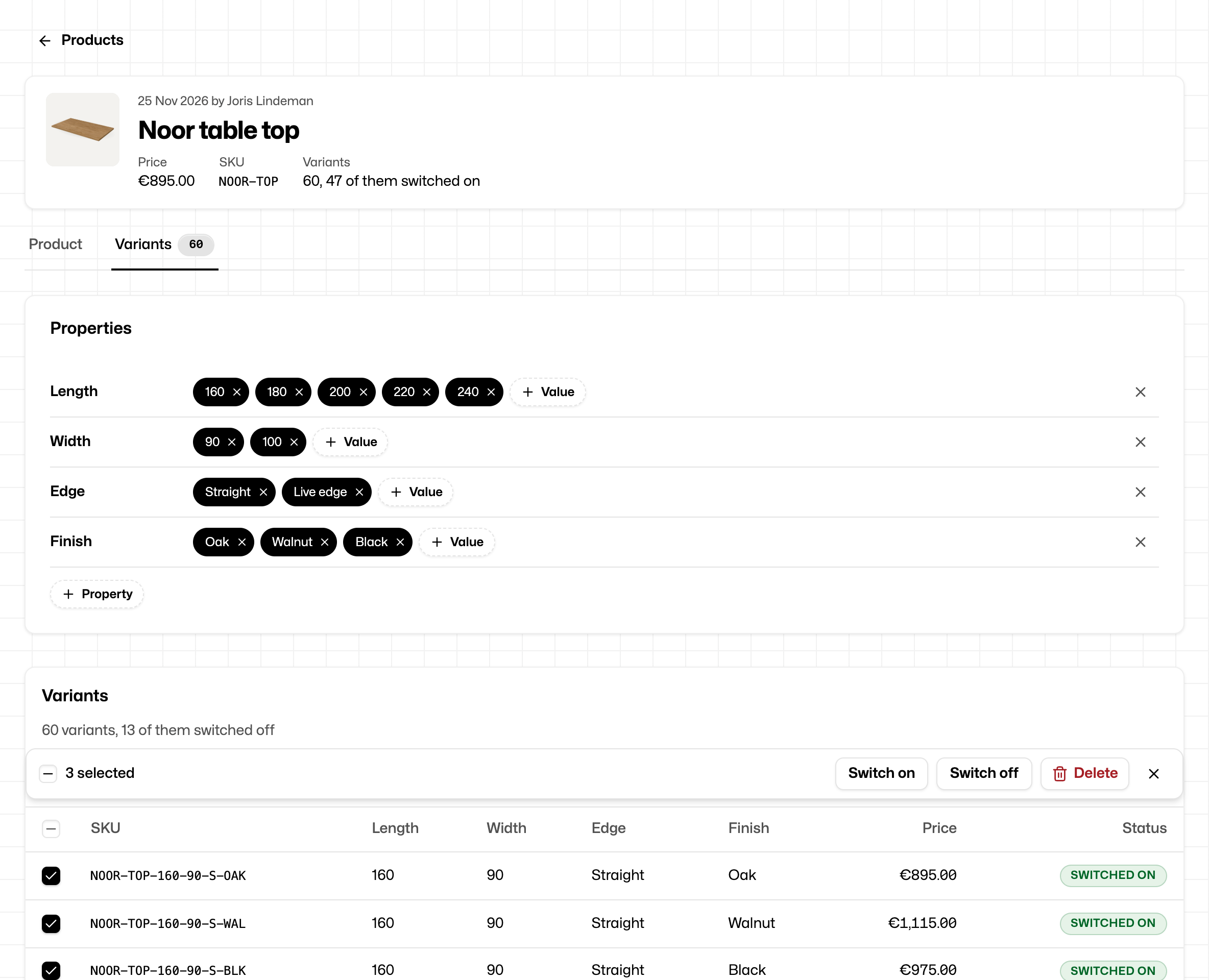
To switch several off or on at once, tick them in the table. A bar appears with the number you chose. Choose Switch off or Switch on there. That applies at once, without Save.
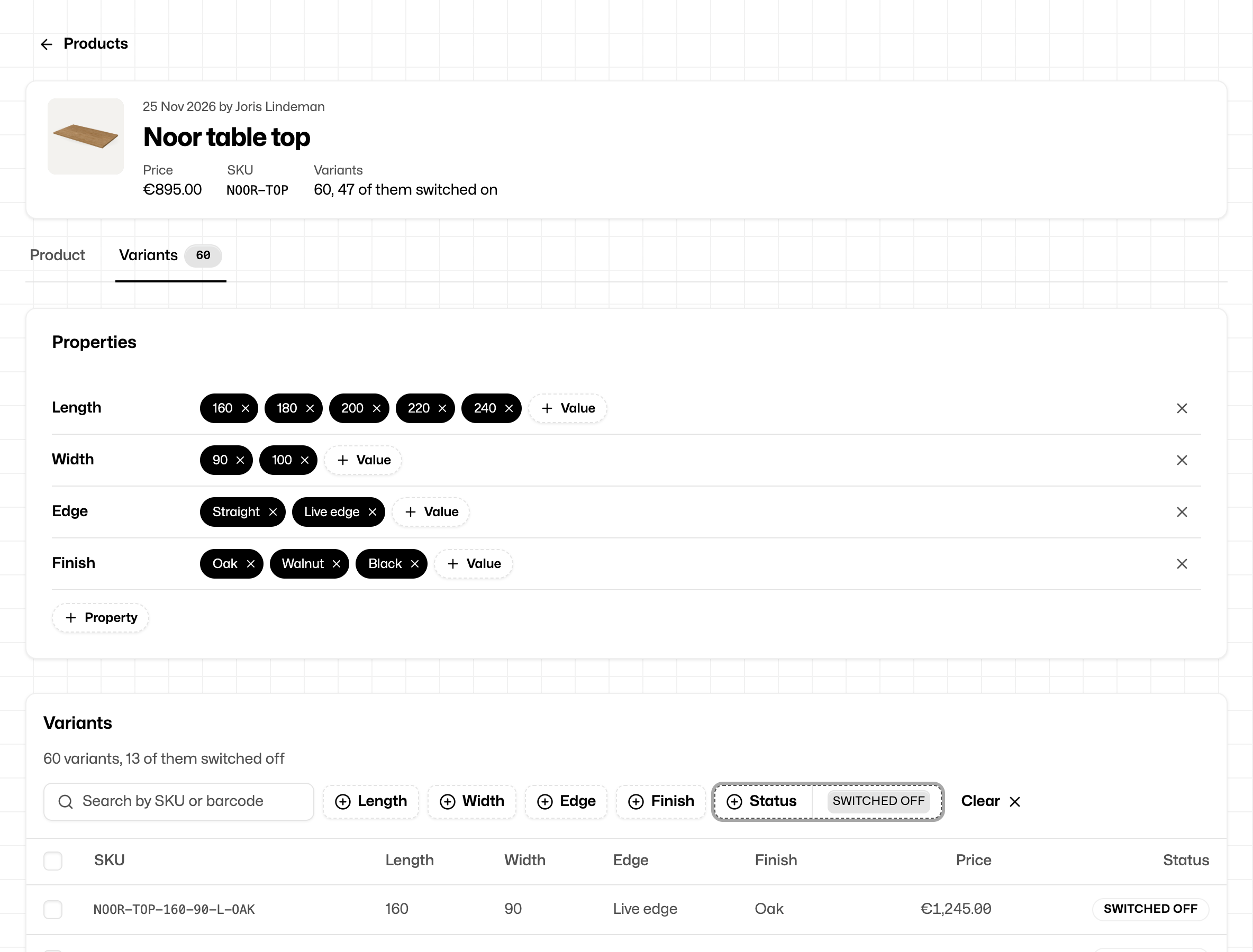
The Status filter shows which variants are switched off.
Delete a variant
Section titled “Delete a variant”- Choose the variant in the table.
- Choose Delete at the bottom left of the window.
- Confirm.
To delete several at once, tick them in the table and choose Delete in the bar, next to Switch on and Switch off.
The confirmation says which variant you delete, or how many. If a value of the product goes with the variant, it says so. If 1 variant is left, it becomes the product itself, with no SKU, price or barcode of its own. That is said too. A request that has the variant on it keeps its SKU and its text.
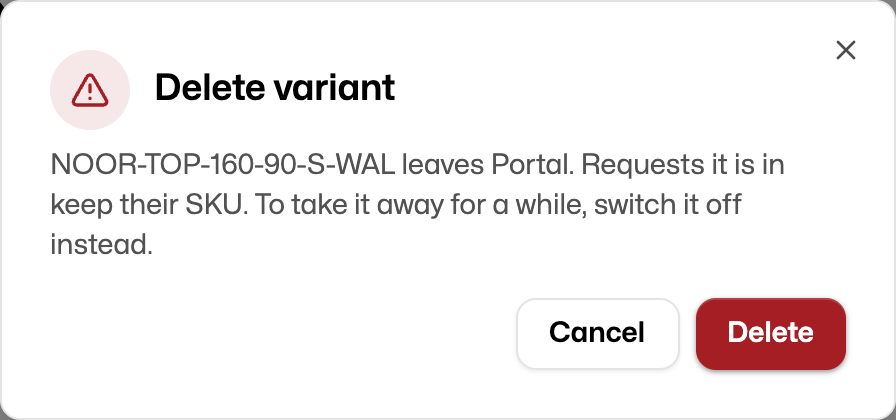
Portal refuses to delete while:
- a 3D model opens on the variant;
- a 3D model places something on a value only this variant has;
- a rule names the variant;
- it is the product’s last variant.
Portal then says why and links to the place where you solve it.
Where you see a switched-off variant again
Section titled “Where you see a switched-off variant again”- In every 3D model with this product. If
Lengthis at 160 cm and your customer choosesLive edge, the table setsLengthto 200 cm. The live edge does not come shorter. - In an import. It leaves a switched-off variant switched off, unless you switch it on in the preview. See Import.
You find a product’s variants on its page in Productsopens Portal, on the Variants tab.