Rules: combinations that cannot go together
For table Noor, your customer cannot choose a top with a live edge on the U-frame. A rule records that: what you do not
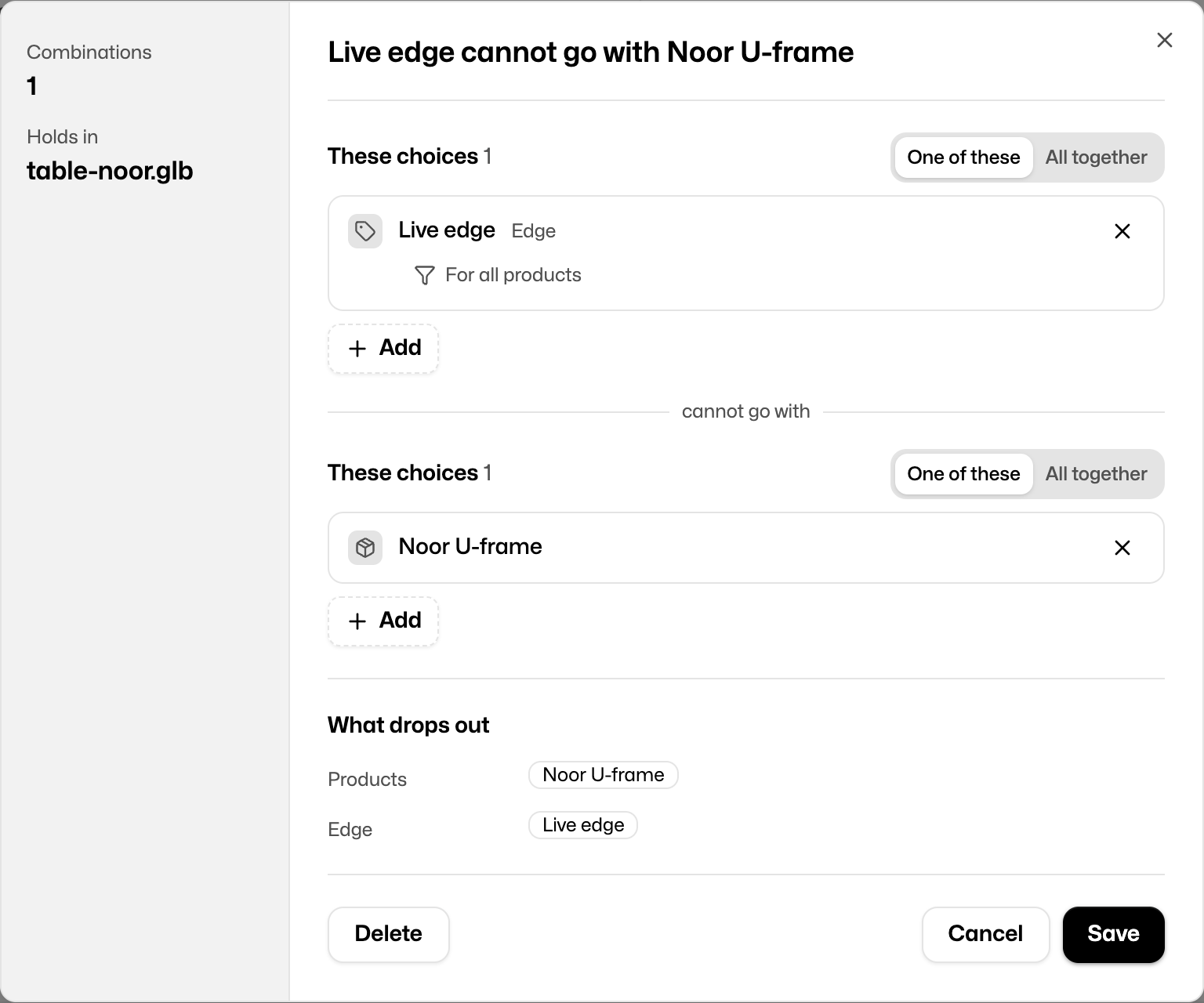
sell together. Studio Lindeman has 3 for table Noor. A top with a live edge does not fit the U-frame: Live edge cannot
go with Noor U-frame. The beam joins the 2 frames, so it does not fit under separate legs: Noor beam cannot go
with Noor straight legs. Noor beam cannot go with Noor angled legs either.
A rule belongs to your products, not to 1 model. It holds in every model with the products it names. If you make a
second model with Noor table top and Noor U-frame tomorrow, the rule holds there too.
The 2 sides
Section titled “The 2 sides”A rule has 2 sides. What is on the first side cannot go with what is on the second. On each side you put 1 or more choices. Per side, you choose how those choices count: One of these or All together.
Say Studio Lindeman puts Live edge and Walnut on side 1 and Noor U-frame on side 2. Switch below between One of
these and All together and see which tops belong to side 1.
Live edgeWalnutNoor U-frameA top that has Live edge or Walnut belongs to side 1. That is 3 of the 4 tops.Only a top that has Live edge and Walnut belongs to side 1. That is 1 of the 4 tops.
| Top | Noor straight legs | Noor U-frameside 2 |
|---|---|---|
| Straight, Oakside 1 | cancannot | cancannot |
| Straight, Walnutside 1 | cancannot | cancannot |
| Live edge, Oakside 1 | cancannot | cancannot |
| Live edge, Walnutside 1 | cancannot | cancannot |
What a choice can be
Section titled “What a choice can be”| Choice | For table Noor | What the rule then reaches |
|---|---|---|
| Product | Noor U-frame | every variant of that product |
| Value | Live edge, a value of Edge | every variant with that value |
| Kind | Wood, a kind of Finish | every variant with a value of that kind |
| Variant | NOOR-LEG-SS, Noor straight legs in Stainless steel | that one variant alone |
| Size | Length below 200 cm | every variant with a length in that range |
For a size, you choose below, up to, above or from. Then you type a number in the size’s unit.
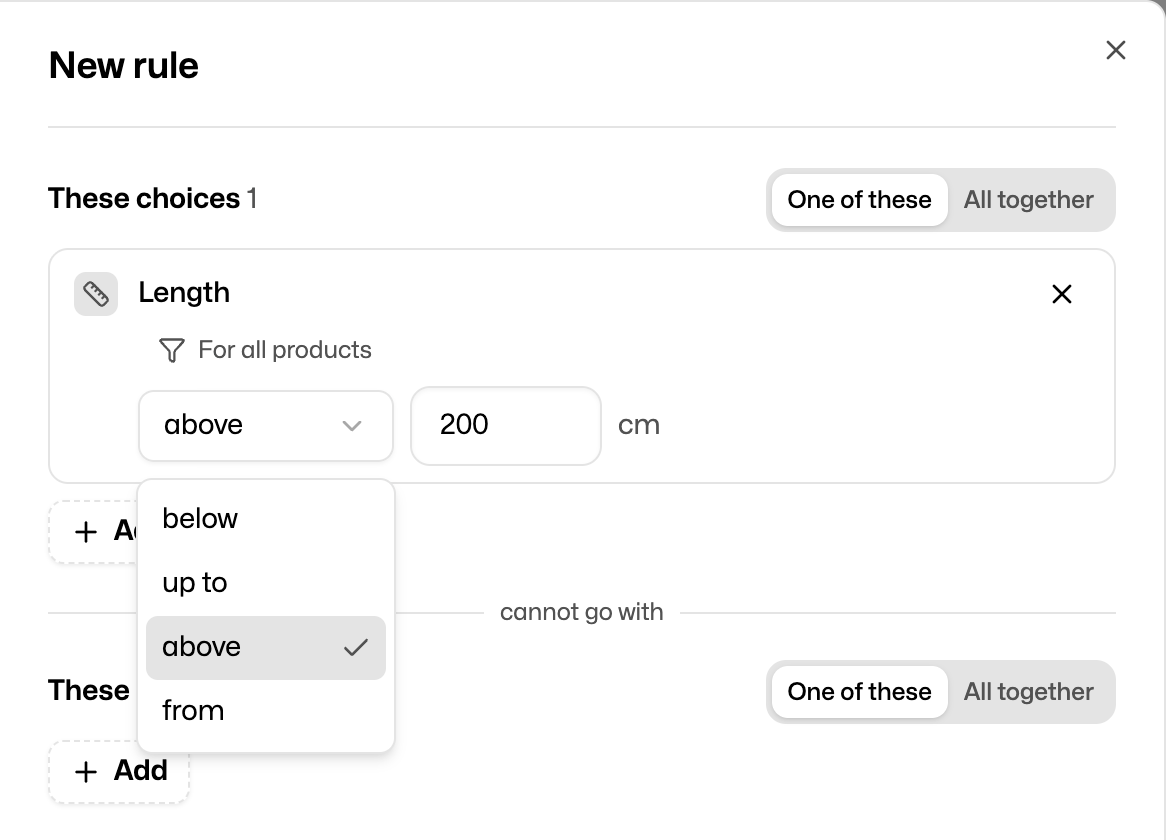
A value, kind or size holds For all products that have it. Choose Only at to limit it to the products you
choose. Colour belongs to 5 products. So Black only at Noor U-frame reaches the black U-frame, not the black legs
or the black beam.
Make a rule
Section titled “Make a rule”- Go to Rulesopens Portal and choose New rule.
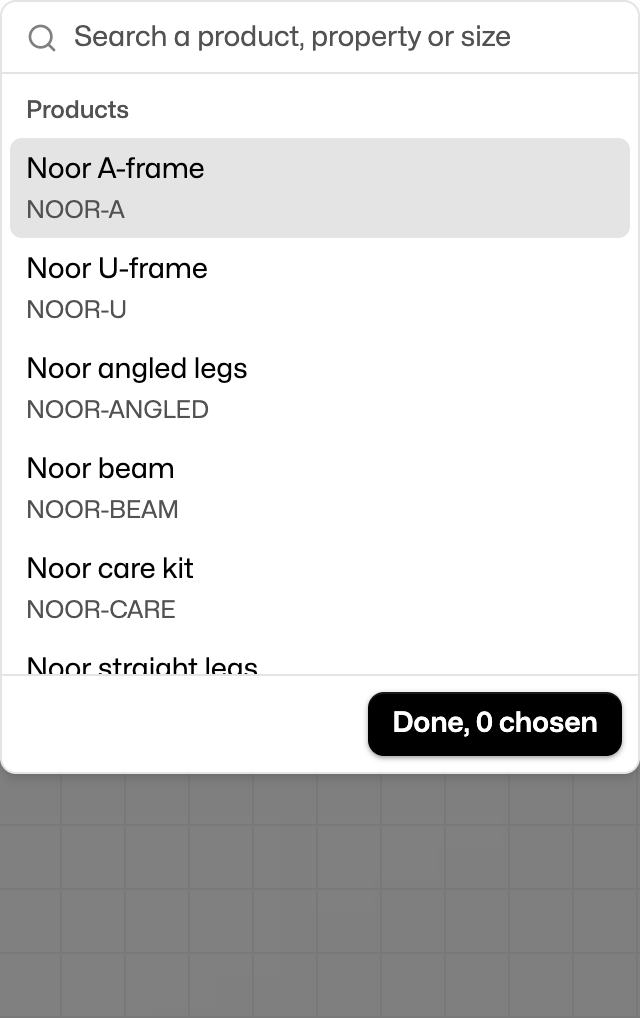
- On the first side, choose Add. Search for a product, property or size, tick what you want and choose Done.
- Choose One of these or All together.
- On the second side, under cannot go with, choose in the same way what cannot go with it.
- Under What drops out, see what your customer can no longer choose together because of this rule.
- Choose Save.
The rules in the list
Section titled “The rules in the list”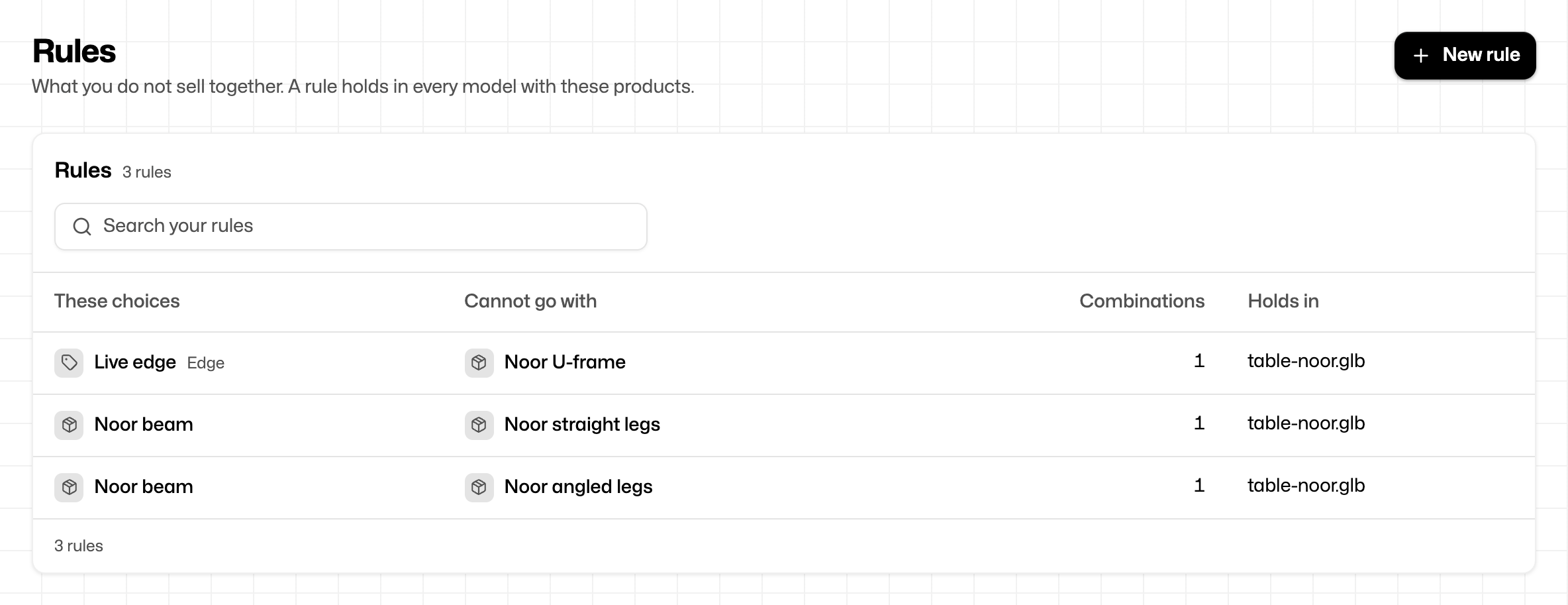
| Column | What it says |
|---|---|
| These choices | the rule’s first side |
| Cannot go with | the second side |
| Combinations | how many combinations the rule rules out: the ways on the left times those on the right |
| Holds in | the models the rule holds in now, because they have the rule’s products |
With One of these, each choice is a way of its own. With All together, all choices of that side together are 1
way. Live edge and Walnut with One of these, against Noor U-frame, gives 2 combinations: Live edge with the
U-frame and Walnut with the U-frame. With All together it is 1.
If Holds in names no model, no model has the rule’s products yet. It then does nothing yet.
A rule in your 3D model
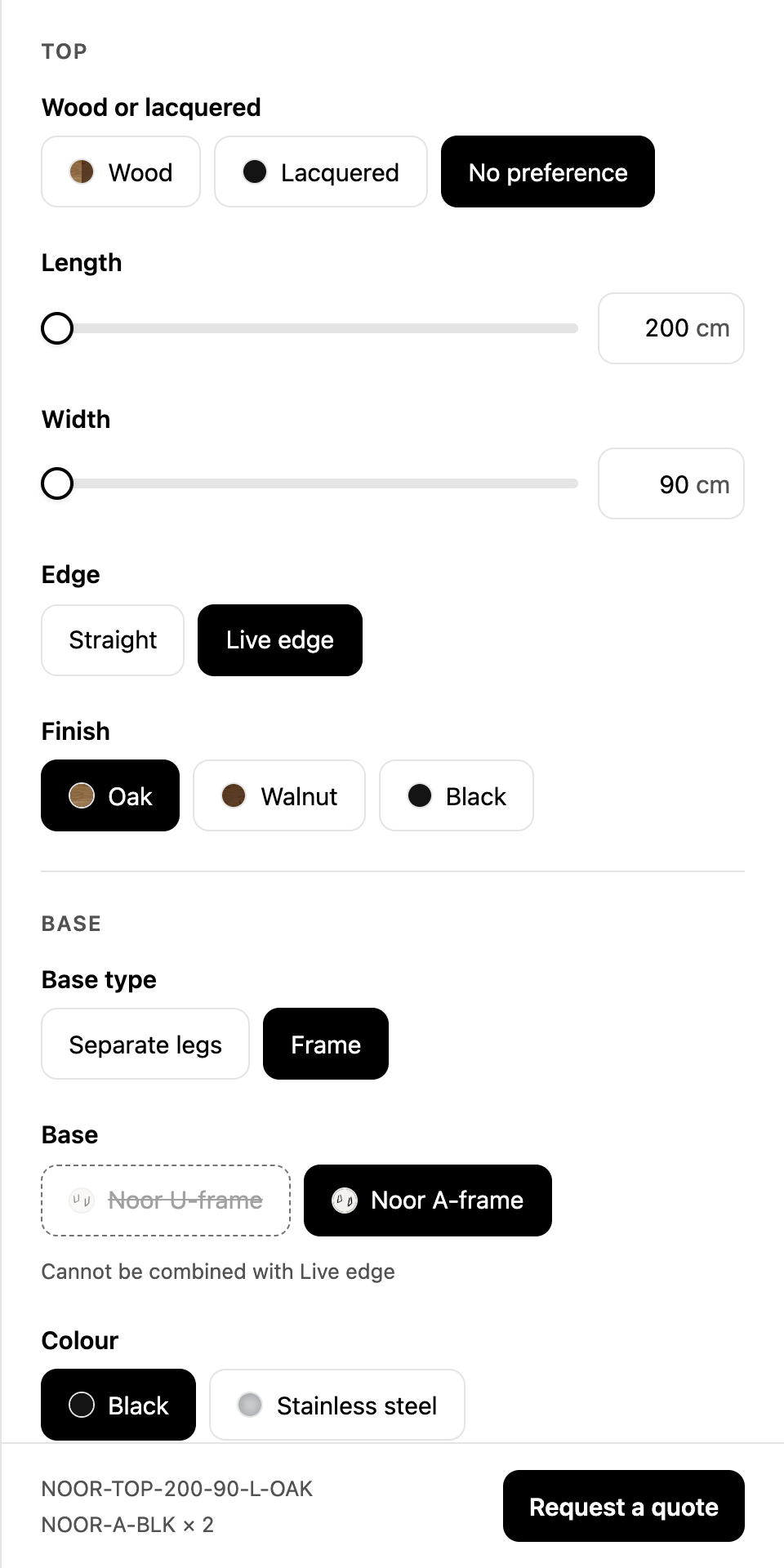
Section titled “A rule in your 3D model”Your customer cannot choose a choice a rule rules out. It is struck through and has Not available in its name. When your customer taps it, or reaches it with the mouse or the keyboard, a line under the question says what stands in the way:
| What stands in the way | What your customer reads |
|---|---|
| 1 of their choices, such as Live edge | Cannot be combined with Live edge |
| more of their choices | Cannot be combined with your current choices |
| no choice of theirs | Not available |
Your customer does not see the rule’s own sentence. If your customer chooses Live edge and then Frame in table Noor,
Noor U-frame is struck through, with Cannot be combined with Live edge.
A rule may not rule out a model’s default. If it does, Portal says in which model when you choose Save. Choose another default in that model first.
Delete a rule
Section titled “Delete a rule”Open the rule and choose Delete. The combination can then be chosen again, in every model the rule held in.