Filters in your product configurator
When your customer picks Frame on the table Noor, they see only the 2 frames at Base. When they pick
Separate legs, only the 2 bases with legs.
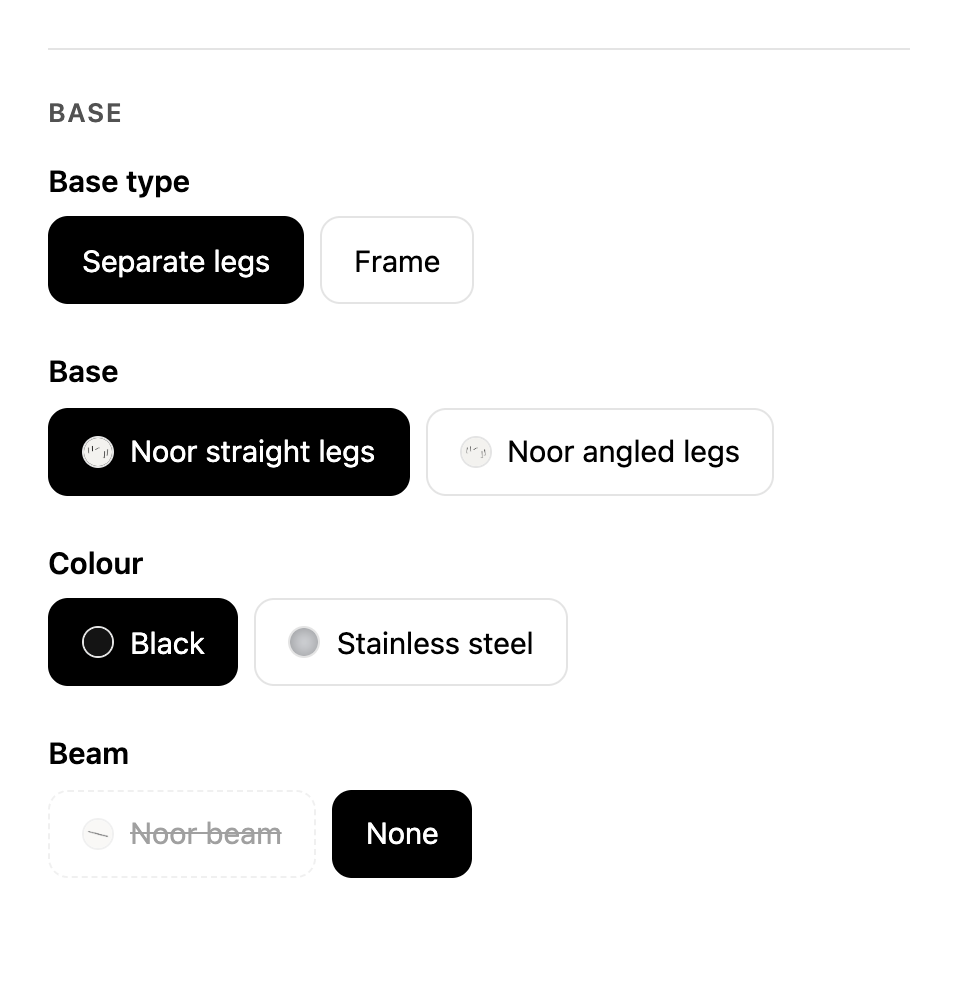 Noor straight legs and Noor angled legs
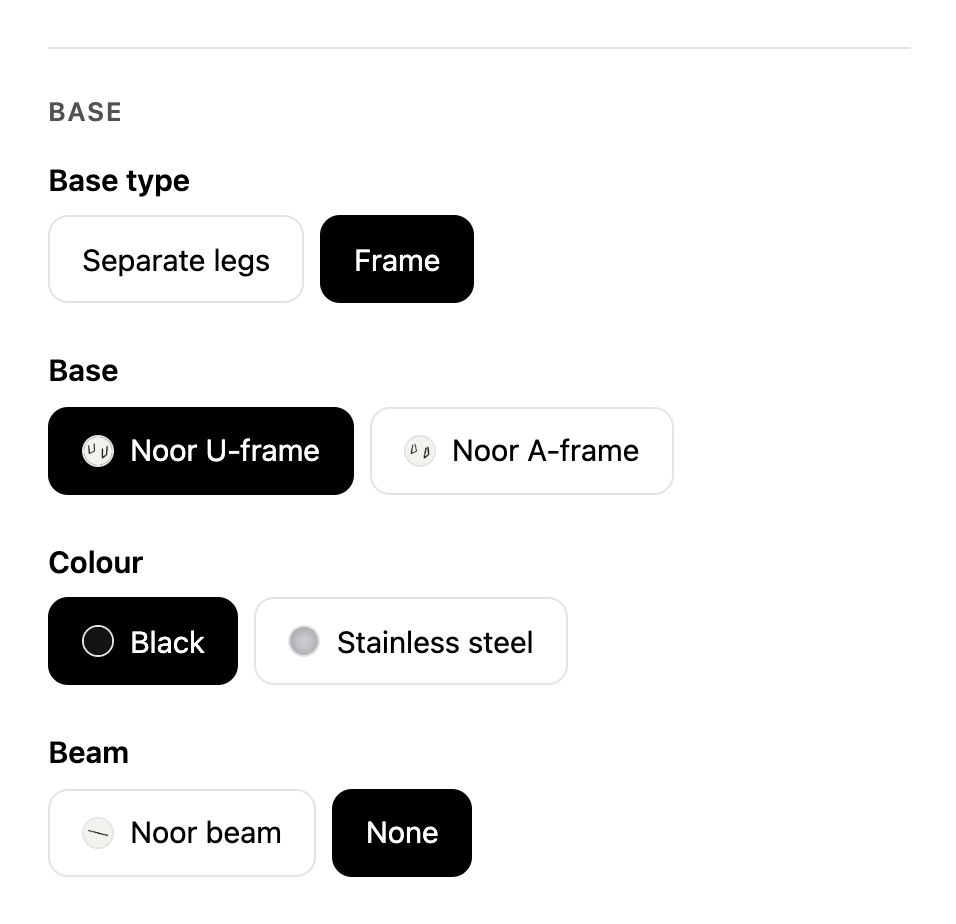 Noor U-frame and Noor A-frame
A filter narrows the options after it. It adds nothing to the order. There are 2 kinds of filters.
A filter over the products of a part
Section titled “A filter over the products of a part”Base type is a property the 4 bases vary in: Separate legs or Frame. As a filter, each value leaves the products
that carry it.
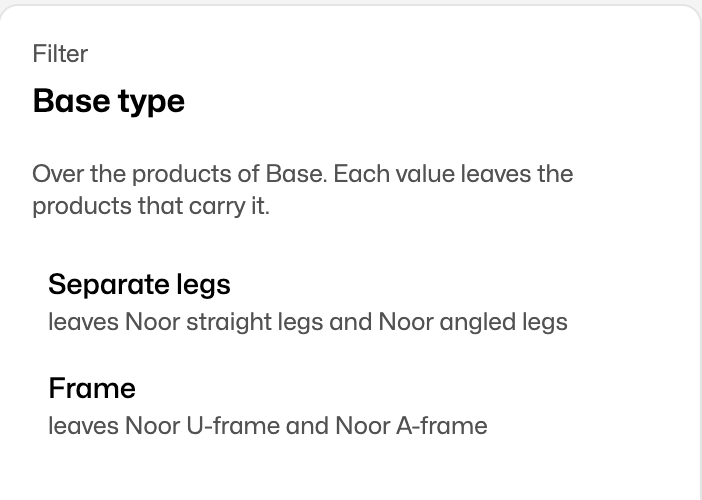
When more products are left after the filter
Section titled “When more products are left after the filter”Noor straight legs and Noor angled legs have exactly the same properties: Separate legs, in Black or
Stainless steel. So a filter cannot tell them apart. Then the configurator asks by itself which product it is. That
question is named after the part, here Base, and has the products’ names as answers. You set nothing up for it.
When each product of that question has a photo, it shows small before the name, like the swatch of a value. When 1 product lacks its photo, none of the products shows one.
When 1 product is left after the filter, that is the answer and the question does not come. When you want your customer never to pick by product name, give the products a property they vary in and make a filter of it.
A filter over kinds
Section titled “A filter over kinds”Finish has 2 kinds: Wood has Oak and Walnut. Lacquered has Black. As a filter, each
kind leaves its own values. With No preference the filter narrows nothing.
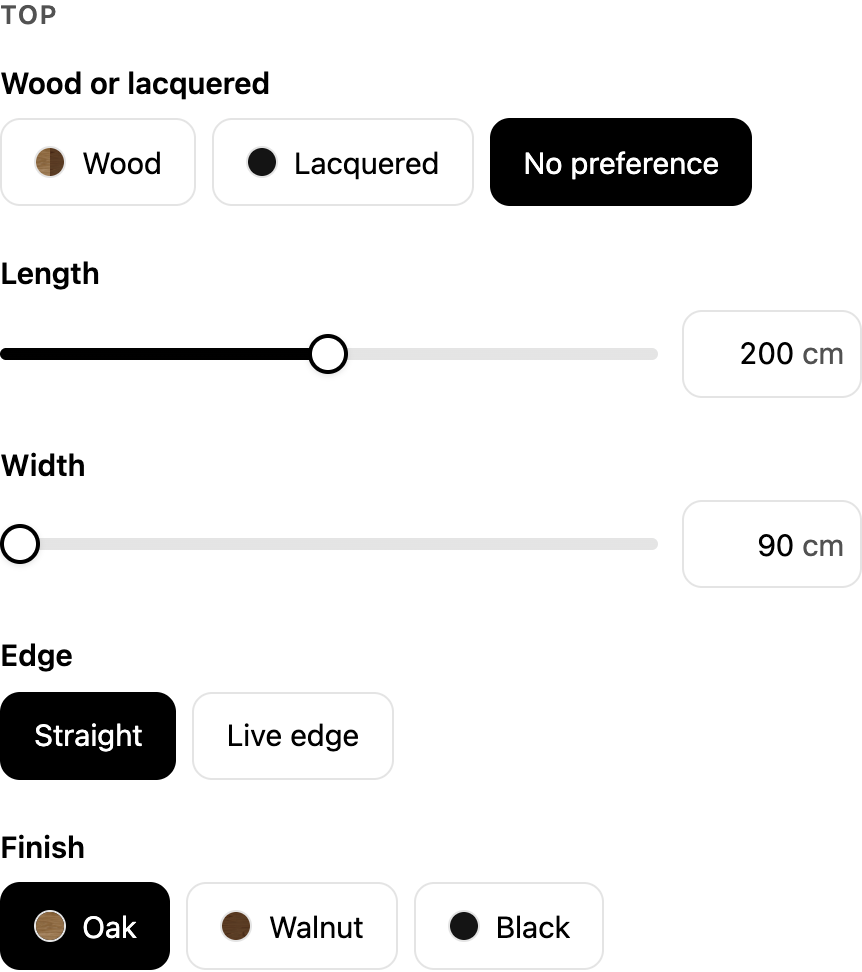 Finish: 3 values
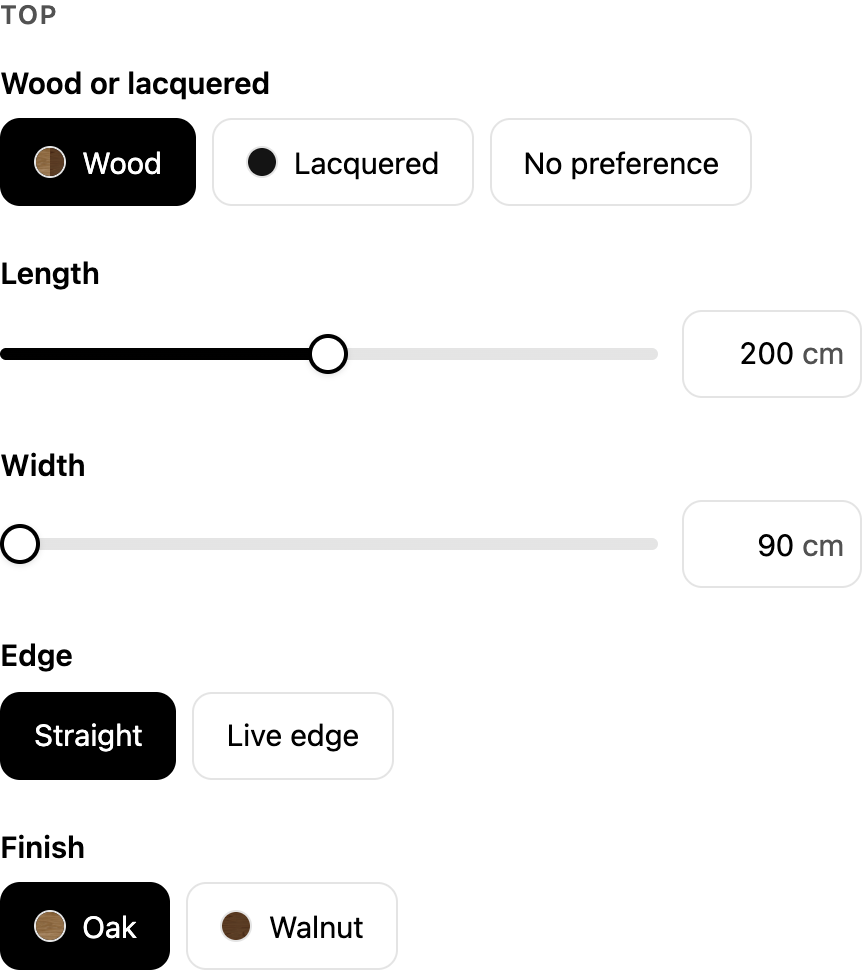 Finish: 2 values. Black drops out.
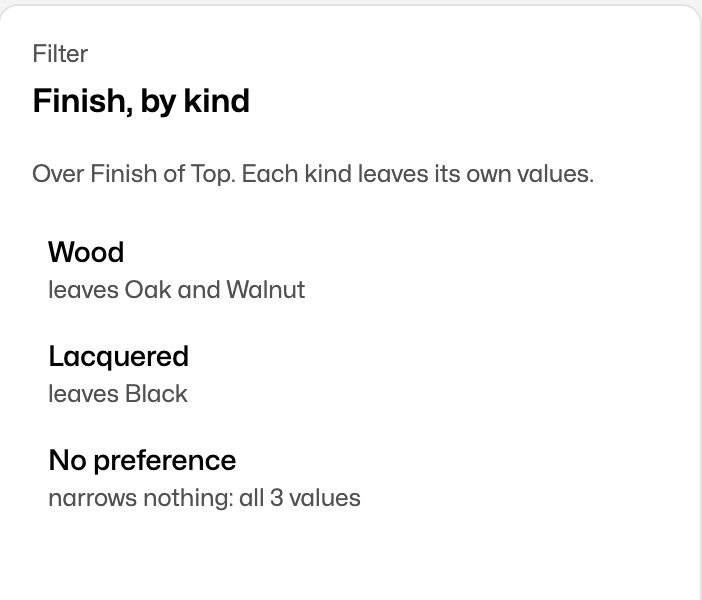
Add a filter
Section titled “Add a filter”- In step 5, choose Filters and then Add filter.
- Pick what the filter is over. Portal only offers what can filter: a property the products of 1 part vary in, or a property with kinds.
- Choose Confirm and then Save. Your customer sees it after Publish.
The filter is named after its property. You give it a name of its own, such as Wood or lacquered, under
Names.